
On this page
How to create a subdomain in cPanel
Create a subdomain in cPanel to organise your site into distinct sections or set up a separate test environment.
A subdomain is a subsection of your website that works as a separate site, without needing a brand-new domain name. Subdomains are ideal for organising content or for setting up a specific-purpose area such as a blog or a test site.
For example:
- blog.example.com - for a blog
- staging.example.com - for a test or development site
Why use subdomains?
- Organise your website into distinct sections
- Create test or staging environments
- Set up memorable URLs for specific areas
How to create a subdomain
-
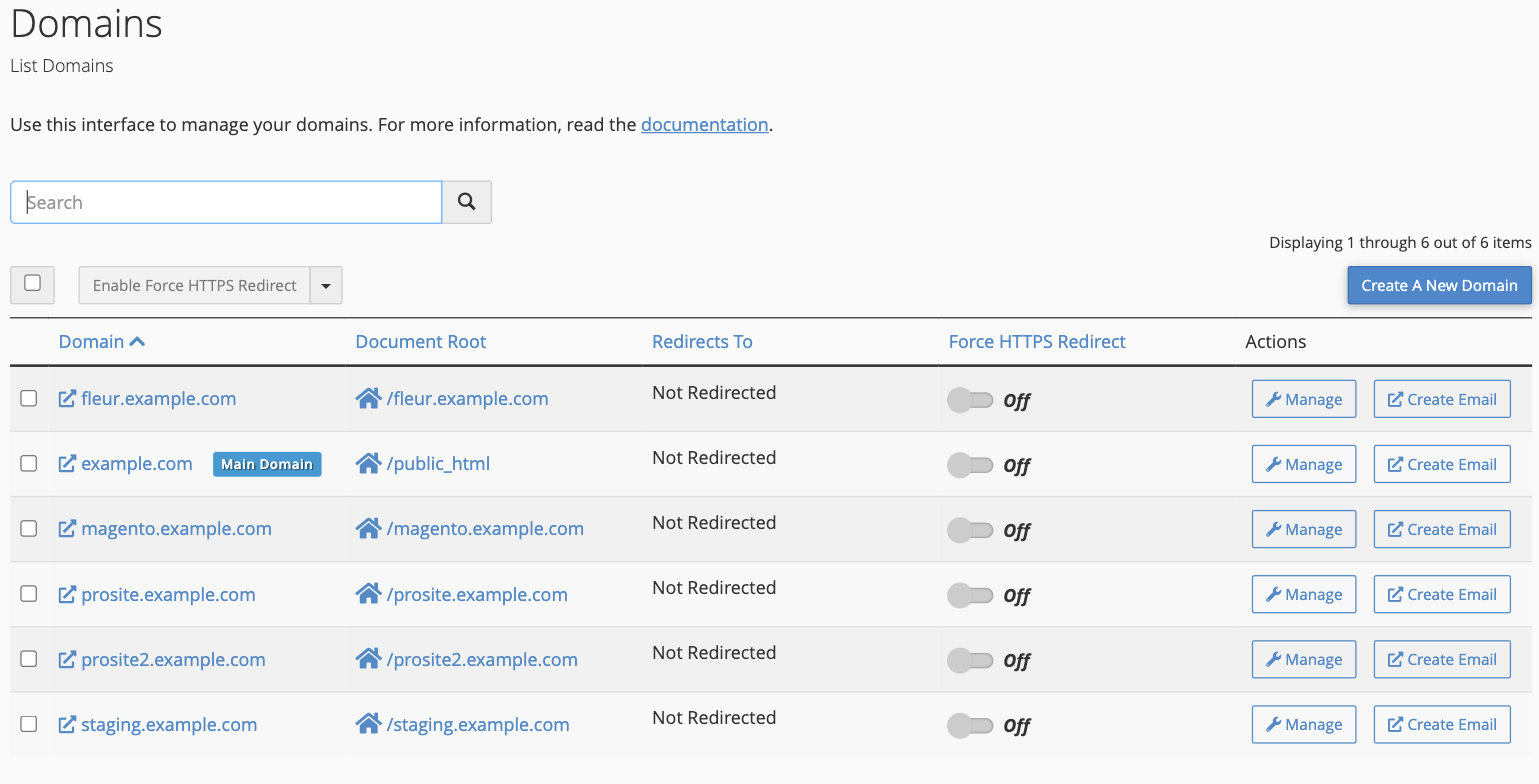
Log in to cPanel and open the Domains tool, found in the Domains section.
-
On the Domains page, click Create A New Domain.
-
Make sure Registered Domain is selected, then in the Domain field type the full subdomain you want - for example
blog.example.comorstaging.example.com.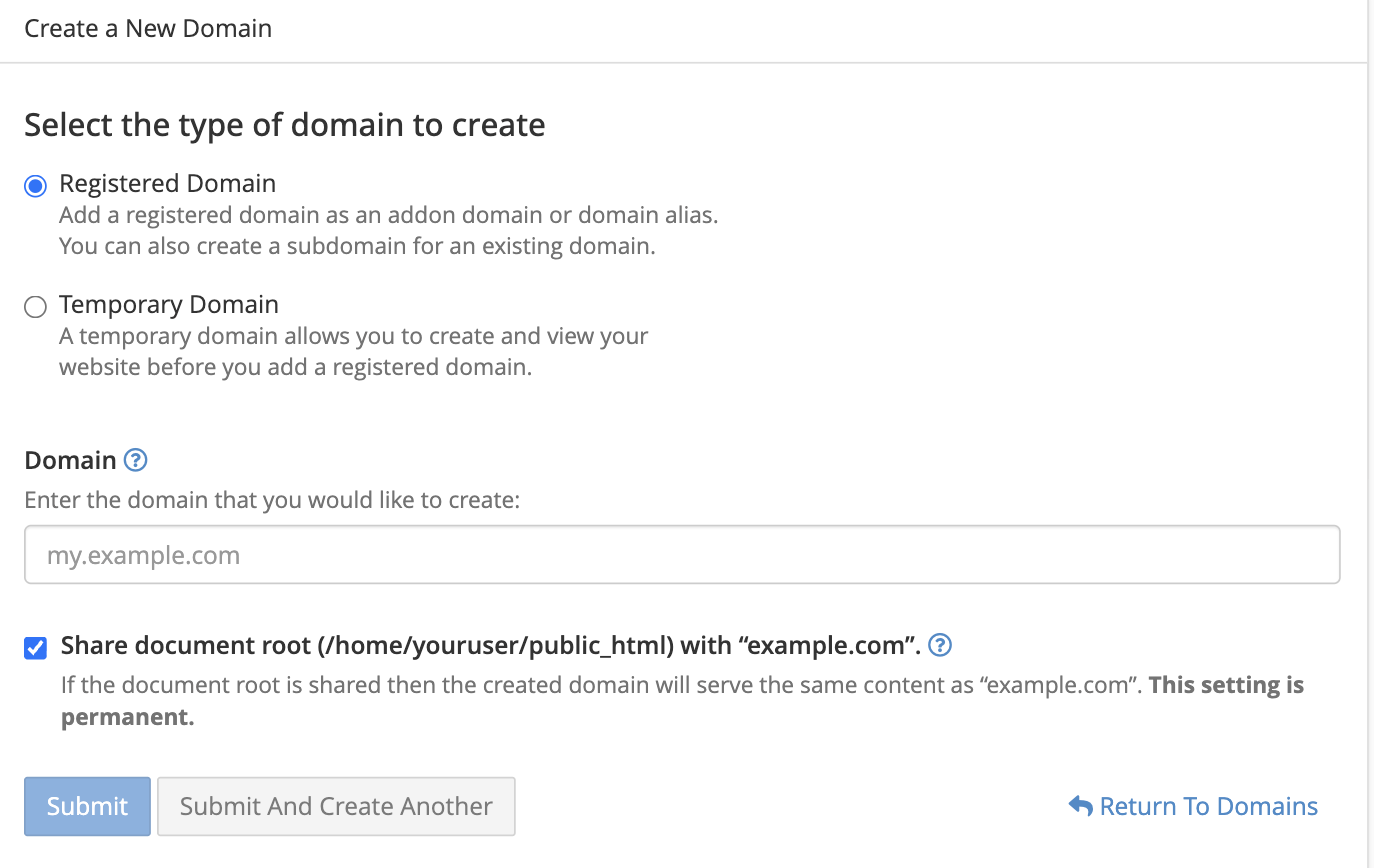
-
Choose how the subdomain should serve its content:
- Its own content (most common for a subdomain): untick Share document root. cPanel then shows a Document Root field containing a folder named after the subdomain, which you can keep or change. The subdomain gets its own separate folder.
- The same content as your main site: leave Share document root ticked. The subdomain then behaves like an alias and shows your main site's content.
-
Click Submit.
What happens next?
Once the subdomain is created:
- If the folder does not already exist: cPanel creates a new folder where you can upload files for the subdomain.
- If the folder already exists: the subdomain uses that folder and displays any content already in it.
Going live
- If your domain points to Kualo nameservers: the subdomain will usually start working within a few minutes. If you are not sure whether your domain uses our nameservers, it most likely does - wait a few minutes and check.
- If your domain does not point to Kualo nameservers: you need to add an A record with your domain provider pointing the subdomain to your hosting IP address. If you are unsure how to do this, contact us and we will help.
Adding content to your subdomain
Your subdomain is ready - here are the most common ways to populate it:
- Upload files: use cPanel's File Manager or an FTP client to upload files to the subdomain's folder.
- Install WordPress: use WP Toolkit to install and manage a WordPress site.
- Install another application: use Softaculous to install other apps such as Joomla, Drupal or phpBB.
- Clone an existing site: duplicate a site you already have using Softaculous's clone tool.
- Use our site builder: build content from scratch with ProSite, or import a backup of an existing ProSite website.
To manage all of your domains - including addon domains and aliases - from one place, see How to use the Domains tool in cPanel.