
On this page
How to use the IP Blocker in cPanel
The IP Blocker in cPanel lets you block specific IP addresses or ranges from accessing your website, but it has real limitations. This guide explains how to use it and when other tools offer better protection.
The IP Blocker in cPanel lets you prevent specific IP addresses or ranges from accessing your website - useful for blocking unwanted visitors or abusive traffic. However, it is worth understanding what IP blocking can and cannot do before relying on it as your main line of defence.
Limitations of IP blocking
IP blocking is a simple, manual tool and has several practical limitations:
- Bad actors change IPs frequently. Attackers, scrapers, and spammers routinely rotate through different IP addresses, so a block you add today may be bypassed almost immediately.
- Single-IP attacks are rare. Distributed attacks typically spread connections across many IPs, meaning blocking one address has little effect on the overall volume.
- You cannot block entire countries. The IP Blocker works on individual addresses and ranges, not geographic regions. Country-level blocking requires a network-layer solution.
- IPs are not permanently good or bad. A shared IP address that belongs to a legitimate user today may be reassigned to an abusive one tomorrow, and vice versa. Blocking a range can catch innocent visitors.
For these reasons, IP blocking is best used for targeted, short-term situations - for example, stopping a specific known address that is hammering your site right now - rather than as a broad security strategy.
We already run Imunify360 on your hosting account, which provides automated, real-time protection against malware, intrusions, and abusive traffic at the server level - without you needing to manage individual IPs. For network-level protection, including DDoS mitigation and country-level rules, you can place Cloudflare in front of your site. See How to set up Cloudflare with your Kualo hosting account for details.
Block an IP address
-
Log in to cPanel and click IP Blocker (in the Security section).
-
In the IP Address or Domain field, enter the IP address, range, or domain you want to block, then click Add.
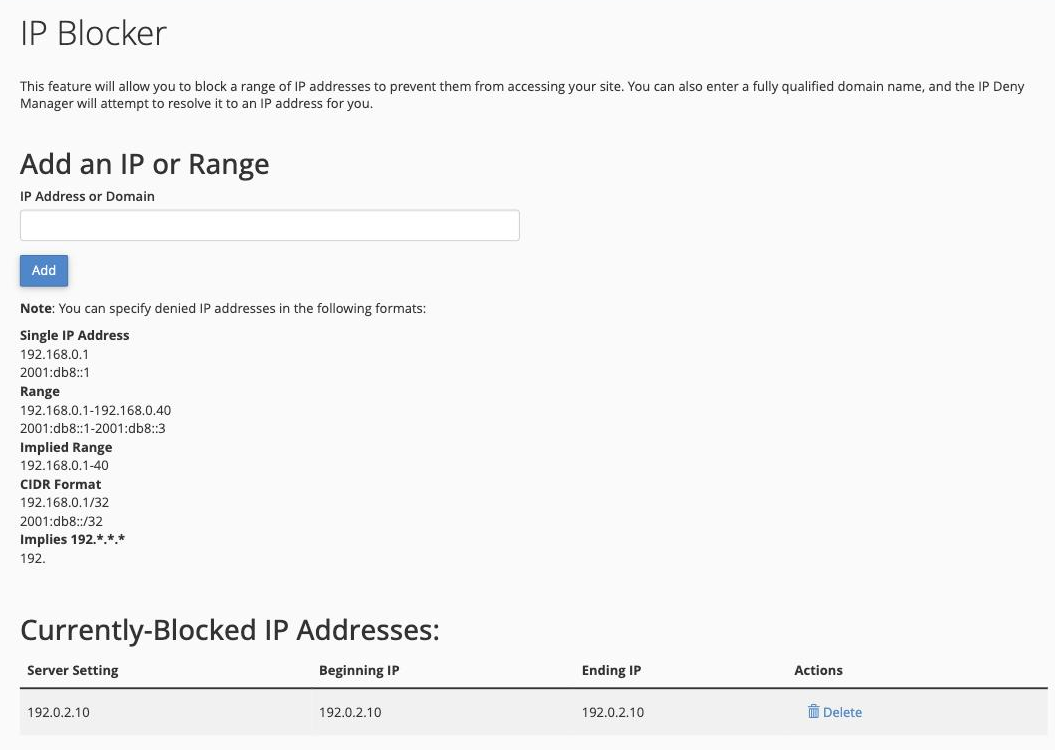
Supported formats
You can enter an address in several formats (IPv4 or IPv6):
- A single IP address, e.g.
192.168.0.1or2001:db8::1 - A range, e.g.
192.168.0.1-192.168.0.40 - An implied range, e.g.
192.168.0.1-40 - CIDR notation, e.g.
192.168.0.1/32 - A trailing dot to cover a whole block, e.g.
192.(blocks192.*.*.*)
You can also enter a fully qualified domain name, and cPanel will resolve it to an IP address for you.
Unblock an IP address
In the Currently-Blocked IP Addresses table, find the entry you want to remove, click Delete next to it, then confirm. The IP address is removed from the blocked list.