
On this page
How to create additional FTP accounts in cPanel
Create additional FTP accounts in cPanel to give developers or collaborators secure, limited access to specific folders on your hosting account.
FTP accounts let you (or someone you are working with) connect to your hosting with an FTP program to upload and manage files. Your account already has a main FTP login, but you can create additional FTP accounts - for example to give a developer access to just one folder, without sharing your main cPanel password.
Create an FTP account
-
Log in to cPanel.
-
In the Files section, click FTP Accounts.
-
In the Add FTP Account section, fill in the form:
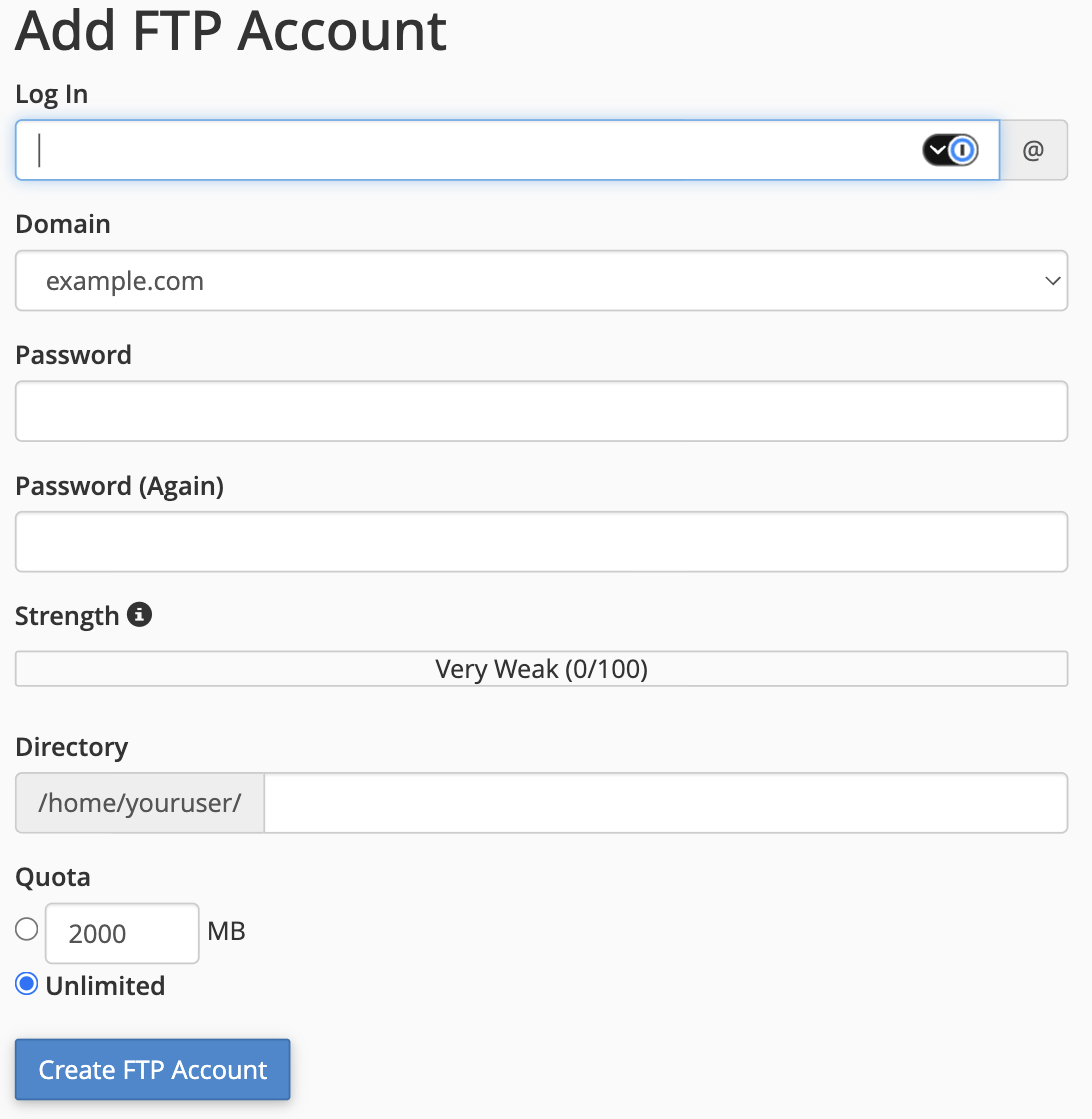
- Log In - the username for the account. The full FTP username will be this plus your domain, for example
[email protected]. - Domain - the domain to associate the account with.
- Password - a strong password (use the password generator if you like); aim for a good score on the Strength meter.
- Directory - the top folder this account can access. cPanel fills this in from the login name by default; set it to the specific folder you want the account limited to, for example
public_html/clientsite. - Quota - the maximum disk space the account may use, or Unlimited.
- Log In - the username for the account. The full FTP username will be this plus your domain, for example
-
Click Create FTP Account.
Connect with the new account
Use these details in your FTP client (such as FileZilla):
- Host: your domain name, or the server hostname we provided
- Username: the full FTP username, for example
[email protected] - Password: the password you set
- Port:
21(FTPS - FTP over TLS)
Make sure your FTP client is set to use Explicit FTP over TLS (FTPS) for a secure, encrypted connection.
Manage or delete FTP accounts
Existing accounts are listed under FTP Accounts, below the form. From there you can change an account's password or quota, or remove an account with Delete.

Create a separate FTP account, limited to the relevant folder, for anyone you give temporary access to. When the work is finished, simply delete it - your main login stays private.
If you need a hand, our support team is available 24/7 - just open a support ticket.