
On this page
How to enable Elasticsearch and OpenSearch in cPanel
Deploy and manage Elasticsearch or OpenSearch in cPanel on Kualo Business and Magento Hosting plans.
Elasticsearch and OpenSearch are available on Kualo's Business Hosting and Magento Hosting plans as a performance feature not found on standard shared hosting.
This is not a standard cPanel feature. If you are not on a Kualo Business or Magento Hosting plan, you may not see the ElasticSearch tool in cPanel.
What is Elasticsearch?
Elasticsearch is a real-time, distributed, open-source full-text search and analytics engine built on Java. It lets you store, search, and analyse large volumes of data quickly, returning results in milliseconds. Rather than using the tables and schemas of traditional databases, Elasticsearch is built around documents and exposes a REST API for storing and querying data.
What is OpenSearch?
OpenSearch is a community-driven, open-source search and analytics suite that evolved from Elasticsearch 7.10.2. Because of its active development and community support, OpenSearch is what Kualo now provisions - the tool's version list offers OpenSearch releases. (The cPanel tool is still labelled "ElasticSearch" for familiarity, but it deploys OpenSearch.)
Key advantages of OpenSearch include:
- Reduced version dependency with Magento: Elasticsearch had strict version requirements when used with Magento. OpenSearch relaxes those constraints, making version management simpler.
- Community engagement: OpenSearch follows an open development model with transparent decision-making.
- Future-proofing: Kualo will only be adding new versions of OpenSearch going forward.
Enable a search instance
-
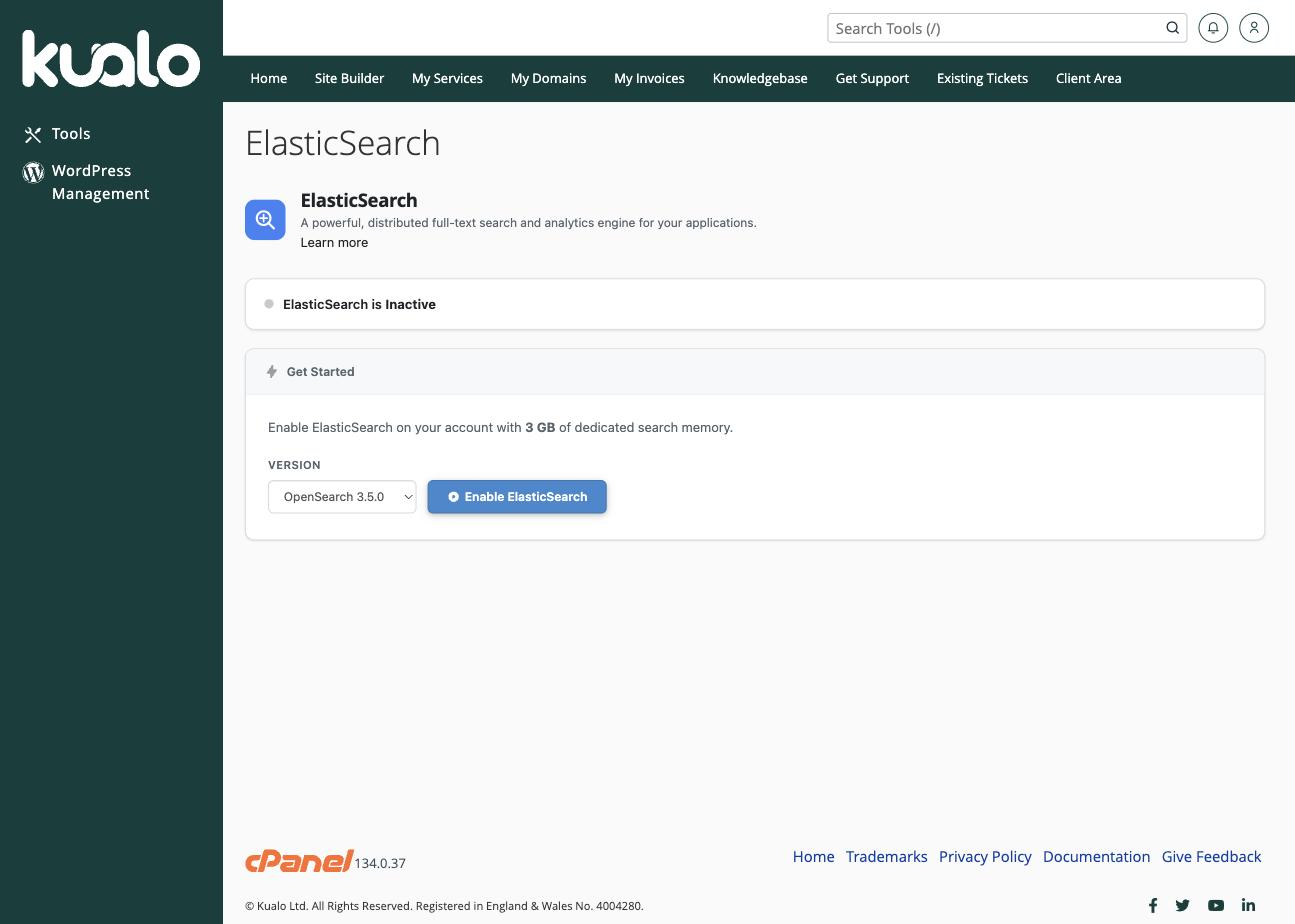
Log in to cPanel and, in the Software section, click ElasticSearch.
-
Choose a release from the Version dropdown, then click Enable ElasticSearch.
-
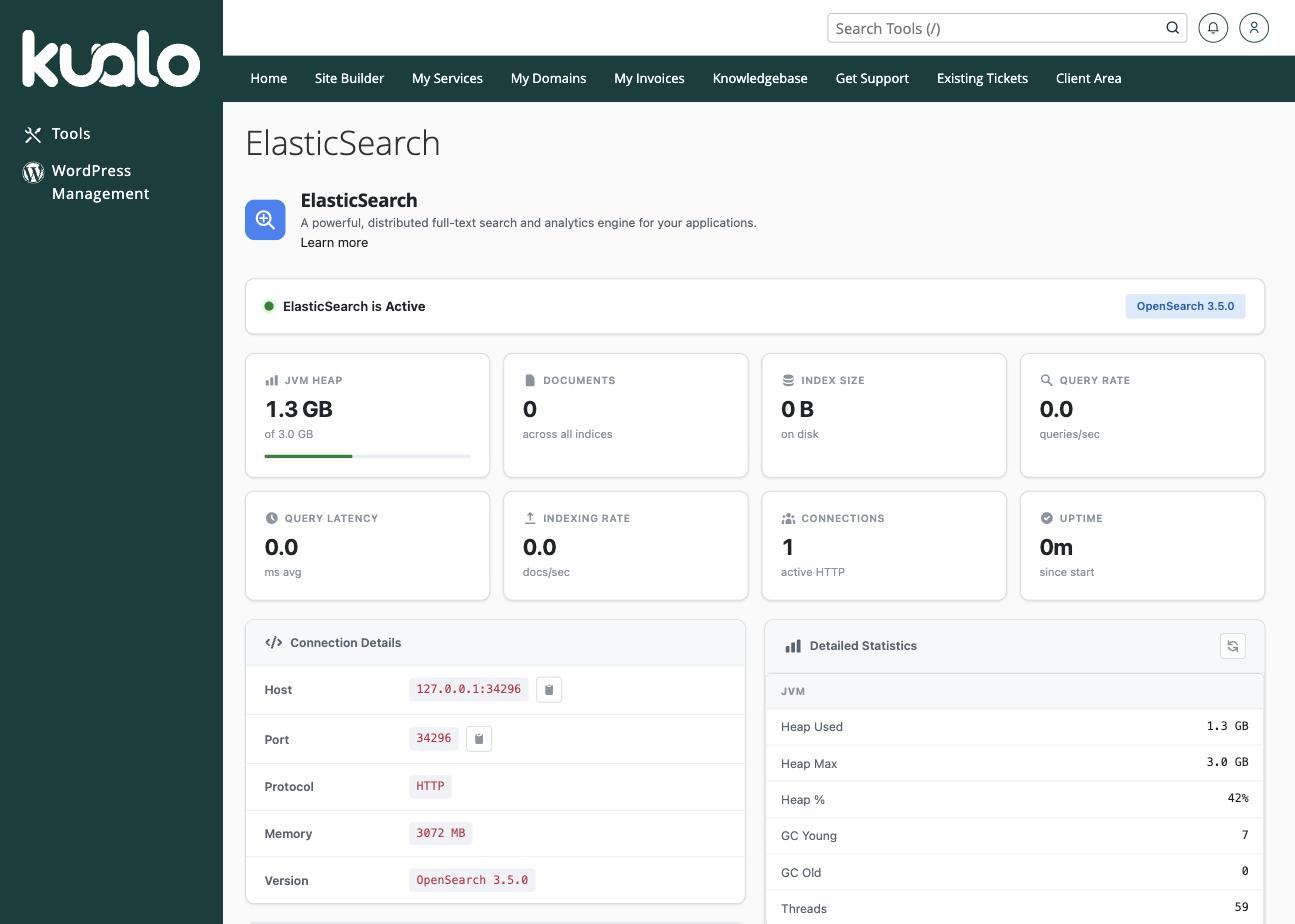
Setup takes a few minutes. Once it finishes, the tool shows as Active, with a live statistics dashboard (heap usage, document count, query rate, and so on) and the Connection Details your application needs - host, port, protocol, allocated memory, and version.
Add users and authentication
Authentication is enabled by default, so your application connects using a user that you create.
-
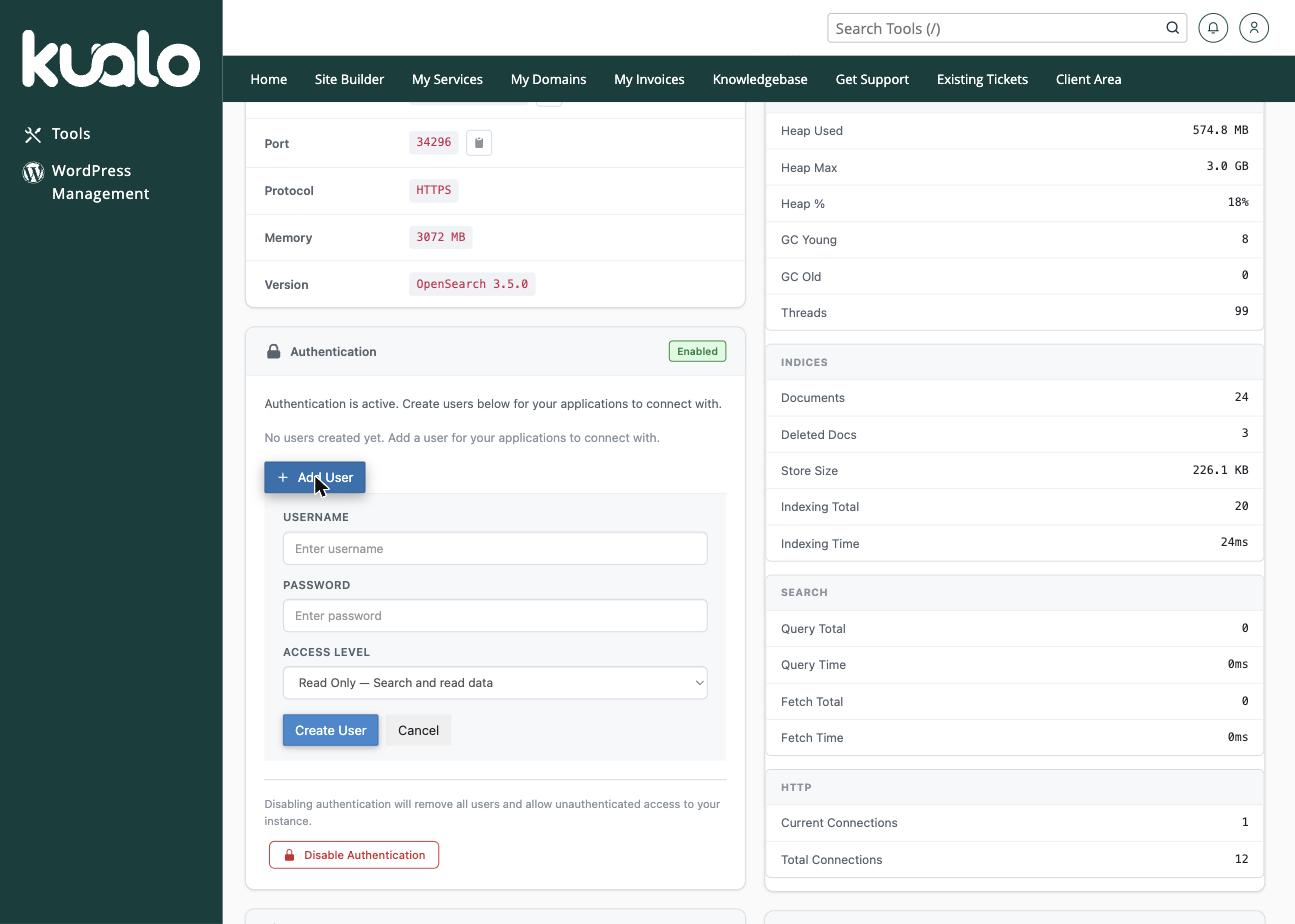
In the Authentication section, click Add User.
-
Enter a Username and Password, choose an Access Level (for example, Read Only), then click Create User.
-
Use those same credentials in your application's configuration so it can connect.
If you specifically need an instance with no authentication, you can click Disable Authentication - but that removes all users and allows unauthenticated access, so only do it on a trusted, private setup.
Manage, change version, or remove
Further down the page you will find the management controls:
- Change Version - switch the instance to a different available version.
- Disable ElasticSearch (in the Danger Zone) - stops the service but preserves your data and configuration, so you can re-enable it later.
- Uninstall ElasticSearch (in the Danger Zone) - permanently removes the instance and all of its data, indices, and configuration. This cannot be undone.
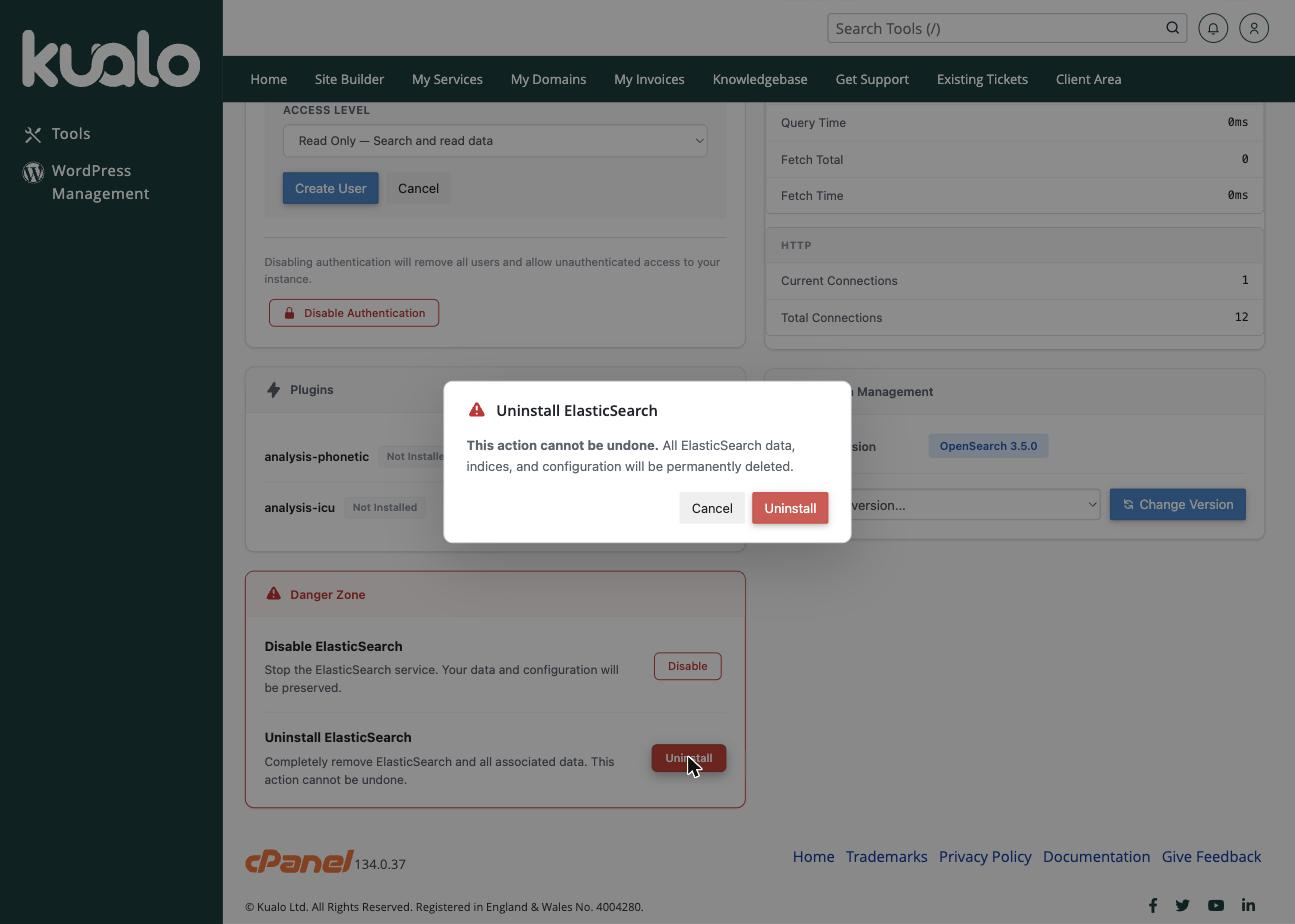
A search instance consumes a significant amount of memory even when idle, which reduces the resources available to the rest of your account. If you are not actively using it, Disable it (to keep your data) or Uninstall it (to free all the resources).
Additional notes
Check Magento's documentation for the specific OpenSearch or Elasticsearch version your Magento installation requires before choosing a version.