
On this page
Creating a full account backup/snapshot in cPanel
Create an on-demand full backup of your entire cPanel account with JetBackup, and learn the safe way to restore it.
A full backup is a complete copy of your entire cPanel account at a point in time - all your files, databases, email accounts, and settings. Kualo takes these automatically, but you can also create one on demand, for example just before making a big change.
Running WordPress? If you only need to back up a single WordPress installation rather than your whole account, WP Toolkit is the better option. It backs up just the right files and database for that site, making restores quicker and simpler.
Create a backup on demand
- Log in to cPanel and, in the Files section, open JetBackup 5.
- Under View & Manage, click Create Backup On Demand.
- Confirm by clicking OK. JetBackup queues the backup and it runs in the background.
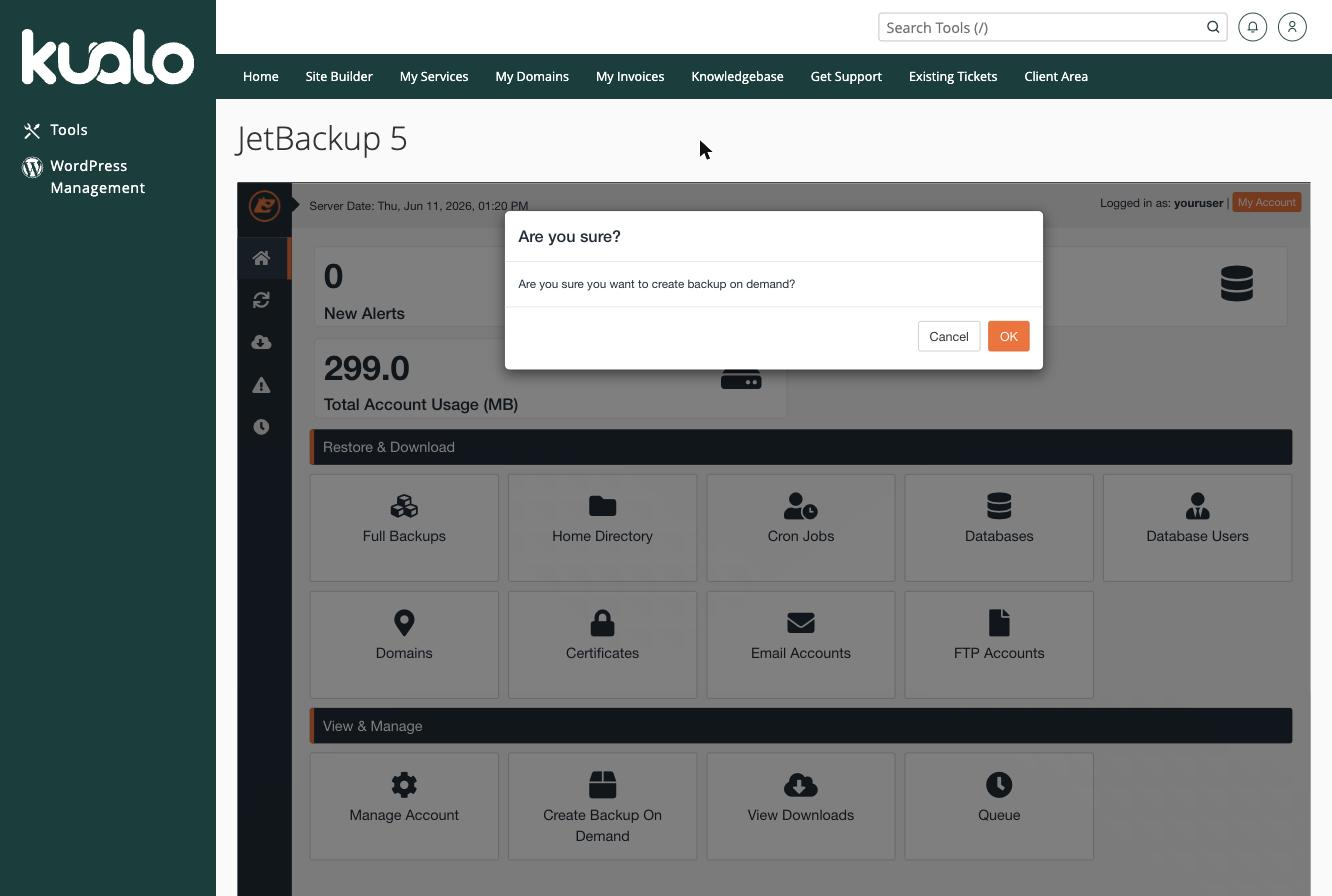
The new backup appears under the Full Account tab on the Restore & Download screen once it has finished, where you can download it for safekeeping.
Restoring from a full backup - read this first
A full account restore overwrites everything on your account - all your files, databases, email accounts, email messages, and settings are replaced with the contents of the backup. There is no way to undo this once it starts.
In almost every situation, a targeted restore is safer and faster than restoring the entire account. JetBackup lets you restore individual components without touching anything else:
- Files - Restoring file backups in cPanel.
- Databases - Restoring a database backup in cPanel.
- Email accounts - Restoring an email account backup in cPanel.
- DNS zones - Restoring a DNS zone backup in cPanel.
Restore only what you actually need. A full account restore is a last resort, typically only when an account has been completely destroyed or corrupted. If you are considering one, we strongly recommend contacting our support team first so we can advise on the best course of action.