
On this page
Getting started with Softaculous
Softaculous lets you install popular web applications such as WordPress, Joomla, and Drupal directly from cPanel with minimal effort.
Softaculous is an auto-installer built into cPanel that lets you install hundreds of popular web applications - WordPress, Joomla, Drupal, Magento, and many more - in just a few clicks.
Accessing Softaculous
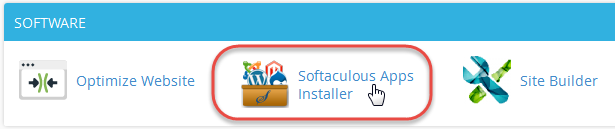
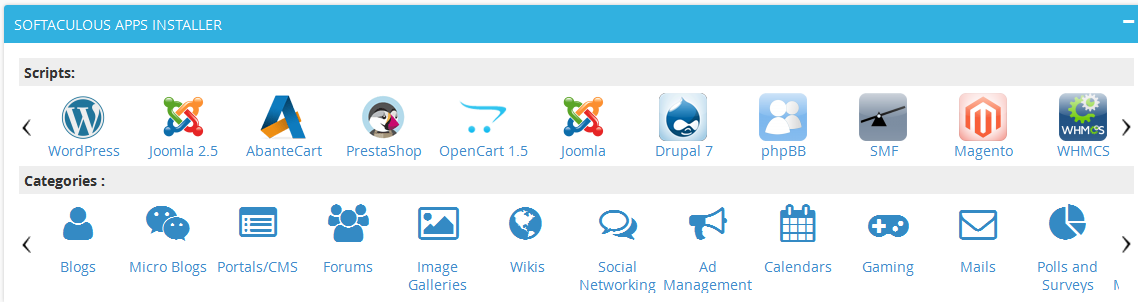
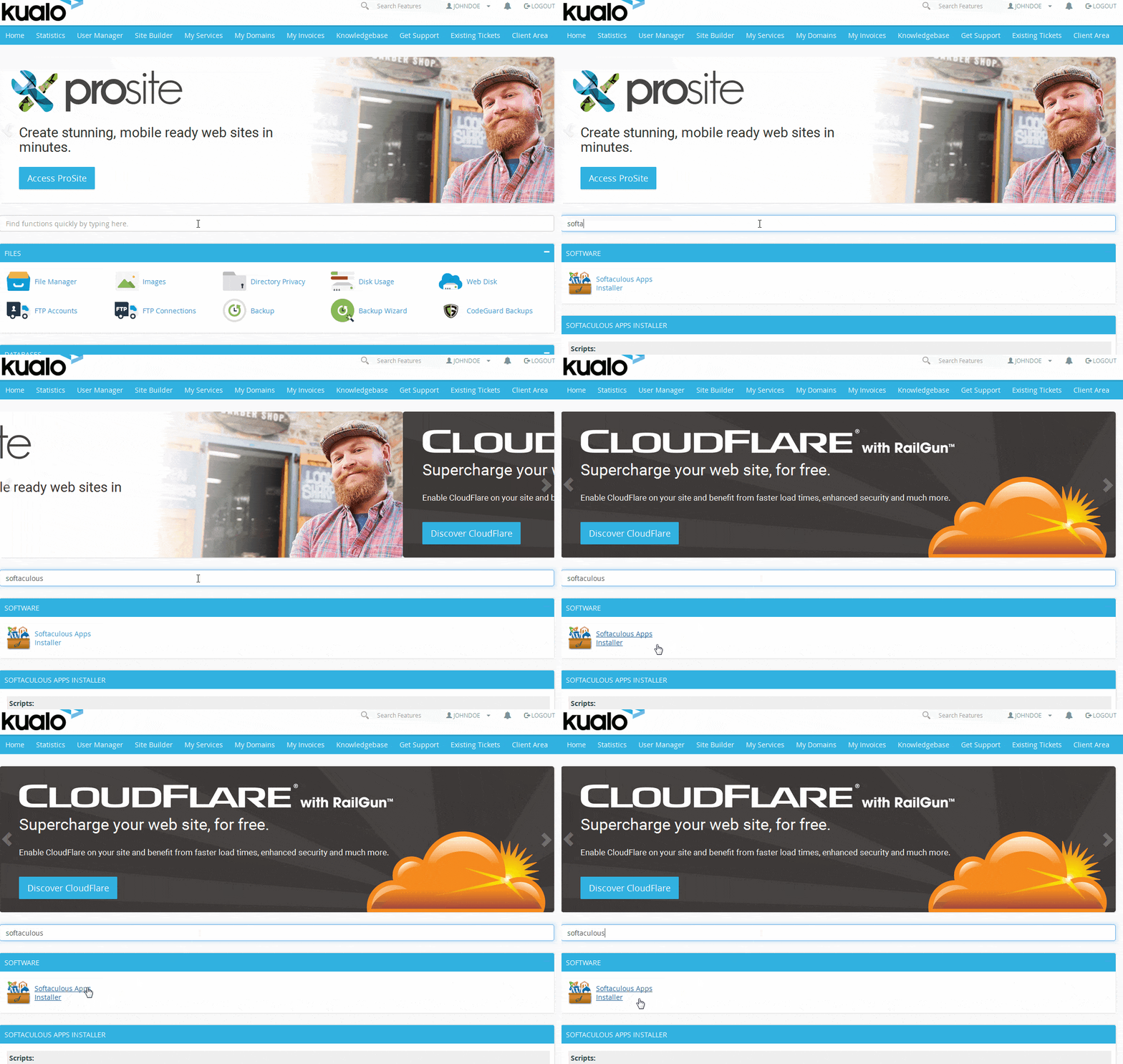
First, log in to cPanel. You can find Softaculous in any of three ways:
- Under the Software section:
- In the dedicated Softaculous Apps Installer section towards the bottom of cPanel:
- By typing Softaculous into the Find box at the top of cPanel:
Installing an application
Once Softaculous opens, choose the application you want from the list on the left, or pick one from the Top Scripts section in the centre of the page. Most installations ask for the same core details.
Choose protocol
Select https:// or https://www. if you have an SSL certificate installed (recommended). If not, choose http:// or http://www. depending on whether you want visitors to land on the www or non-www version of your domain.
There is no SEO difference between www and non-www, but whichever you choose, keep it consistent and do not change it after installation.
Choose domain
Select the domain you want to install the application on from the dropdown.
In directory
This sets the path relative to your domain root. The directory must not already exist.
- To install at
https://your-domain.com/blog/, typeblog. - To install at
https://your-domain.com/, leave this field empty.
Admin account
Enter the details for the administrator account: username, password, full name, and email address.
Select language
Choose the display language for the application.
Advanced options
This section lets you set a custom database name and table prefix, and configure automated backups. Softaculous picks a random database name and table prefix by default - it is best to leave those as they are.
To enable automated backups, set the backup frequency to Once a day:

Depending on the application, you may also see options for site settings, plugins, and themes. These can all be changed after installation, so set them however you like at this stage.
Not sure which application to use? See How to decide which script in Softaculous is right for you.
Handling existing files
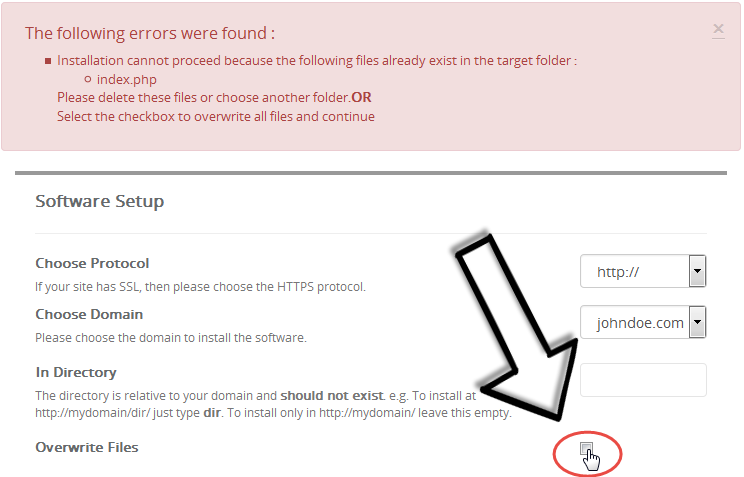
If files already exist in the target folder, Softaculous will show an error:
Installation cannot proceed because the following files already exist in the target folder.
For example, an index.php file may already be present. You have two options:
- Go to cPanel > File Manager, back up the file, and delete it before retrying.
- If you do not need the existing file, tick the Overwrite Files checkbox that appears on the install form after the error:
Related articles
- How to install WordPress from Softaculous
- How to install Joomla from Softaculous
- How to install Drupal from Softaculous
- How to install Magento from Softaculous
- How to install WHMCS from Softaculous
- How to list all scripts installed by Softaculous
- How to change Softaculous settings and email settings
- How to upgrade a script installed by Softaculous
- Configuring software auto-updates
- How to import a script into Softaculous
- How to synchronise Softaculous with other auto-installers
- How to remove a script installed by Softaculous