
On this page
How to use Track DNS in cPanel
The Track DNS tool in cPanel includes network tools that look up a domain's DNS records and trace the network route between the server and a domain.
Track DNS is a pair of network tools that help you check how a domain resolves and how the server reaches it - handy when you are diagnosing a connection or DNS problem.
Open Track DNS
Log in to cPanel and, in the Advanced section, click Track DNS.
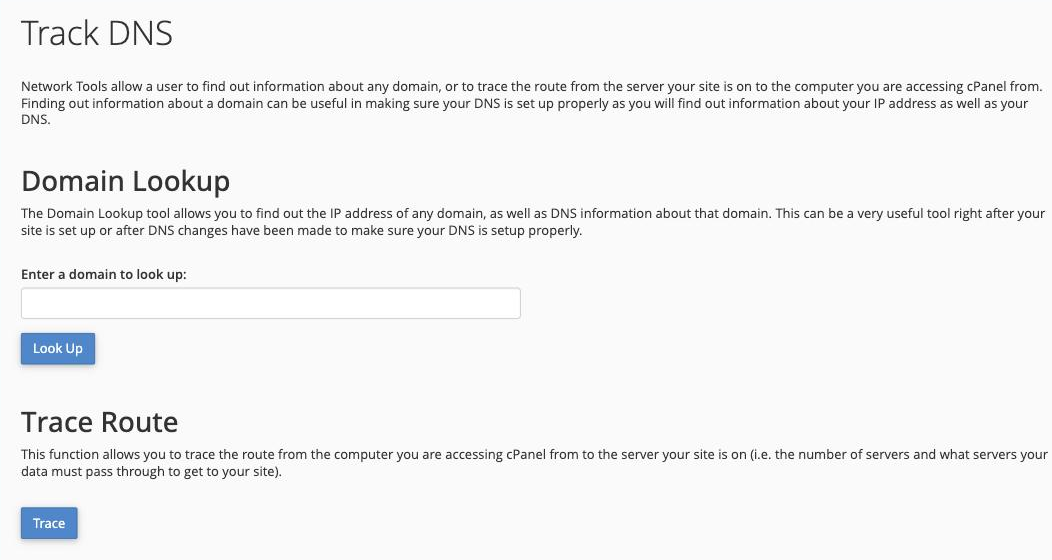
Domain Lookup
The Domain Lookup tool finds the IP address and DNS information for a domain.
- In the Enter a domain to look up box, type the domain name.
- Click Look Up.
cPanel shows the IP address the domain resolves to, which is useful for checking whether a domain points where you expect.
Trace Route
The Trace Route tool maps the network path between this server and a destination, listing each step (or "hop") along the way. Click Trace to run it. If a connection is slow or failing, the trace can show where along the route the problem starts.
These tools look outward from the hosting server, so they show how the server sees a domain or route - which can differ from what you see on your own internet connection.