
On this page
Deleting fields from database tables with phpMyAdmin
Learn how to delete a field (column) from a database table using phpMyAdmin in cPanel, and how to do it safely.
If a field (column) is no longer needed, you can remove it from a table in phpMyAdmin. This permanently deletes that column and everything stored in it, so it is worth a quick check before you confirm. This guide shows how.
Before you start
Open phpMyAdmin from the Databases section of cPanel, click your database, then click the table you want to change. New to phpMyAdmin? See Becoming familiar with databases in phpMyAdmin.
Deleting a field also deletes all the data stored in it, and this cannot be undone. If the table holds anything important, export a backup first.
Delete a field
-
With the table open, click the Structure tab.
-
In the Action column next to the field you want to remove, click Drop.
-
phpMyAdmin asks you to confirm, showing the exact command it will run. Check that it names the correct field, then click OK.
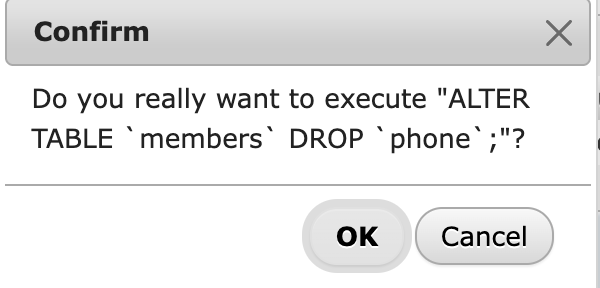
The field is removed immediately, and the Structure view updates to show the remaining columns.

To remove several fields at once, tick the checkbox beside each one, then choose Drop from the With selected menu below the list.
To add a field, see Inserting fields into database tables; to edit one, see Modifying fields in database tables.
If you need a hand, our support team is available 24/7 - just open a support ticket.