
On this page
How to use the Index Manager in cPanel
The Index Manager in cPanel lets you control whether the contents of a directory are visible to visitors when no index file is present.
The Index Manager in cPanel lets you control how directories on your website behave when a visitor requests a folder that contains no index.html or index.php file. Without a setting in place, the server may list the directory's contents in the browser - which is usually undesirable and can expose files you did not intend to share publicly.
The four indexing options
Each directory can be set to one of four modes:
| Setting | What it does |
|---|---|
| Inherit | Uses the parent directory's setting; where none is defined, it falls back to the server default (which usually lists the contents) |
| No Indexing | Prevents the directory's contents from being listed to visitors |
| Show Filename Only | Shows a plain list of filenames |
| Show Filename and Description | Shows a list of files along with their size and type |
For most directories, No Indexing is the safest choice.
How to change the index setting for a directory
-
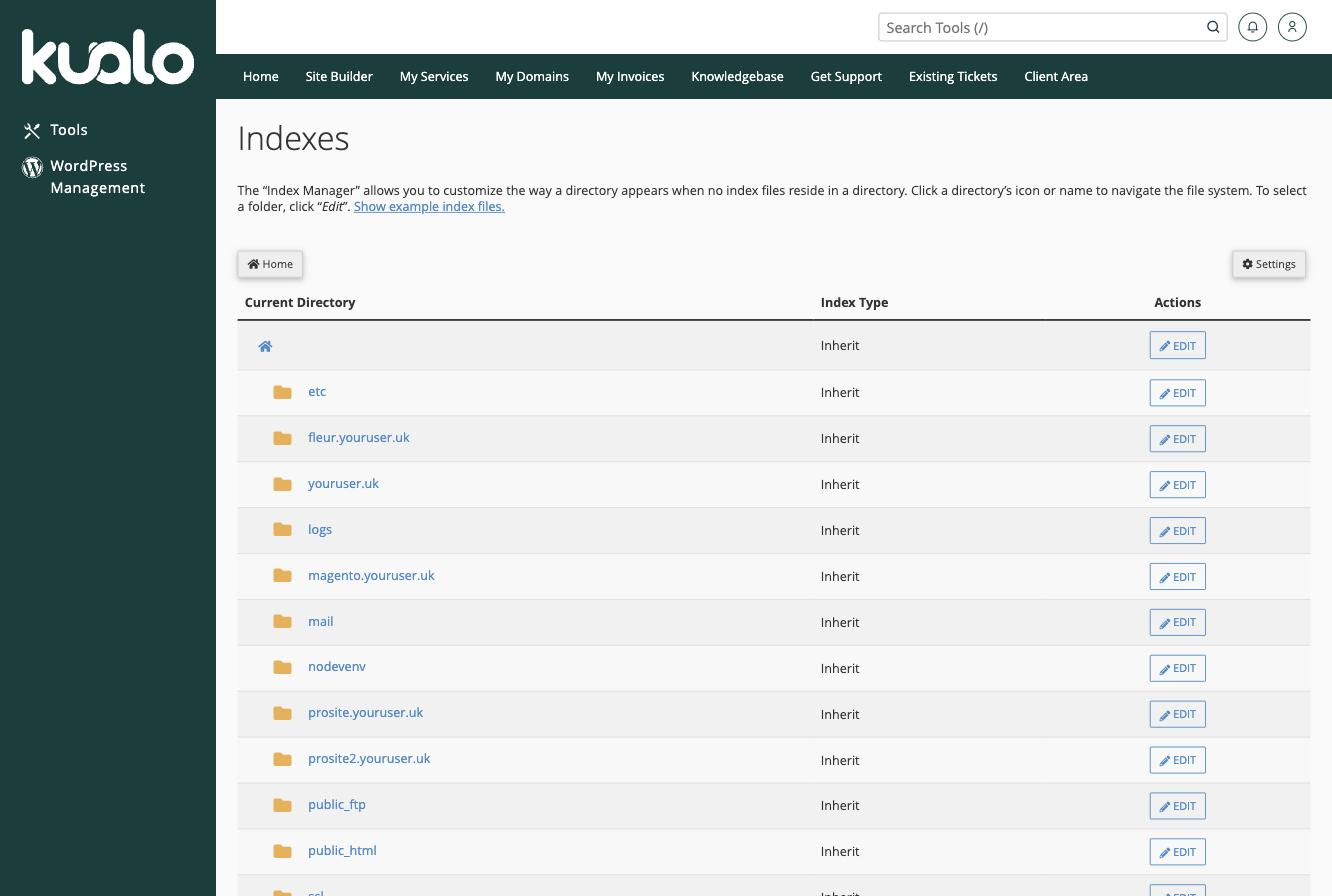
Log in to cPanel and click the Indexes icon (in the Advanced section).
-
Navigate to the directory you want to configure - click a folder name to drill into it, or select the directory you want.
-
Select the indexing option you want to apply.
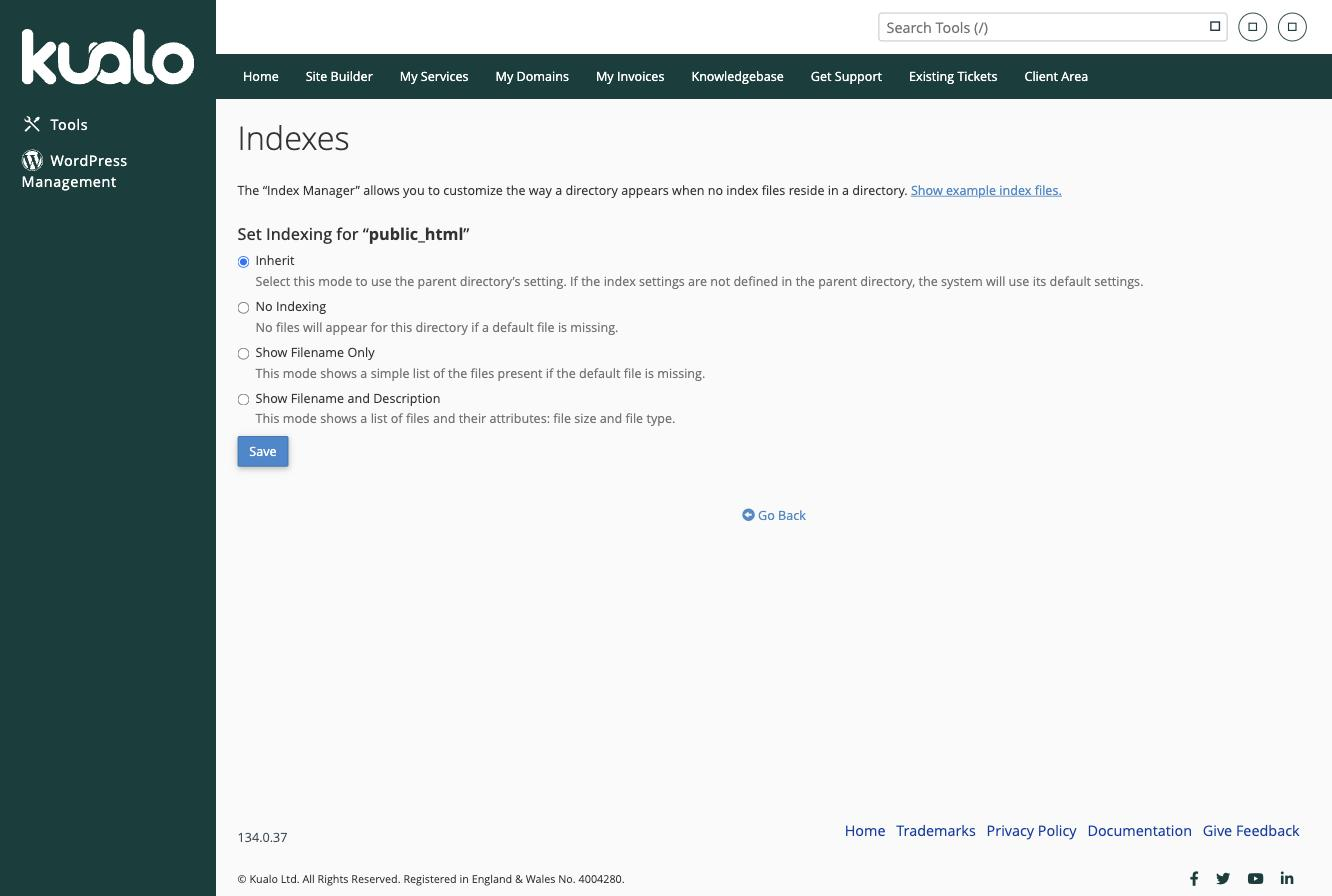
If you are unsure which option to use, choose No indexing to prevent visitors from browsing the directory.
-
Click Save. The setting takes effect immediately, and a confirmation message appears.
You can return to the Index Manager at any time to change the setting back to Default system setting or apply a different option.