
On this page
Exporting databases and tables with phpMyAdmin
Learn how to export a database or a single table as a SQL file in phpMyAdmin, for backups or moving your data.
Exporting creates a downloadable copy of your database (or a single table) as a .sql file - a complete snapshot of its structure and data. It is the simplest way to take a manual backup before making changes, or to move a database to another server. This guide shows how to do it with phpMyAdmin in cPanel.
Before you start
Open phpMyAdmin from the Databases section of cPanel. If it is new to you, Becoming familiar with databases in phpMyAdmin explains the layout.
Export an entire database
-
In the left-hand panel, click the database you want to back up.
-
Click the Export tab at the top.
-
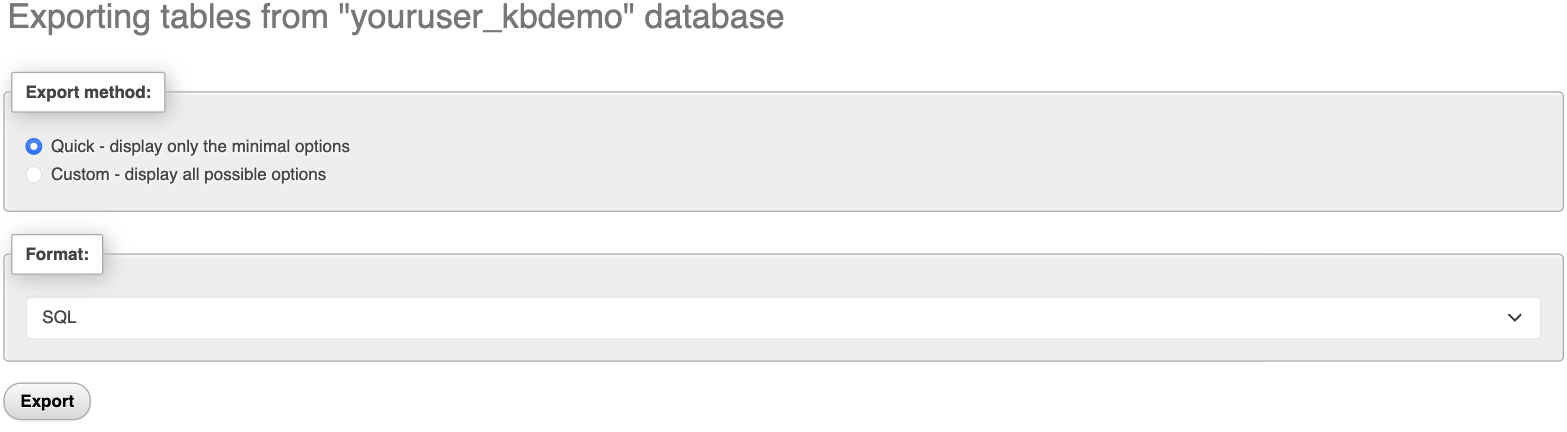
Leave the Export method set to Quick and the Format set to SQL - this suits almost every backup.
-
Click Export. Your browser downloads a single
.sqlfile containing every table in the database, ready to keep safe or re-import later.
Export a single table
If you only need one table rather than the whole database:
-
Click the database to expand it, then click the table you want.
-
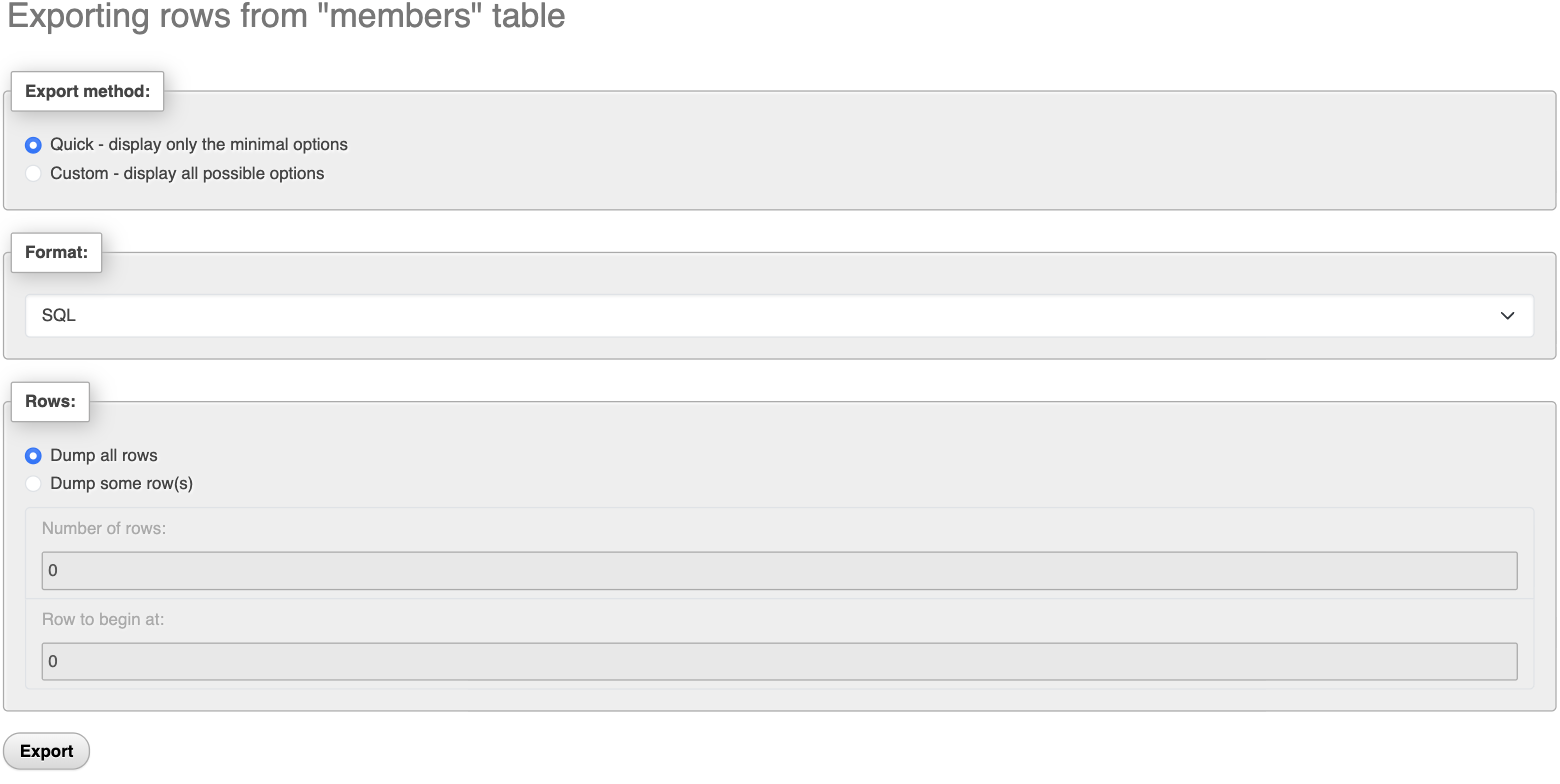
Open the Export tab. The options are the same - Quick method and SQL format.
-
Click Export to download that table on its own.
Choose Custom instead of Quick if you need finer control - for example to select specific tables, add a DROP TABLE statement before each CREATE, or compress the file as .zip or .gz. For a routine backup, Quick is all you need.
What to do with the file
Keep the downloaded .sql file somewhere safe. You can restore it at any time by following Importing databases and tables with phpMyAdmin. For a very large database, importing via SSH is faster and more reliable.
A phpMyAdmin export is ideal for quick, manual backups, but it is not a substitute for your account's full backups. For a complete restore, use the backups in cPanel instead.
If you need a hand, our support team is available 24/7 - just open a support ticket.