
On this page
How to use Terminal in cPanel
cPanel's Terminal gives you command-line access to your hosting account straight from your browser, without needing a separate SSH client.
The Terminal tool gives you direct command-line access to your hosting account from within cPanel - similar to connecting over SSH, but straight in your browser with nothing to install. It is handy for quick commands and aimed at developers and advanced users who are comfortable working at the command line. For regular command-line work, though, we recommend using a dedicated SSH client instead, as explained below.
Terminal runs commands on your account immediately and with your full permissions. A mistyped command can delete files or break your website, and there is no "undo". If you are not comfortable with the command line, use cPanel's point-and-click tools instead.
Open Terminal
-
Log in to cPanel and, in the Advanced section, click Terminal.
-
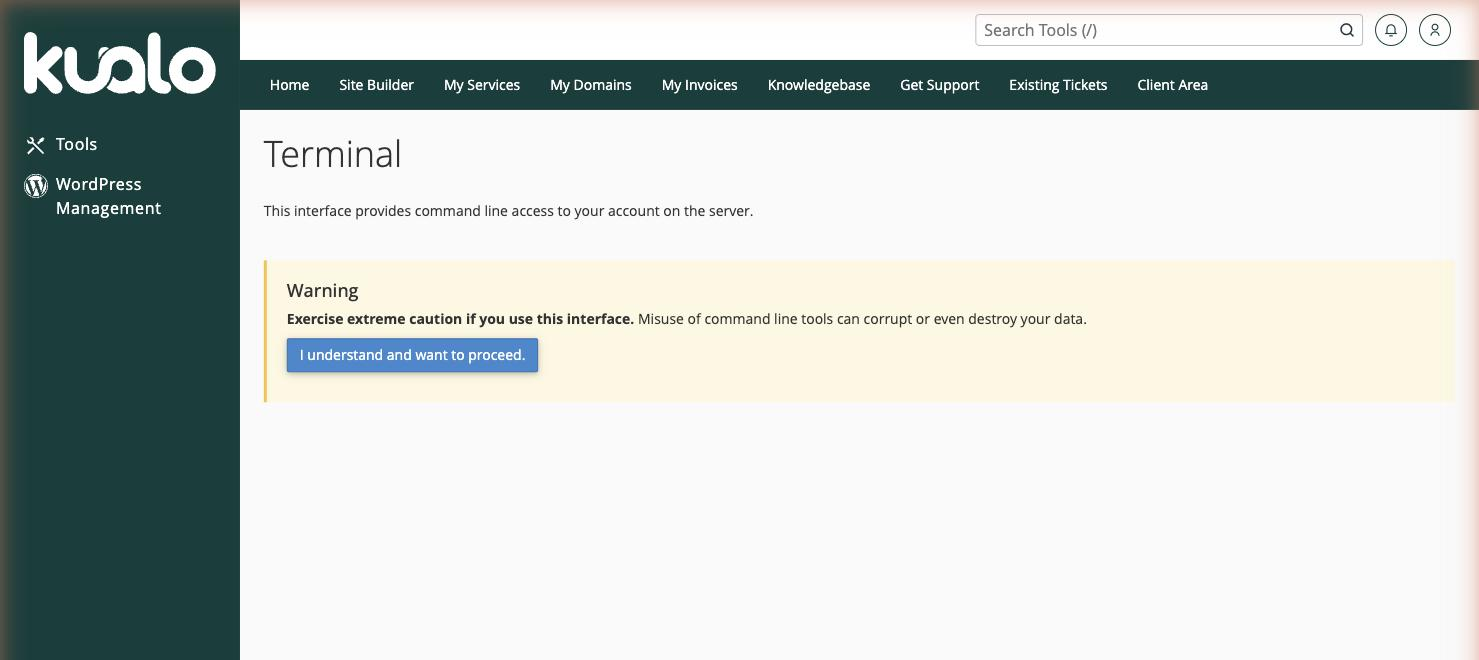
Read the warning, confirm that you understand the risks, and proceed. The command-line prompt then loads in your browser, ready for you to type commands.
What you can do with Terminal
Terminal behaves just like an SSH session, so you can:
- Move around and manage your files with commands like
ls,cd,cp, andmv. - Run developer tools available on our servers, such as WP-CLI, Composer, and Git.
- Edit files with a command-line editor, view logs, and run scripts.
Everything you run applies to your own hosting account only.
Terminal or SSH?
Terminal is convenient, but it is less reliable than connecting over SSH with a dedicated SSH client, which is the method we recommend. The in-browser Terminal does not play well with Node.js and some other commands, and long-running or interactive tasks can behave unpredictably or drop. For anything beyond a quick one-off command, use a proper SSH client.
Both give you command-line access to your account - the difference is how you connect and how robust the session is. A dedicated SSH client gives you a stable, full-featured session, plus easier file transfers (scp / sftp), scripting, and longer sessions.
- Use Terminal for the occasional quick command when you are already logged in to cPanel.
- Use an SSH client for anything more involved - especially Node.js, build tools, or long-running tasks. See Using SSH on Kualo hosting to set it up.
Terminal has the same power as SSH, so treat it with the same care - double-check any command that deletes or moves files before you run it.