
On this page
How to set up two-factor authentication in cPanel
Add a second layer of security to your cPanel login with Two-Factor Authentication, using a free authenticator app on your phone.
Two-Factor Authentication (2FA) adds a second layer of security to your cPanel login. As well as your password, you enter a short code from an app on your phone that changes every 30 seconds - so even if someone learns your password, they cannot get in without your phone.
Before you start
Install an authenticator app on your phone if you don't already have one. Any of these work well:
- Google Authenticator
- Microsoft Authenticator
- Authy
Turn on Two-Factor Authentication
-
Log in to cPanel and, in the Security section, click Two-Factor Authentication.
-
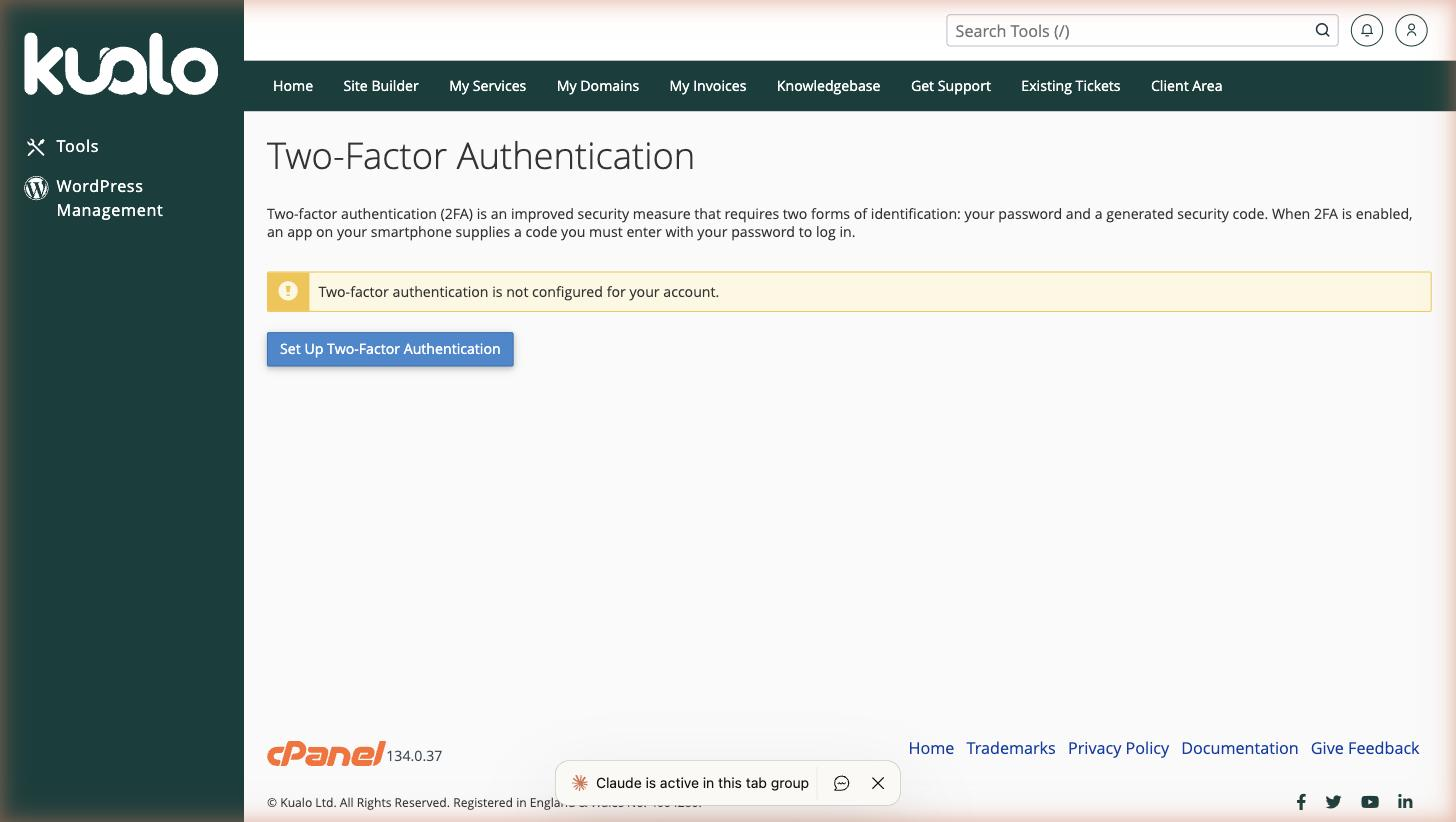
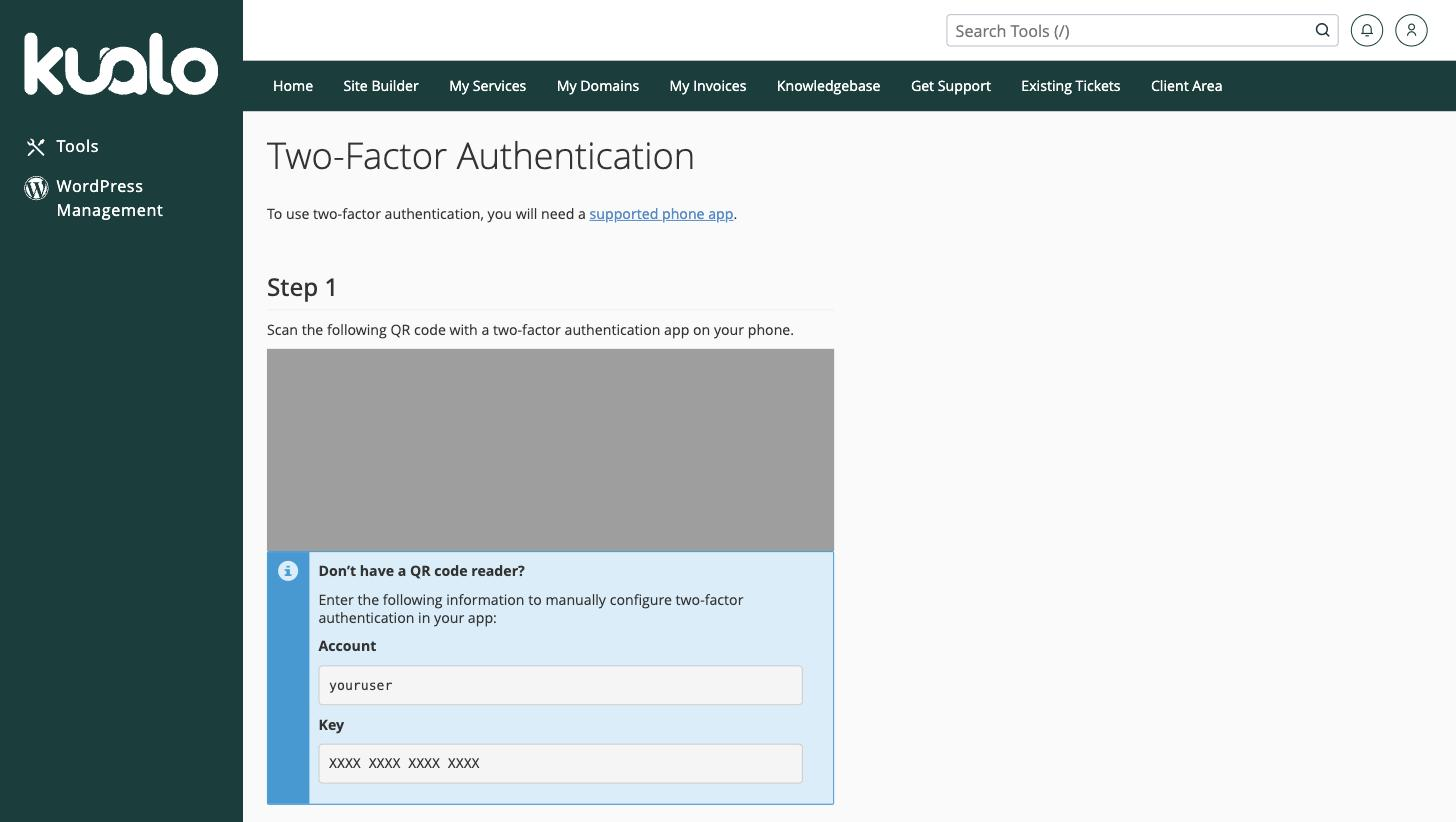
Click Set Up Two-Factor Authentication. cPanel shows a QR code and an account (secret) key.
-
Open your authenticator app and either scan the QR code or enter the account key by hand. The app adds an entry for your cPanel account and starts generating six-digit codes.
-
Back in cPanel, type the current six-digit code from your app into the Security Code field and click Configure Two-Factor Authentication.
That's it - the next time you log in to cPanel, you will be asked for a code from your app after your password.
Keep your authenticator app, and the device it is on, safe. If you lose access to it you will not be able to log in - contact our support team, who can help you regain access to your account.