
On this page
How to check the number of inodes in your hosting account
Find out what inodes are and how to check your inode usage in cPanel, broken down folder by folder.
An inode (short for 'index node') represents a single object in a Unix filesystem - every file, folder, email, and similar object in your hosting account counts as one inode.
Why inodes matter
To keep our servers fast and ensure backups complete in good time, each hosting account is allocated a set number of inodes, as outlined in our resource usage policy.
If you reach your inode limit, your account can no longer write new objects to disk. In practice this means:
- New emails may not be delivered.
- You will not be able to upload new files.
- Your website may return errors.
We provide generous inode limits, but if you do hit yours you will need to either reduce usage or upgrade to a plan with a higher allowance.
High inode counts are often caused by an application error rather than genuine growth - a plugin writing too many files, a cache directory that is never cleared, or an unused mailbox quietly collecting spam are common culprits.
Checking your overall inode usage
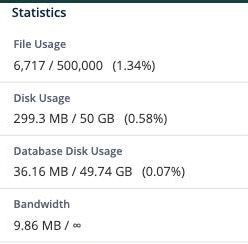
For a quick overview, the File Usage figure is shown in the Statistics sidebar on the cPanel home screen - it shows how many inodes you are using against your plan's limit.
Using the Inode Usage tool
The Inode Usage tool (in the Metrics section) shows a folder-by-folder breakdown so you can pinpoint exactly where inodes are being consumed.
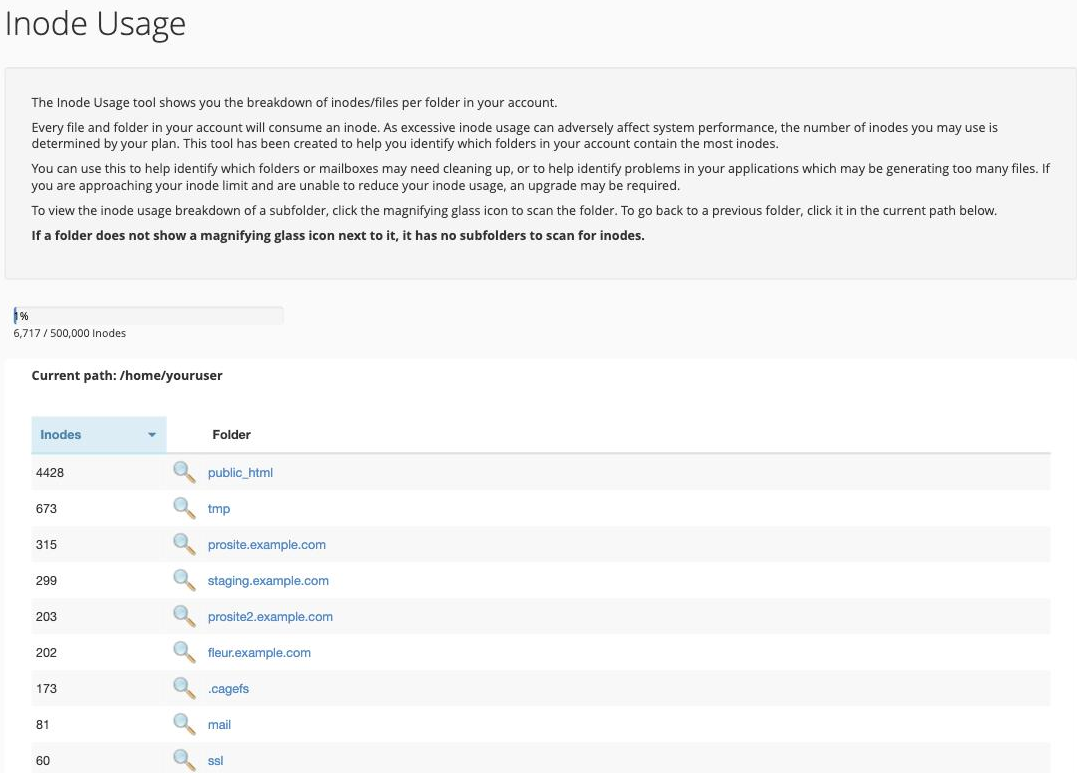
- The bar at the top shows your current usage, your plan limit, and the percentage consumed.
- The Current path breadcrumb shows which folder you are viewing (it starts at your home directory).
- The breakdown table lists each subfolder and how many inodes it contains. Click the Inodes or Folder column header to sort, and click a folder name (or the magnifying glass beside it) to drill into a subfolder. Use the Current path breadcrumb to navigate back up.
Acting on what you find
Files and folders
If a particular directory is using a large number of inodes, review and delete files using the cPanel File Manager.
Mail folders
If the mail folder is the biggest consumer, use webmail to review and delete messages. See our guide on how to log in to webmail.
To identify which mailbox a mail subfolder belongs to, check the Current path:
- A path such as
/home/youruser/mail/youruseris the default cPanel inbox, accessible via Email Accounts > Default Email Account. - A path such as
/home/youruser/mail/yourdomain.com/someuseris the inbox for[email protected], accessible via Email Accounts.
If your default inbox is filling with spam, go to Default Address in cPanel and set it to discard messages with no matching recipient. This stops the default address acting as a catch-all.