
On this page
Restoring an email account backup in cPanel
Restore a backed-up email account from JetBackup, or download a copy from a specific date, with up to 30 days of backups.
JetBackup in cPanel lets you restore a backed-up email account, or download a copy from a specific date, with up to 30 days of backups available.
Restoring an email account replaces all existing email data in that account with the backed-up version. Any messages received or sent after the backup date will be lost. If you only need to recover specific messages rather than the whole account, contact our support team for a more targeted approach.
Restore an email account
- Log in to cPanel and, in the Files section, open JetBackup 5.
- On the Restore & Download screen, click the Email Accounts tab. Your email account backups are listed.
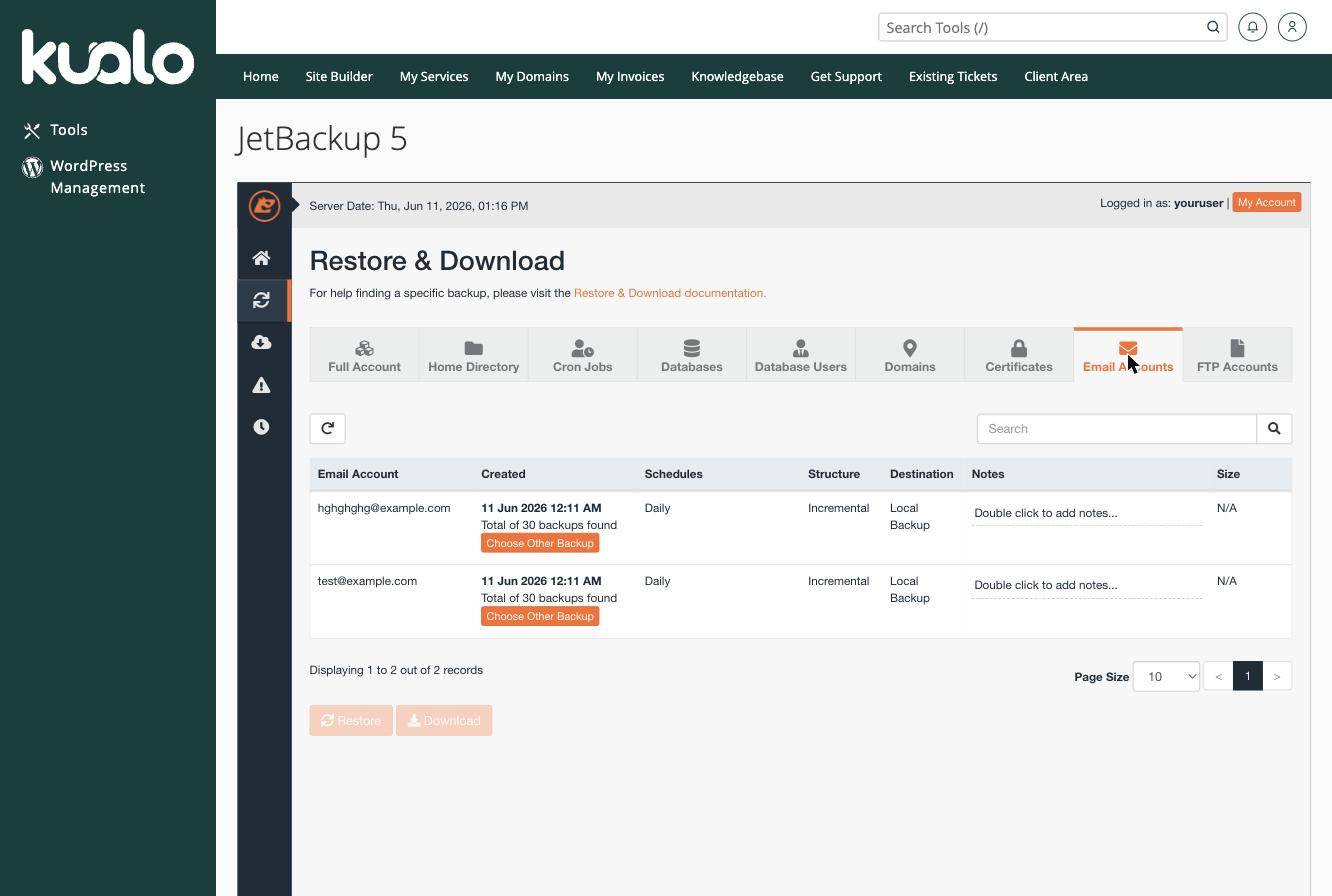
- Find the email account and date you want, then choose:
- Restore - puts the email account back directly into your hosting.
- Download - saves a local copy of the backup from that date.
If you only need a few messages back rather than a full account, download the backup first so you can inspect its contents before restoring.
If you need a hand, our support team is available 24/7 - just open a support ticket.