
On this page
How to use Web Disk in cPanel
Web Disk lets you access and manage your hosting account's files over a secure connection, as if they were a folder on your own computer.
Web Disk lets you manage your hosting account's files over a network connection (WebDAV), so they appear as a folder on your own computer - you can drag and drop to upload, open, and edit files without a separate FTP program.
Open Web Disk
Log in to cPanel and, in the Files section, click Web Disk.
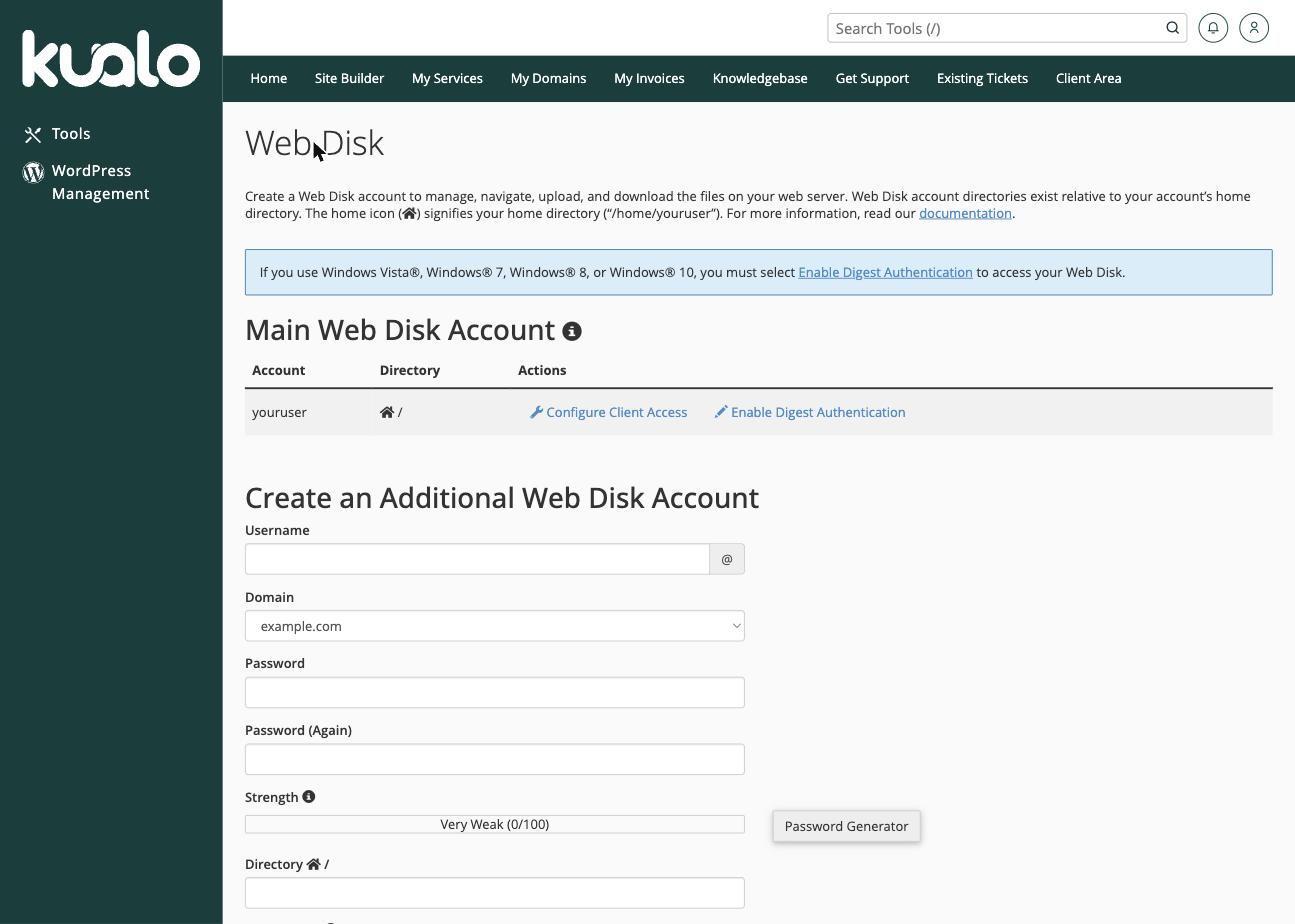
The page has two parts:
- Main Web Disk Account - matches your main cPanel login and can access your whole home directory.
- Create an Additional Web Disk Account - extra logins whose access you can restrict to a specific folder, handy for giving someone access to just part of your account.
Connect to Web Disk
- Next to the account you want to use, click Configure Client Access.
- Choose your operating system, then either download the configuration script to set everything up automatically, or use the connection details shown to add a network location manually.
On Windows, if a non-secure connection will not authenticate, click Enable Digest Authentication for the account first - some older versions of Windows require it.
Use an SSL-enabled connection wherever your operating system supports it, so your files and login details are encrypted in transit.
Create an additional Web Disk account
- In the Create Additional Web Disk Account section, enter a username and a strong password.
- Set the Directory to the folder this account should be limited to.
- Click Create. The new account can then connect using the same Configure Client steps above.
Was this helpful?
Your feedback helps us find gaps in the docs.
Thanks for the feedback!
Related articles
Files & FTP
How to use File Manager in cPanel
Browse, upload, edit, and organise your hosting files from your browser with cPanel's File...
Files & FTP
How to create additional FTP accounts in cPanel
Create additional FTP accounts in cPanel to give developers or collaborators secure, limit...
Files & FTP
How to password protect a folder in cPanel
Use cPanel's Directory Privacy tool to restrict access to any folder on your hosting accou...
Files & FTP
How to set up hotlink protection in cPanel
Stop other sites from linking directly to your images and files with cPanel's Hotlink Prot...
Still need a hand?
Real people, around the clock - start a chat or open a ticket and we'll help you put it right.