
On this page
Managing files and folders in WinSCP
WinSCP lets you create, rename, delete and set permissions on files and folders directly on your remote server.
WinSCP lets you manage files and folders on your remote server directly from your desktop. This guide covers creating folders, renaming, deleting, and changing file permissions.
Creating a new folder
-
Click Create Directory in the toolbar.
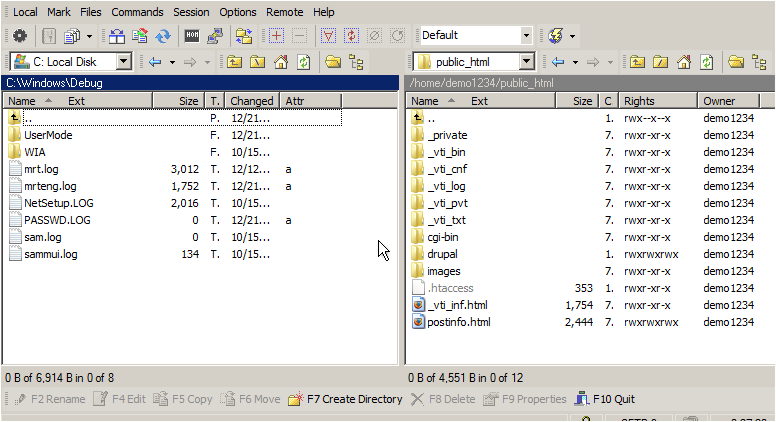
-
Type the name for the new folder, then click OK.
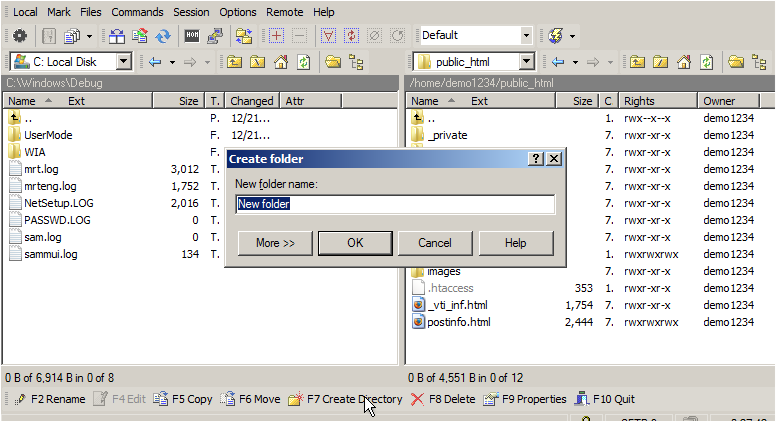
Renaming a folder or file
The same steps apply whether you are renaming a folder or a file.
-
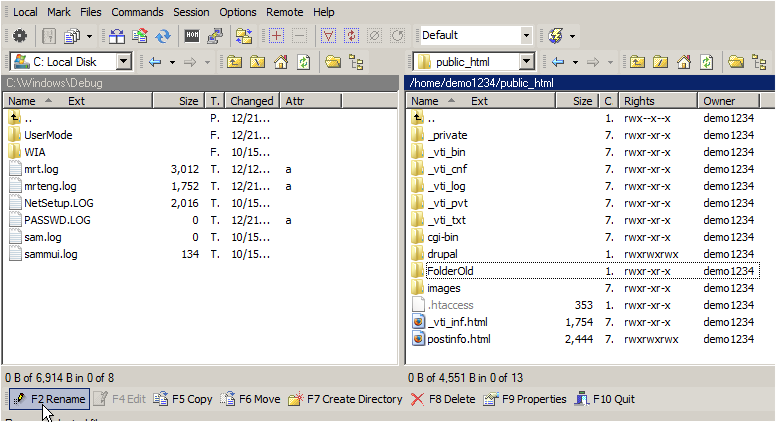
Select the folder or file you want to rename.
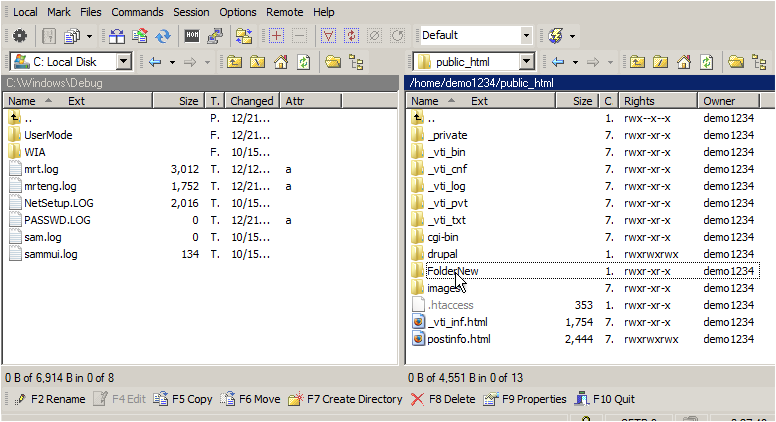
-
Click Rename.
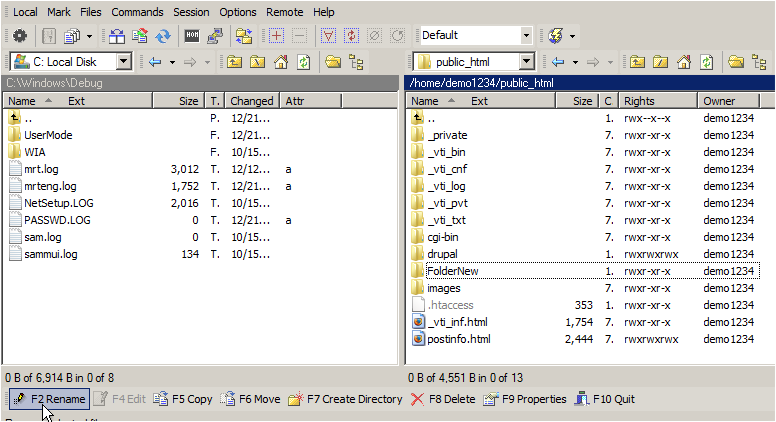
-
Type the new name and press Enter or confirm the prompt.
Deleting a folder or file
-
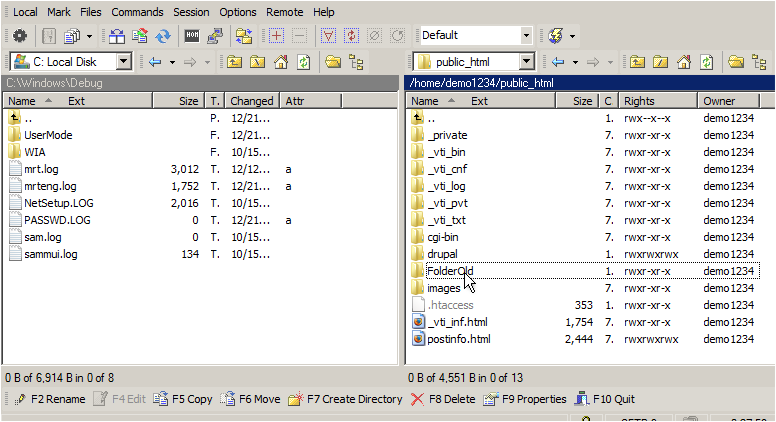
Select the folder or file you want to delete.
-
Click Delete and confirm when prompted.
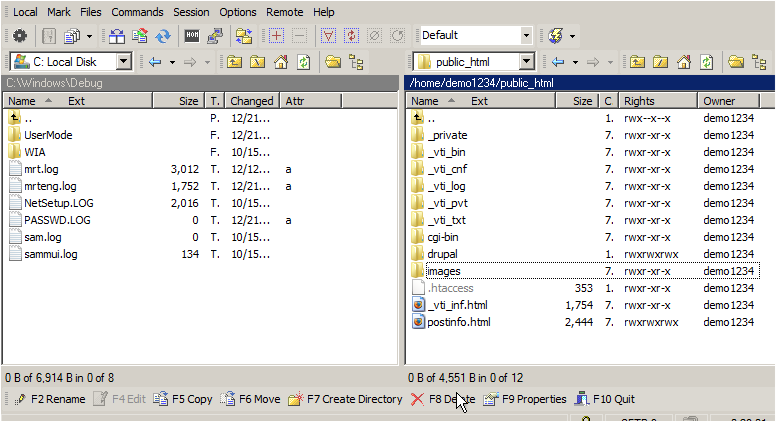
Deletion via FTP is permanent. WinSCP does not move files to a recycle bin.
Changing file permissions
File permissions control who can read, write to, or execute a file on the server.
-
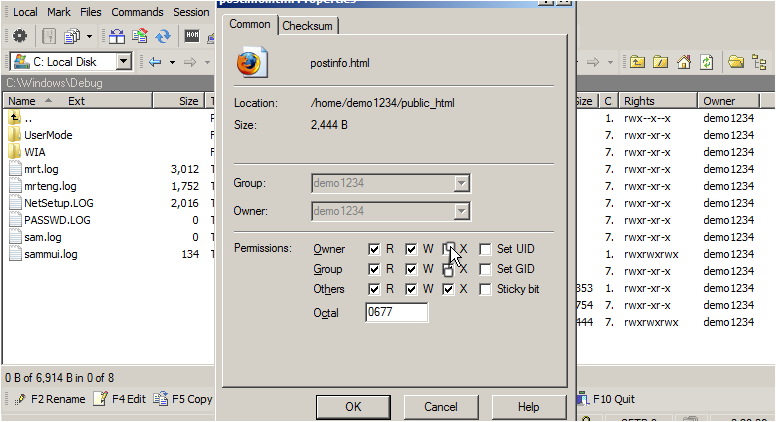
Select the file whose permissions you want to change (for example,
postinfo.html), then click Properties.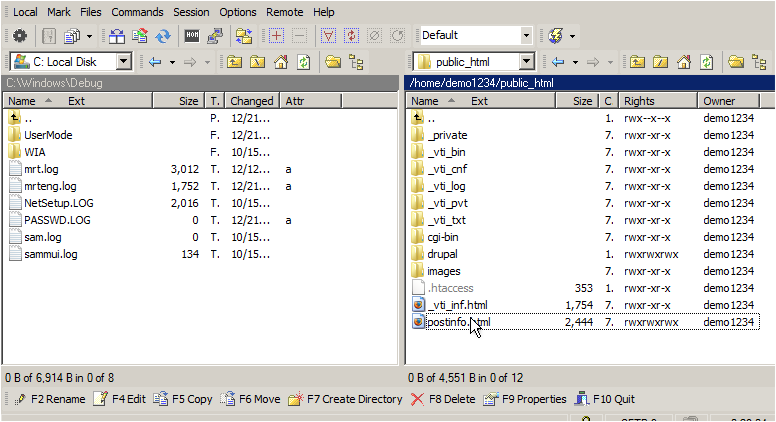
-
Tick or untick the permission checkboxes as needed, or type the numeric value directly into the permissions field.
-
Click OK to apply the changes.
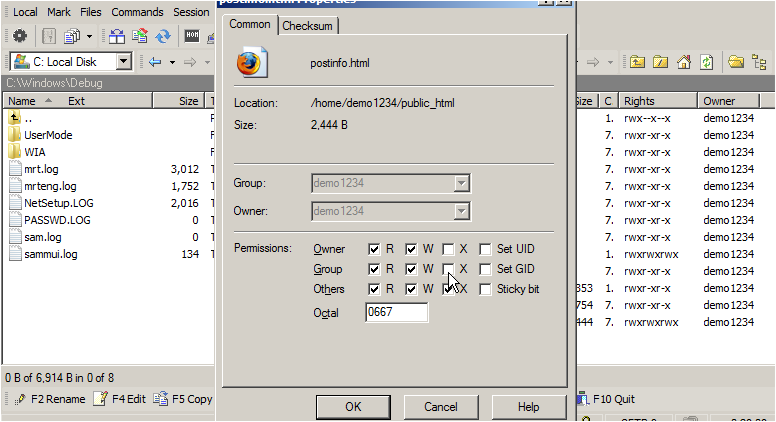
If you are unsure which permissions to set, 644 is standard for files and 755 for folders on most web servers.