
On this page
Uploading files using FileZilla
FileZilla makes it straightforward to transfer files between your computer and your hosting account using FTP or SFTP.
FileZilla makes it straightforward to transfer files between your computer and your hosting account. This guide covers uploading files to your server and downloading them back to your local machine.
Uploading files to your server
-
In the left-hand (local) panel, browse to the folder containing the files you want to upload.
-
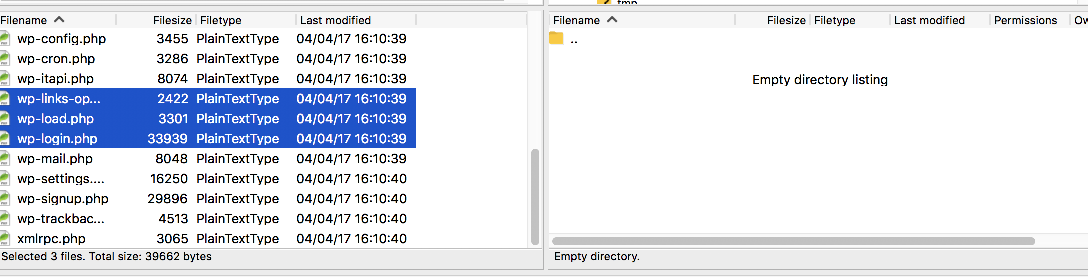
Select the files you want to transfer. To select multiple files, hold Ctrl (Windows) or Cmd (Mac) while clicking each file.
-
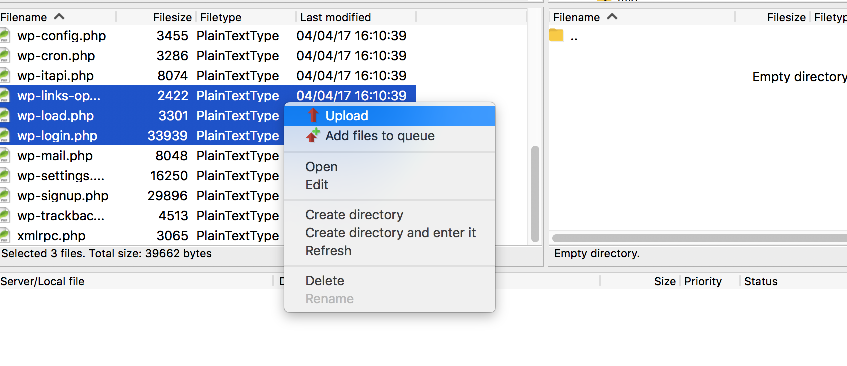
Right-click the selected files and choose Upload.
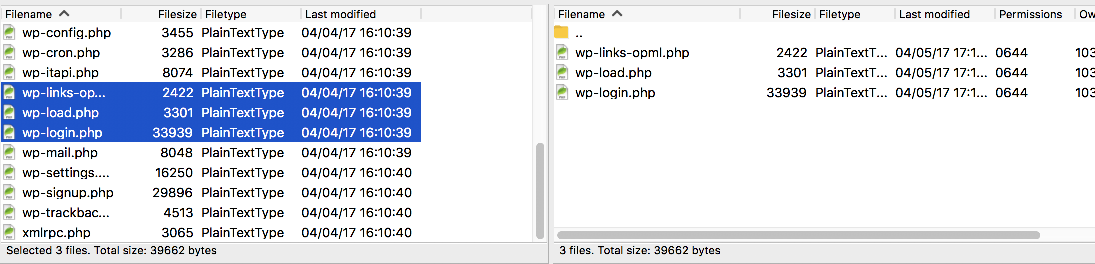
The files will transfer to the current directory shown in the right-hand (remote) panel. You can confirm the upload by checking that the files appear there.
Downloading files from your server
-
In the right-hand (remote) panel, browse to the directory containing the file you want to download.
-
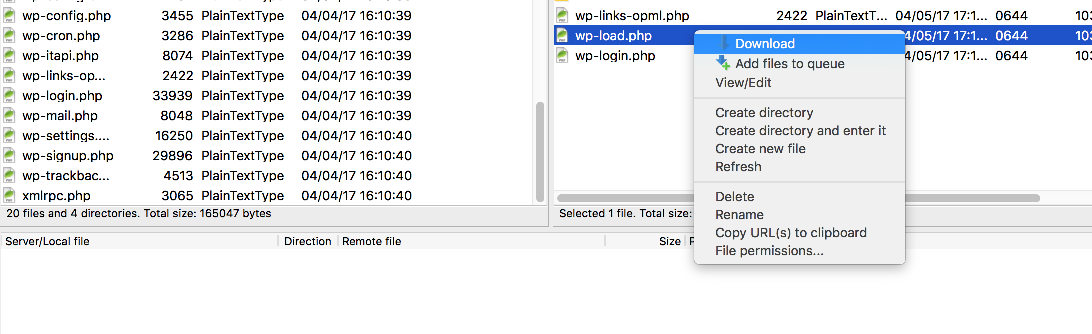
Right-click the file you want to retrieve.
-
Select Download.
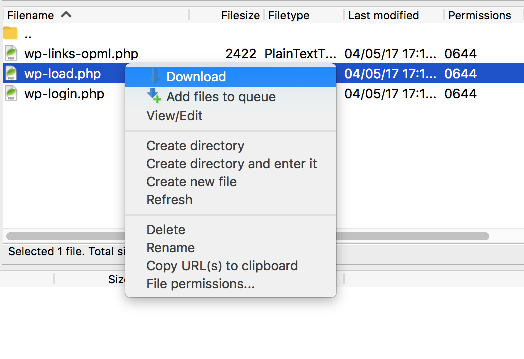
The file will be saved to whichever local directory is currently open in the left-hand panel.
To change where downloaded files are saved, navigate to the destination folder in the local panel before starting the download.