On this page
Configuring your website in WinSCP
Set up and save an FTP session in WinSCP to connect to your Kualo hosting account.
WinSCP is a free FTP and SFTP client for Windows. This guide shows you how to add your hosting credentials, save the session, and disconnect cleanly.
You will need your FTP hostname, username, and password before you start. You can find these in cPanel under FTP Accounts.
Adding your site credentials
-
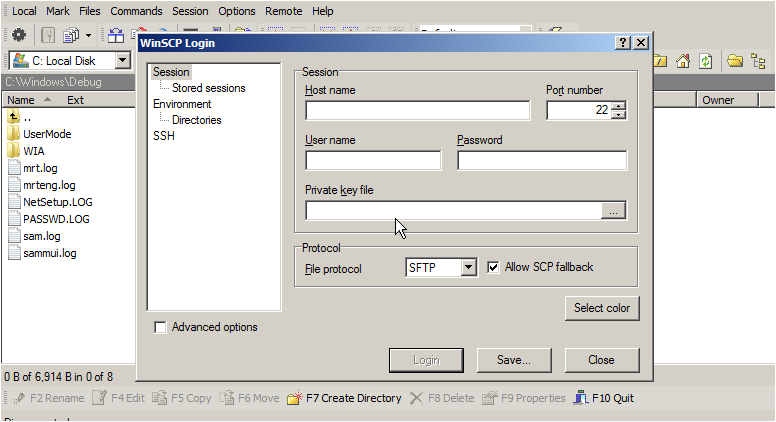
In the WinSCP login window, enter your server address (hostname) in the Host name field.
-
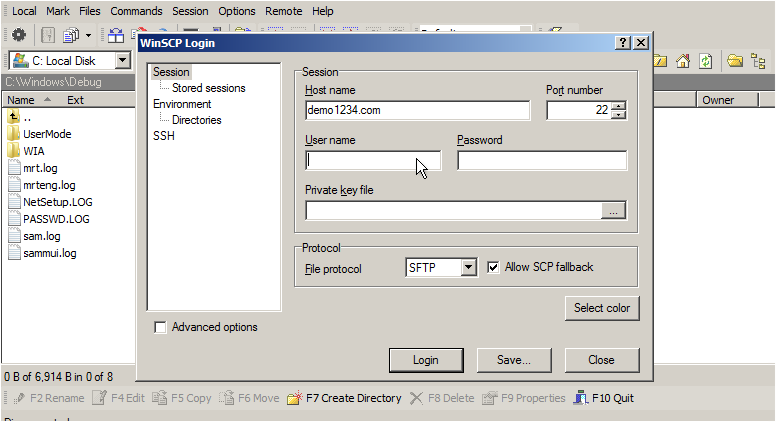
Enter your username in the User name field.
-
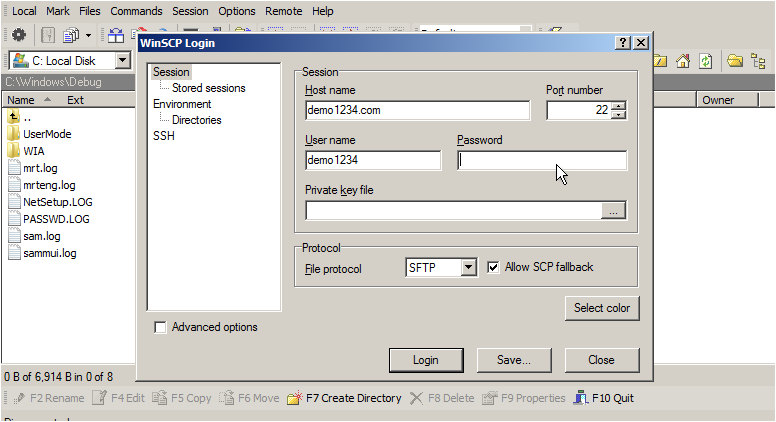
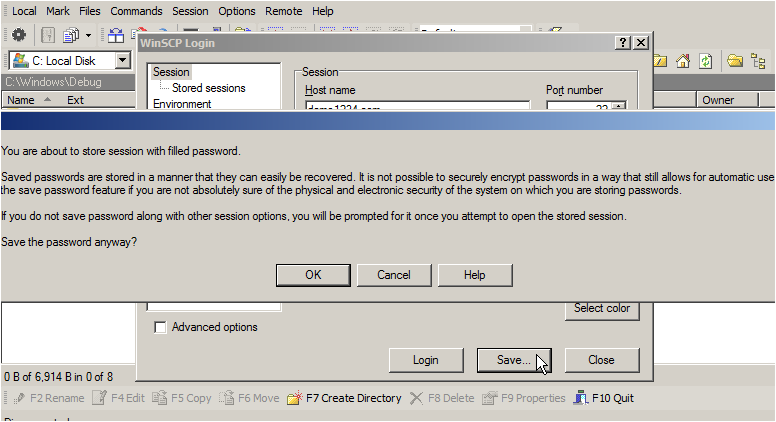
Enter your password, then click Save.
-
Click OK to confirm.
-
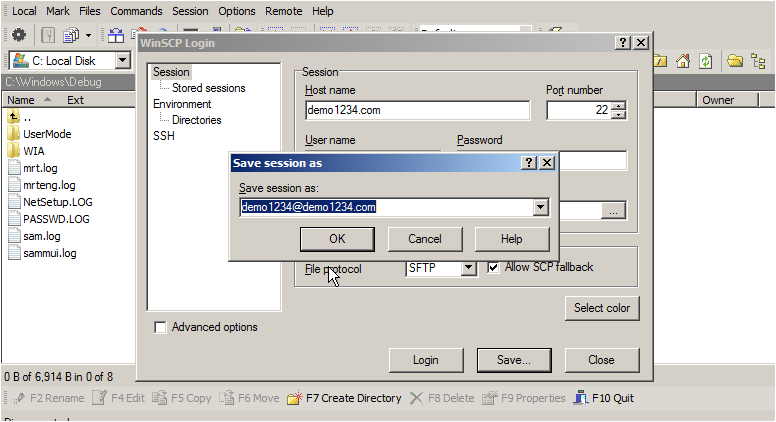
Enter a name for the session so you can identify it later, then click OK.
-
Click Login to connect.
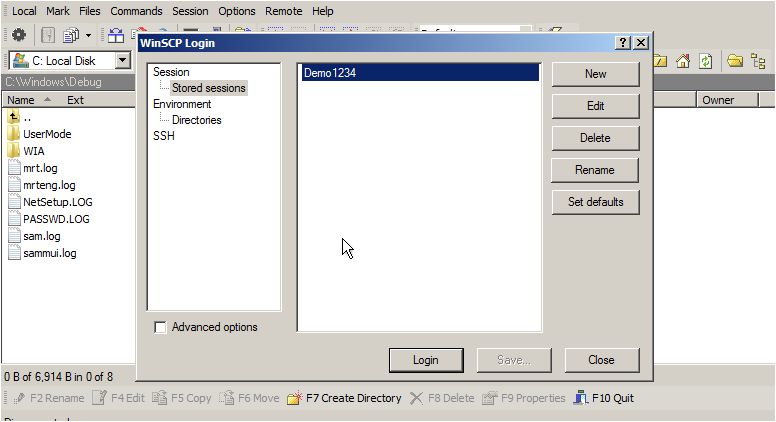
You are now connected to your site via FTP and the session is saved for future use.
Disconnecting
-
Click Session in the menu bar, then click Disconnect.
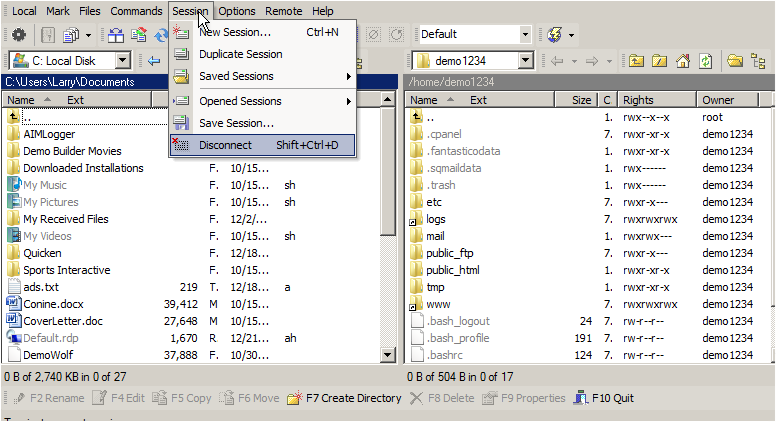
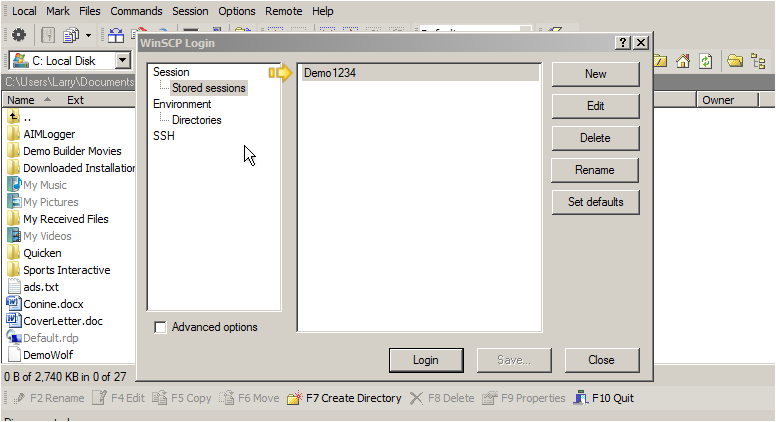
The next time you open WinSCP, your saved session will appear in the login window so you can connect with a single click.