
On this page
Configuring your website in FileZilla
Add your website to FileZilla's Site Manager to save your FTP credentials and connect with a single click.
FileZilla's Site Manager lets you save your FTP credentials so you can reconnect to your hosting account without re-entering them each time. This guide assumes FileZilla is already installed and open on your computer.
Open the Site Manager
- Select the File menu.
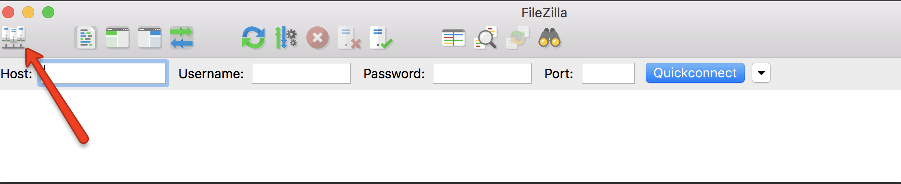
- Click Site Manager.
Create a folder to organise your sites
- Click New Folder.
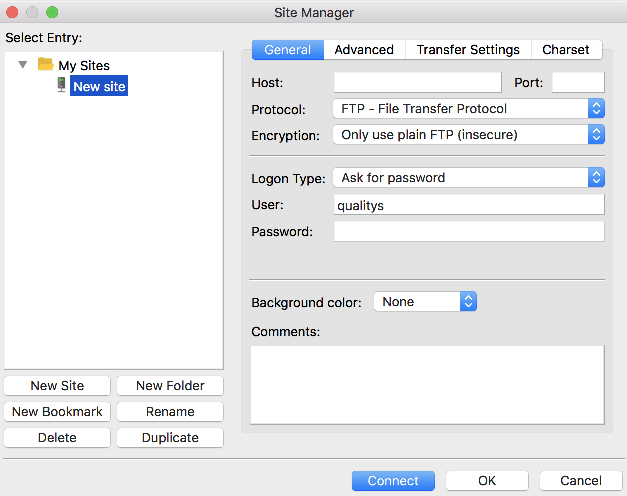
- Type a name for the folder and press Enter.
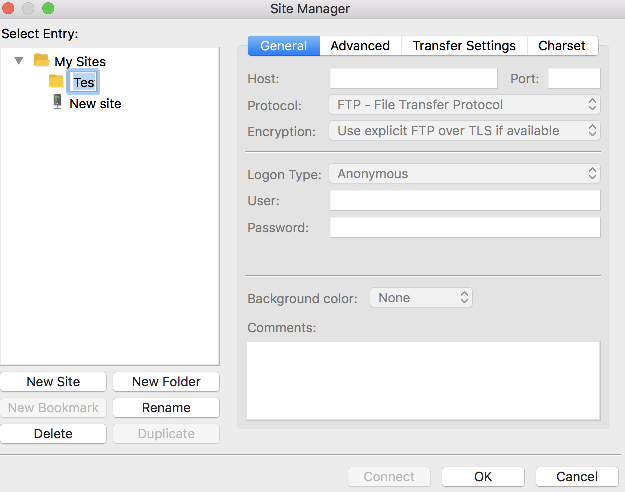
Add a new site
- Click New Site.
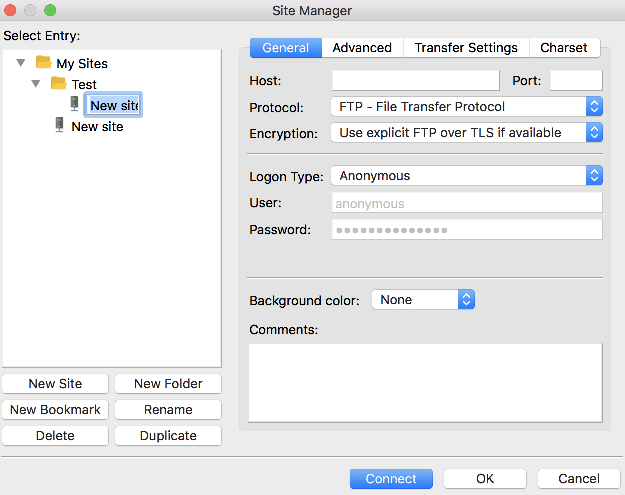
- Type a name for the site entry and press Enter.
- In the Host field, enter your server hostname (for example,
ftp.yourdomain.com).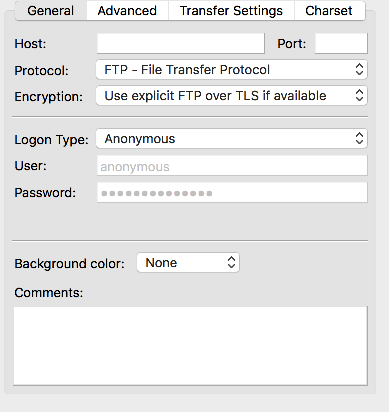
- Set Logon Type to Normal.
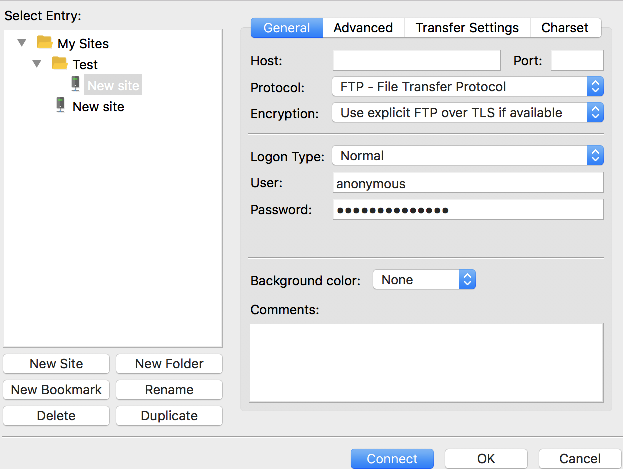
- Enter your FTP Username.
- Enter your FTP Password, then click Connect.
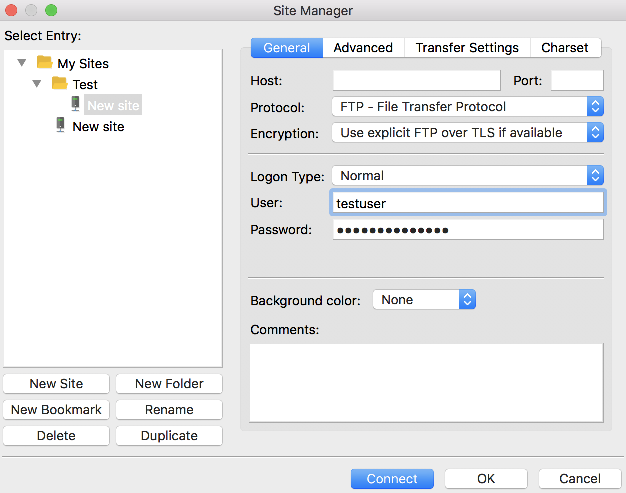
FileZilla will connect to your server and save the credentials. Next time, you can reconnect by opening the Site Manager and double-clicking the site entry.
You can find your FTP hostname, username, and password in cPanel under FTP Accounts.
Was this helpful?
Your feedback helps us find gaps in the docs.
Thanks for the feedback!
Related articles
Files & FTP
How to use File Manager in cPanel
Browse, upload, edit, and organise your hosting files from your browser with cPanel's File...
Files & FTP
How to create additional FTP accounts in cPanel
Create additional FTP accounts in cPanel to give developers or collaborators secure, limit...
Files & FTP
How to password protect a folder in cPanel
Use cPanel's Directory Privacy tool to restrict access to any folder on your hosting accou...
Files & FTP
How to set up hotlink protection in cPanel
Stop other sites from linking directly to your images and files with cPanel's Hotlink Prot...
Still need a hand?
Real people, around the clock - start a chat or open a ticket and we'll help you put it right.