
On this page
How to use the Disk Usage tool in cPanel
The Disk Usage tool in cPanel shows you exactly how much storage space each directory in your account is using.
The Disk Usage tool in cPanel gives you a clear breakdown of how much storage space each directory and sub-directory in your account is consuming, making it easy to spot what is taking up space.
Opening the Disk Usage tool
- Log in to cPanel.
- In the Files section, click the Disk Usage icon.
The tool displays a summary of storage used across all directories in your account.
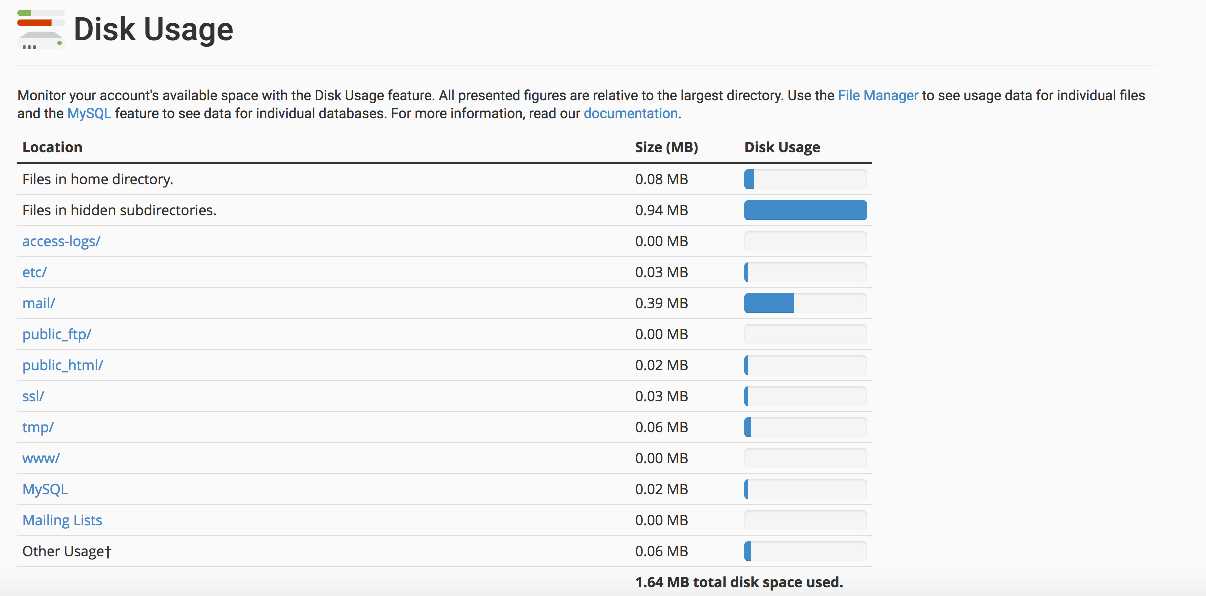
Browsing directories
Below the summary is a collapsible directory tree.
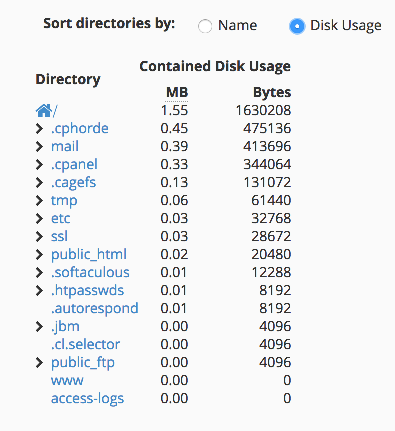
- Click the plus sign next to a directory to expand it and see the files and folders inside.
- Click a folder name to open that folder directly in File Manager.
Sorting the directory list
You can sort the list of folders either by name or by disk usage. Sorting by disk usage is the quickest way to identify which directories are consuming the most space.

If you find a directory using unexpectedly large amounts of space, click its name to open File Manager and investigate or remove files from there.