
On this page
Uploading files using WinSCP
This guide shows you how to upload and download files between your computer and your hosting account using WinSCP.
This guide covers uploading files from your local computer to your hosting account, and downloading files back again, using WinSCP. It assumes you already have WinSCP open and connected to your server.
Uploading files to the server
-
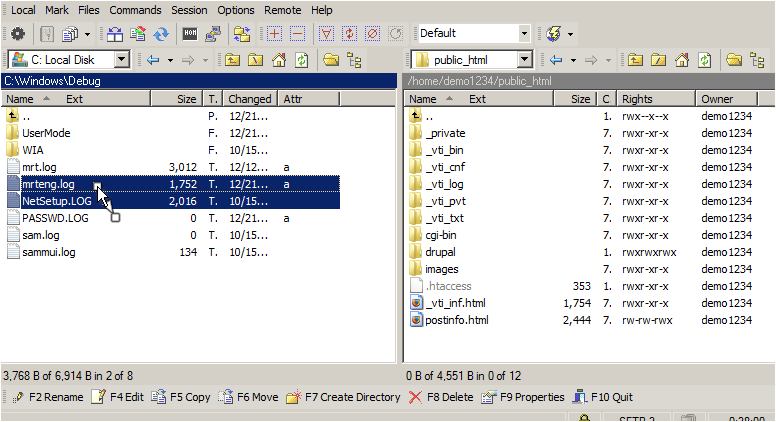
In the left-hand (local computer) panel, select the files you want to upload. Hold Ctrl to select multiple files.
-
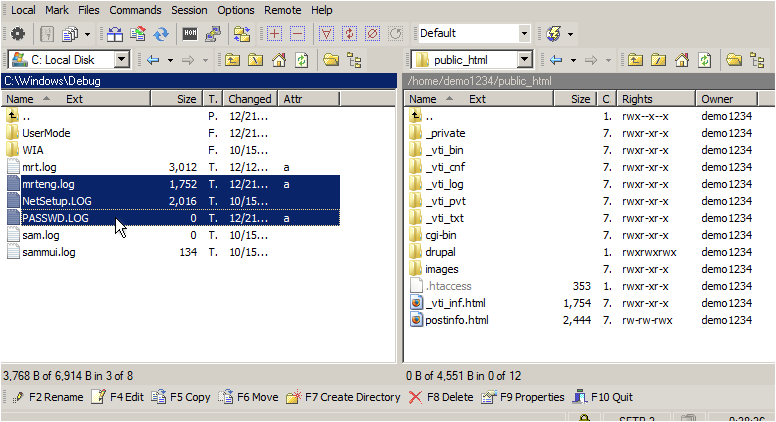
Click Copy.
-
In the confirmation dialogue that appears, click Copy again to confirm the transfer.
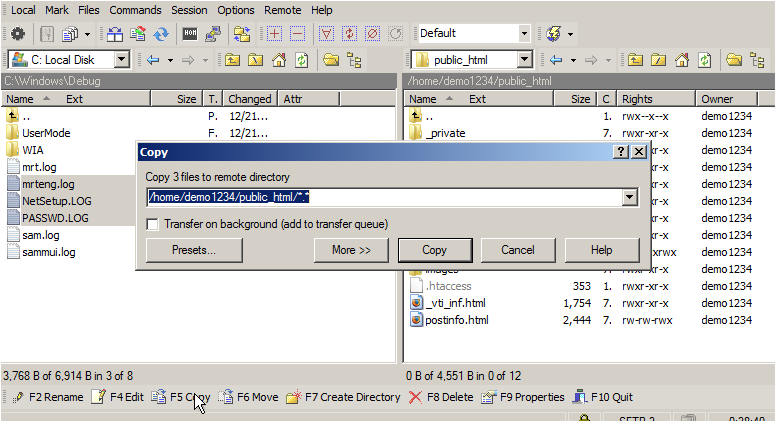
The files are now uploaded and will appear in the right-hand (remote server) panel.

Downloading files from the server
-
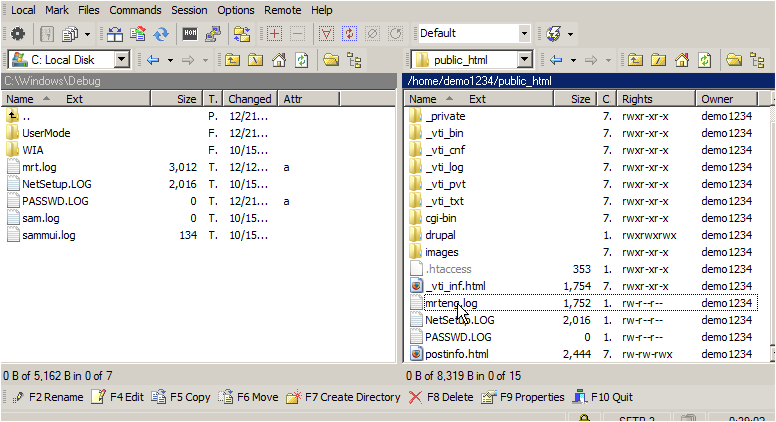
In the right-hand (remote server) panel, select the file you want to download.
-
Click Copy.
-
In the confirmation dialogue, click Copy again to confirm.
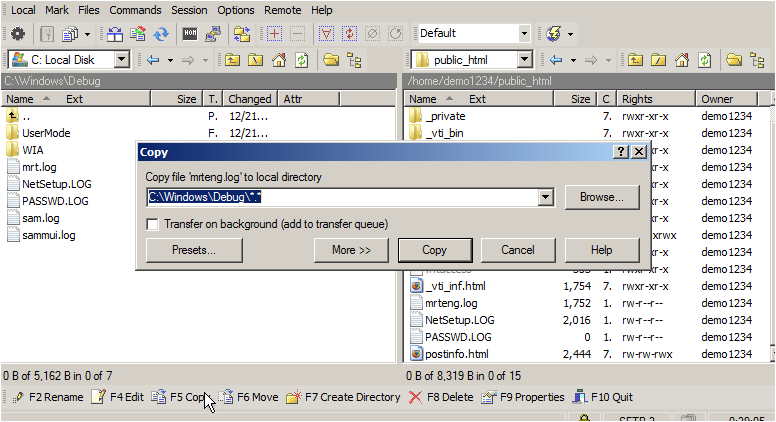
The file will appear in your local computer panel once the transfer is complete.
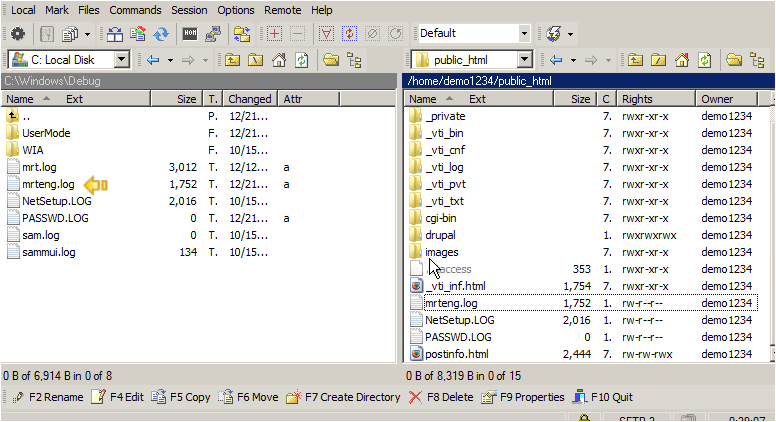
You can also drag and drop files between the two panels as an alternative to using the Copy button.