
On this page
Importing databases and tables with phpMyAdmin
Learn how to import a SQL file into a database using phpMyAdmin in cPanel, to restore a backup or move data in.
Importing loads a .sql file back into a database - restoring a backup, or bringing in a database from somewhere else. This guide shows how to import with phpMyAdmin in cPanel.
Before you start
- You need the
.sqlfile you want to import, often created by exporting a database. phpMyAdmin also accepts a file compressed as.zip,.gzor.bz2. - The database you are importing into must already exist. If it does not, create one first.
Open phpMyAdmin from the Databases section of cPanel.
Import a SQL file
-
In the left-hand panel, click the database you want to import into. Double-check you have picked the right one - importing adds to, and can overwrite, whatever is already there.
-
Click the Import tab at the top.
-
Under File to import, click Choose File and select your
.sqlfile from your computer.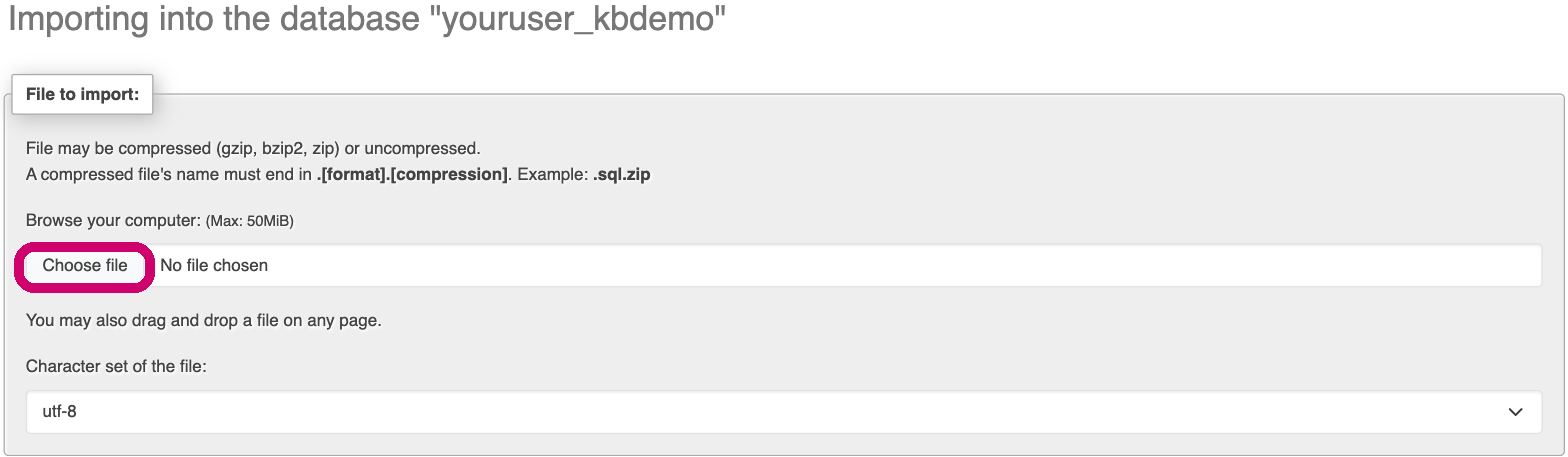
-
Leave the other settings at their defaults. The Format is detected automatically as SQL, and utf-8 is the right character set for almost every file.
-
Scroll down and click Import.
phpMyAdmin uploads and runs the file, then shows a green success message telling you how many queries ran. Your imported tables appear under the database in the left-hand panel.
If your .sql file contains tables with the same names as those already in the target database, importing will overwrite that data. Import into an empty database, or take an export first, if you are unsure.
If your file is too large
The upload limit through phpMyAdmin is 50 MiB, shown next to the Choose File button. If your .sql file is bigger than that, importing through the browser will time out or fail. Instead, import the database over SSH, which has no such limit.
If you need a hand, our support team is available 24/7 - just open a support ticket.