
On this page
How to enable PHP error logging in cPanel
Switch on PHP error logging from cPanel's Select PHP Version tool so warnings and errors are written to an error_log file you can review when troubleshooting your site.
When something on your site misbehaves, the PHP error log is usually the quickest way to find out why. Before you can check it, PHP error logging needs to be enabled for your account.
Enabling PHP error logging
- Log in to cPanel and open Select PHP Version, under the Software section.
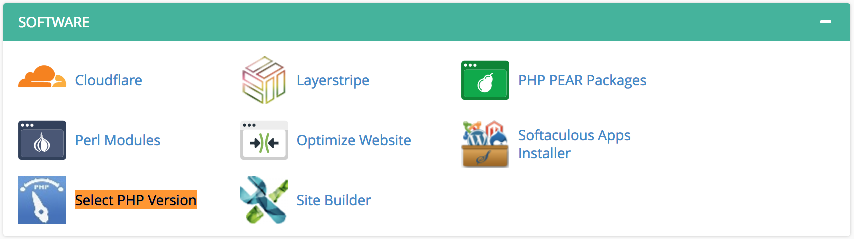
- The current PHP version and its extensions are shown.
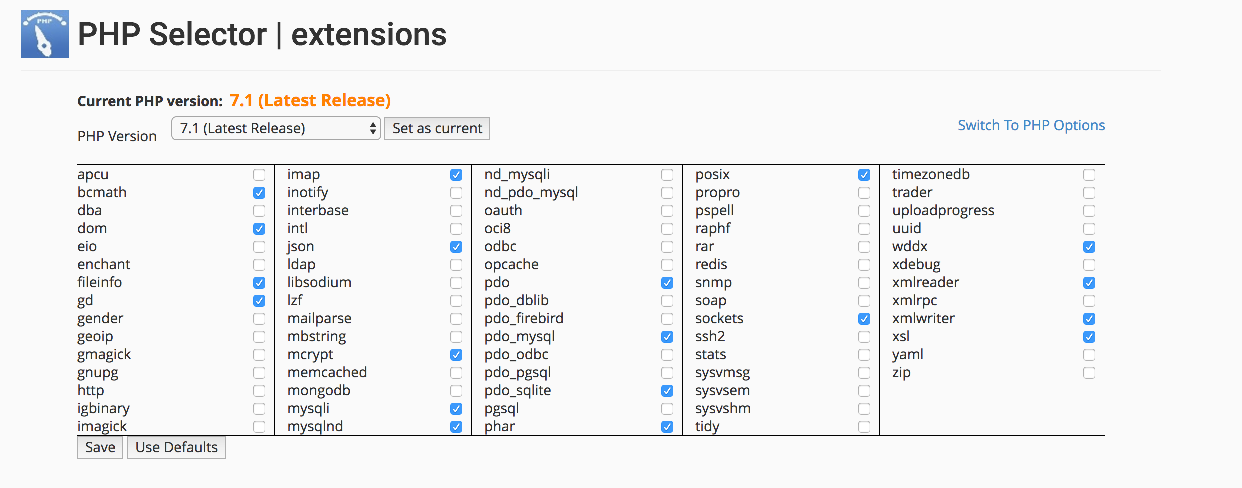
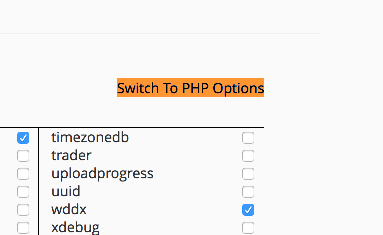
- Switch to the PHP Options view (labelled Switch to PHP Options in some cPanel versions).
- The PHP options for your account are listed.
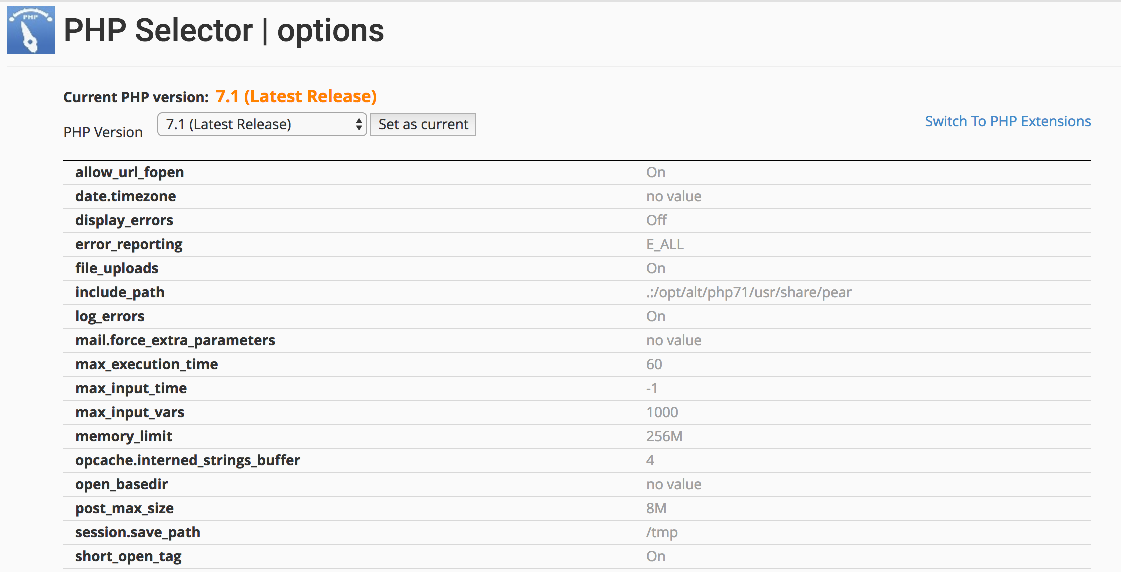
- Find error_reporting and click its current value.

- Choose E_ALL from the drop-down menu to enable full error reporting, then apply/save the change.

Where to find the errors
New PHP errors and warnings are written to a file named error_log in the folder the failing script runs from - for most sites that means your application's root folder, such as public_html.
Once you've finished troubleshooting, consider setting error_reporting back to its previous value - full error reporting can be noisy on a busy site.
Was this helpful?
Your feedback helps us find gaps in the docs.
Thanks for the feedback!
Related articles
PHP & developer tools
How to manage the PHP version in cPanel using the Select PHP Version tool
Switch PHP versions, enable extensions, and configure PHP options in cPanel with the Selec...
PHP & developer tools
Setting PHP versions per folder / website using .htaccess (AddHandler)
Use an AddHandler directive in .htaccess to run different PHP versions for different folde...
PHP & developer tools
How to set up a cron job in cPanel
Schedule commands and scripts to run automatically with a cron job in cPanel.
PHP & developer tools
How to use the Git version control tool in cPanel
cPanel's Git Version Control tool lets you create and manage Git repositories directly fro...
Still need a hand?
Real people, around the clock - start a chat or open a ticket and we'll help you put it right.