
On this page
Becoming familiar with databases in phpMyAdmin
A quick guide to the main features of phpMyAdmin and how to work with your databases and tables.
phpMyAdmin is a free, web-based tool for managing MySQL databases, and it is built into cPanel. This guide introduces its layout and main features so you know where to find things and what each part does.
To open it, log in to cPanel, find the Databases section and click phpMyAdmin.
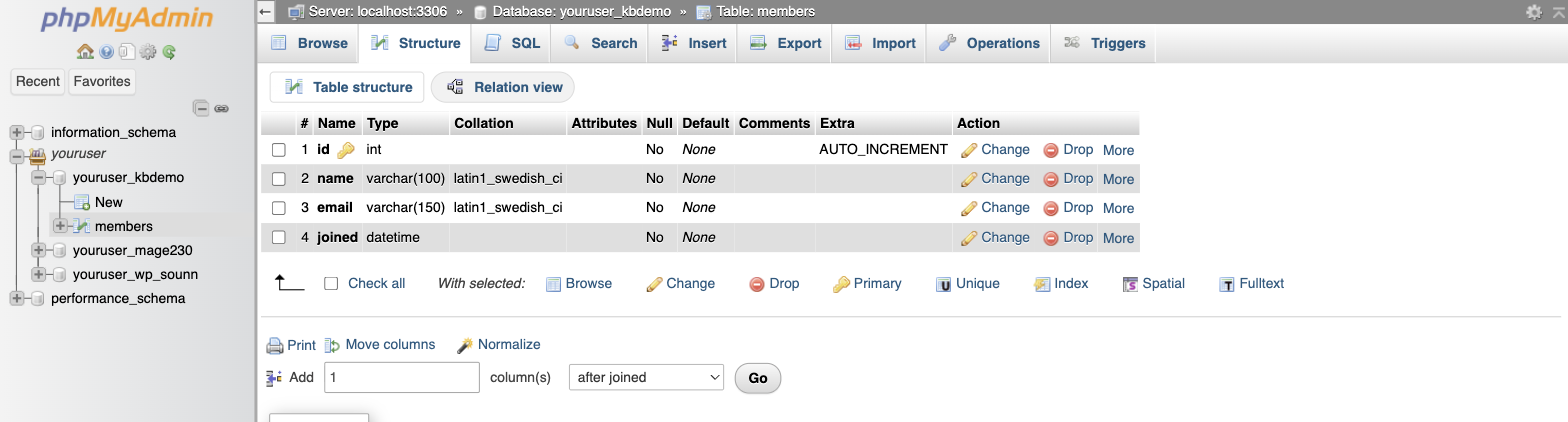
The database and its tables
Your databases are listed in the left-hand panel. A database is made up of one or more tables, and your data lives inside those tables. Click a database to expand it and reveal its tables; click a table to open it in the main area on the right.
In the example above, the database youruser_kbdemo contains a single table called members.
On Kualo accounts every database name is prefixed with your cPanel username (for example youruser_), which keeps it unique across the server.
What you can do with a table
When you open a table, a row of tabs appears across the top of the main area:

- Browse - view the individual records (rows) stored in the table.
- Structure - see the columns that make up the table, their data types, and any keys.
- SQL - run a SQL statement against this table.
- Search - find rows matching specific values, using a guided form instead of writing SQL by hand.
- Insert - add a new row of data.
- Export / Import - download this single table, or load data into it.
- Operations - housekeeping tasks: rename or copy the table, change its options, empty it (delete all rows but keep the table) or drop it (delete the table entirely).
Emptying or dropping a table cannot be undone. Always take a backup first - see Exporting databases and tables with phpMyAdmin.
Database-level actions
When you select the database itself rather than a single table, the tabs change to act on the whole database:

- Structure - lists all the tables in the database and lets you create new ones.
- SQL - run SQL commands against the database.
- Search - search across several tables at once.
- Export - download the database (or selected tables) as a SQL file.
- Import - upload and restore a previously exported SQL file.
- Operations - rename or copy the entire database.
The remaining tabs (Query, Routines, Events, Triggers and Designer) cover more advanced features you are unlikely to need day to day.
Understanding table structure
A table's Structure tab lists every column along with its data type, default value and any special attributes. One column is usually marked as the primary key, shown with a small key icon - this is a unique identifier for each row. In the example, the id column is the primary key, so every record can be referenced individually.
Logging out
Because phpMyAdmin opens using a temporary, secure login from cPanel, you can simply close the tab when you are finished. To end the session straight away, click the Log out icon (a door with an arrow) at the top of the left-hand panel.
Now you know your way around, you can create a table, run a SQL query or export a backup. If you get stuck, our support team is here 24/7 - just open a support ticket.