
On this page
How to use the Images tools in cPanel
cPanel's Images tools let you create thumbnails, resize images, and convert image files between formats, all from within your hosting account.
The Images area of cPanel gives you three simple tools for working with image files that are already stored in your hosting account - without needing image-editing software on your own computer.
Open the Images tools
Log in to cPanel and, in the Files section, click Images.
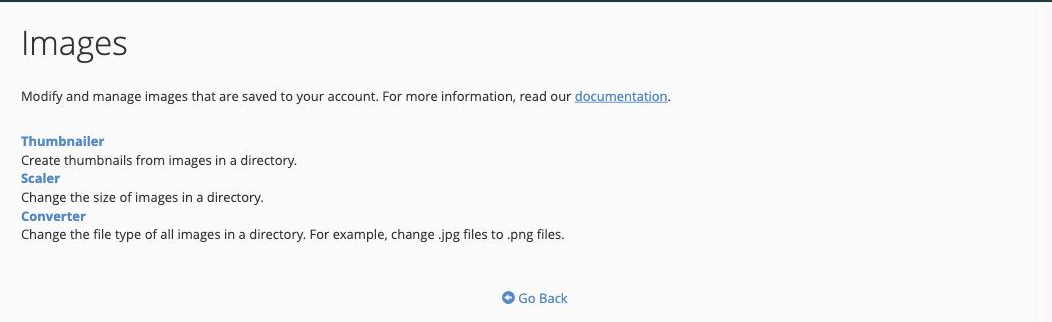
You will see three tools, each for a different job:
- Thumbnailer - create smaller thumbnail copies of every image in a directory, in one step.
- Scaler - change the dimensions of an image, making it larger or smaller.
- Converter - change an image from one file type to another, for example from
.jpgto.png.
Thumbnailer
Use Thumbnailer when you want thumbnail versions of a whole folder of images. Open Thumbnailer, browse to the directory that contains your images, choose the scaling percentage, and cPanel creates a thumbnails sub-folder containing the smaller copies.
Scaler
Use Scaler to resize a single image. Open Scaler, browse to and select the image, then enter the new dimensions. Tick Keep Aspect Ratio so the image is not stretched, and use the option to retain a copy if you want to keep the original as well.
Converter
Use Converter to change an image's format. Open Converter, select the image (or a directory of images), choose the new file type from the list, and convert.
These tools change files in your hosting account directly. If you want to keep the originals, make a copy first - or use the option to save the result as a new file where it is offered.