
On this page
Restoring file backups in cPanel
Restore your website files or folders from a JetBackup backup taken in the last 30 days, or download them to your computer.
JetBackup in cPanel lets you restore your website files from any backup taken in the last 30 days. You can restore them straight back to your account, or download a copy to your computer.
Open your file backups
- Log in to cPanel and, in the Files section, open JetBackup 5.
- On the Restore & Download screen, click the Home Directory tab. Your file backups are listed by date.
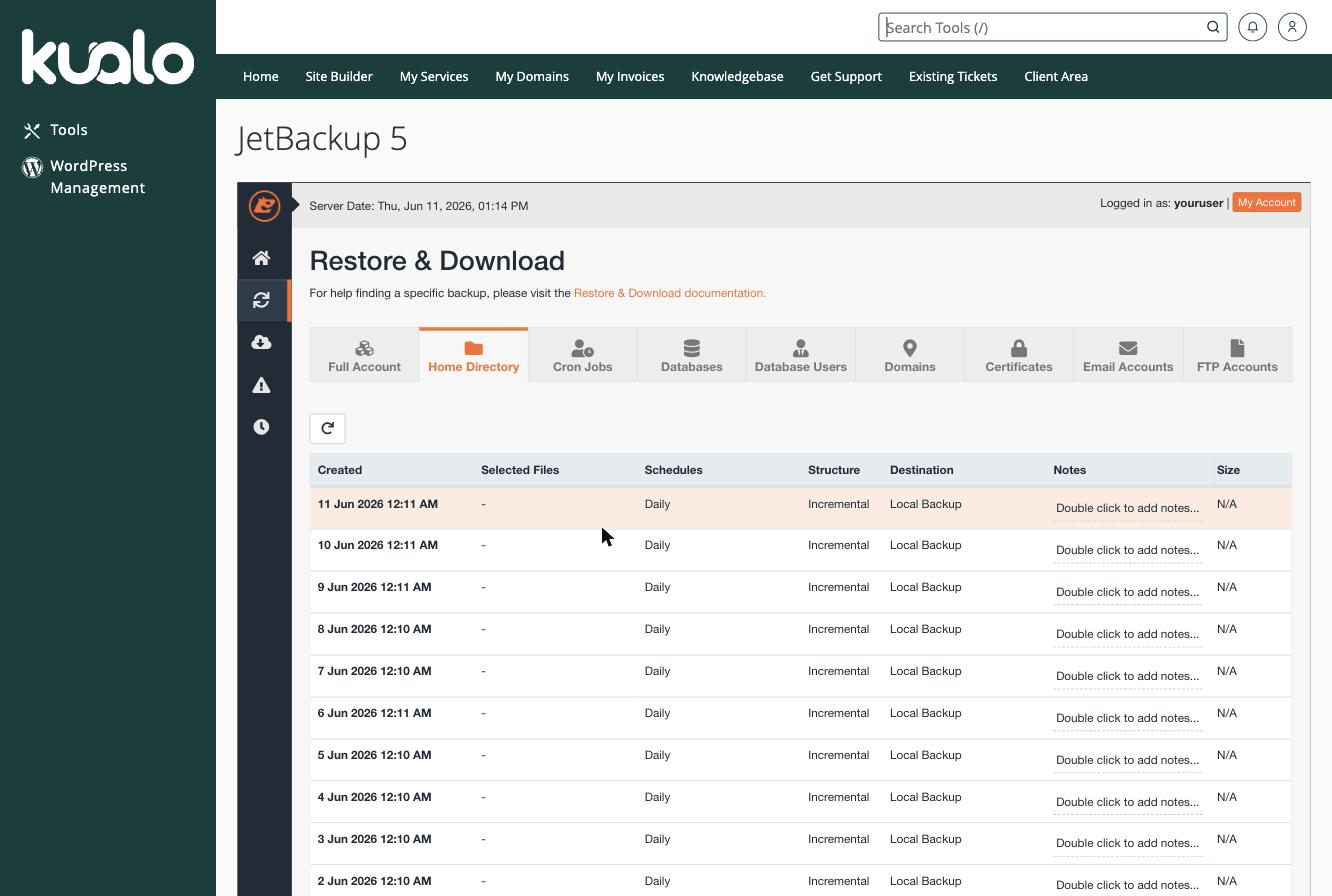
Restore or download your files
- Find the backup date you want to restore from.
- Select that backup, then choose:
- Restore - puts the files back directly into your account.
- Download - prepares a downloadable archive instead, which appears under Downloads for you to save to your computer.
You can restore a whole backup, or browse into it and pick out just the files or folders you need - handy when you only want to recover a single file rather than your entire site.
Backups are kept for the last 30 days. Only the most recently generated download is held on the server at a time, so save your file promptly after preparing a download.
If you need a hand, our support team is available 24/7 - just open a support ticket.
Was this helpful?
Your feedback helps us find gaps in the docs.
Thanks for the feedback!
Related articles
Backups & restores
Understanding your backup options: which one should you use?
Kualo gives you several ways to back up your site - here is how each one works and when to...
Backups & restores
Creating a full account backup/snapshot in cPanel
Create an on-demand full backup of your entire cPanel account with JetBackup, and learn th...
Backups & restores
How to download a full account backup in cPanel
Download a complete backup of your cPanel account from JetBackup, which keeps backups from...
Backups & restores
Restoring a database backup in cPanel
Restore a MySQL database from a JetBackup backup taken in the last 30 days, or download a...
Still need a hand?
Real people, around the clock - start a chat or open a ticket and we'll help you put it right.