
On this page
How to add or manage DNS records in cPanel (Zone Editor)
Use the Zone Editor in cPanel to add, edit, or delete DNS records for your domain.
This guide explains how to view, add, edit, and delete DNS records using the Zone Editor in cPanel. DNS records control how your domain works on the internet - where your website loads from, where email is delivered, and how other services verify your domain.
Open the Zone Editor
- Log in to cPanel.
- In the Domains section, click Zone Editor.
The Zone Editor lists every domain on your account. Each row has quick buttons for the most common record types - + A Record, + CNAME Record and + MX Record - plus a Manage button that opens the full list of records for that domain.
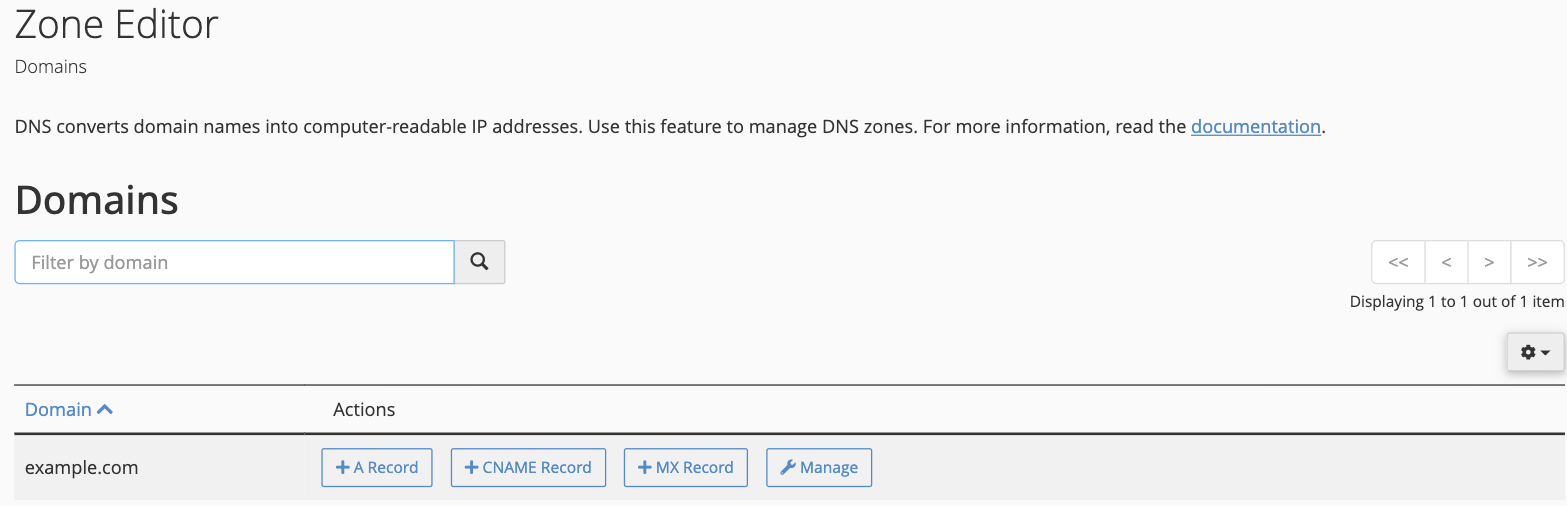
Quickly add an A, CNAME or MX record
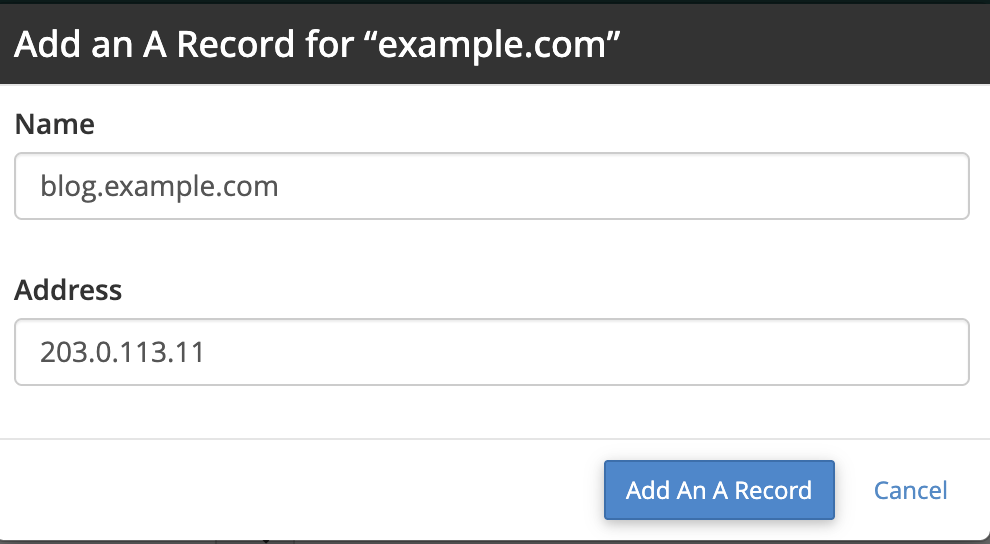
For the three most common record types you can use the quick-add buttons without leaving this page.
- Click + A Record (or + CNAME Record / + MX Record) next to your domain.
- Fill in the small form. For an A record, enter the Name (the domain or subdomain) and the Address (the IP address it should point to).
- Click Add An A Record.
Manage all records (including TXT)
To see every record for a domain, add a TXT record, or edit and delete records, click Manage next to the domain. The management page lists all current records and gives you a + Add Record button.
-
Click + Add Record.
-
Choose the record Type and fill in the fields:
- A - points a name to an IPv4 address. Name:
blog.example.com, Record: the IP address. - CNAME - points one name at another name. Name:
www.example.com, Record:example.com. - MX - sets where email is delivered. Name:
example.com, Priority:0(or as provided by your mail host), Destination:mail.example.com. - TXT - used for SPF, DKIM and domain-verification values. Name:
example.com, Record: the exact value you were given.
- A - points a name to an IPv4 address. Name:
-
Leave TTL at its default unless you have been told otherwise, then click Save Record.
After changing MX records, check your email routing setting so the server knows whether to deliver mail locally or pass it to an external provider - see Check email routing below.
Edit or delete a record
On the Manage page, find the record in the list and click Edit to change it (then Save Record), or Delete to remove it and confirm.
Deleting a DNS record cannot be undone. Note down the existing values before you change or remove anything important, so you can restore them if needed.
Check email routing
If you have changed your MX records, make sure the Email Routing setting matches:
- From the cPanel home page, open Email Routing in the Email section.
- Choose Local Mail Exchanger if email is hosted on this server, or Remote Mail Exchanger if it is hosted with an external provider.
- Click Change.
DNS propagation
Changes to DNS records can take anywhere from a few minutes to a few hours to take effect across the internet. You can check whether a change is live with a tool such as whatsmydns.net.
Common issues
Changes not taking effect:
- Clear your browser cache and try again.
- Confirm you edited the correct domain.
- Check that your domain's nameservers point to Kualo - contact support if you are unsure.
Email not arriving:
- Verify the MX record is correct for your domain.
- Confirm the Email Routing setting matches your setup.
- Make sure the MX destination hostname resolves to a valid IP address.
If you need a hand, our support team is available 24/7 - just open a support ticket.