
On this page
How to use File Manager in cPanel
Browse, upload, edit, and organise your hosting files from your browser with cPanel's File Manager - no FTP program needed.
cPanel's File Manager lets you browse, upload, edit, and organise the files in your hosting account from your web browser - no FTP program needed. This guide covers the main things you can do with it.
Open File Manager
- Log in to cPanel.
- In the Files section, click File Manager.
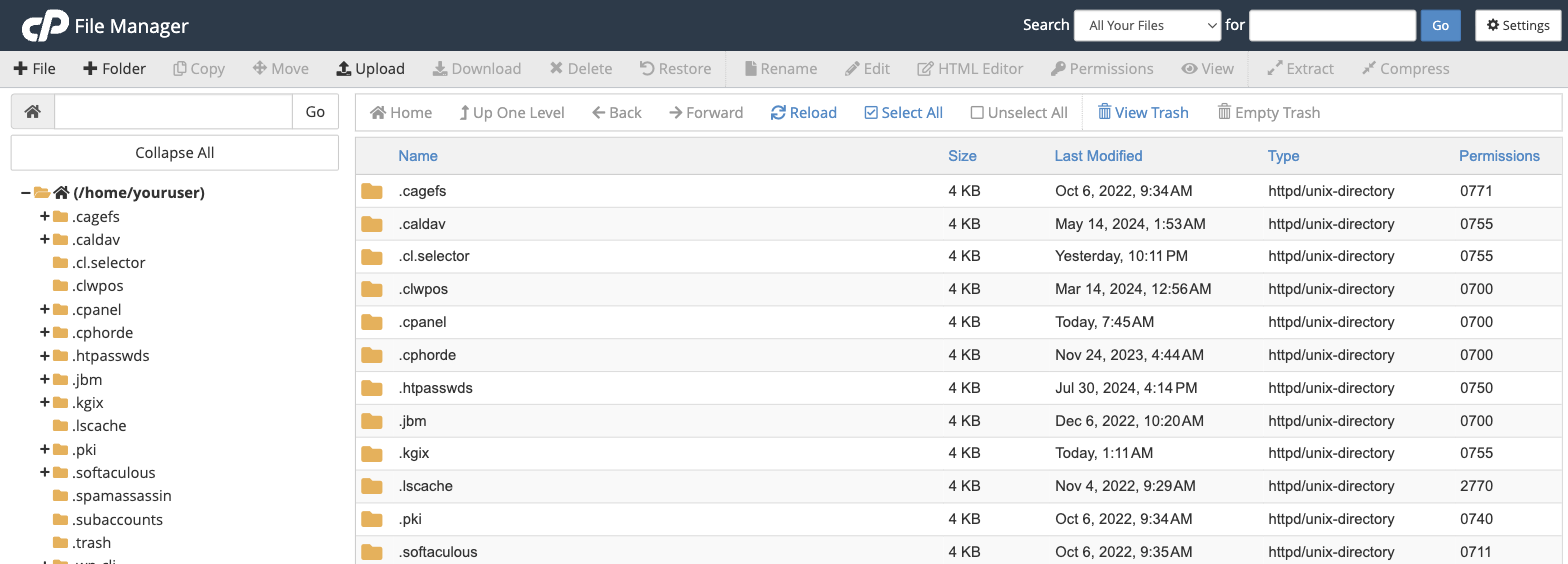
The window has three main areas:
- The toolbar across the top, with buttons for every action - + File, + Folder, Upload, Download, Copy, Move, Rename, Edit, Delete and more.
- The folder tree on the left, which you use to move between folders.
- The file list on the right, showing the contents of the current folder along with each item's size, type and permissions.
Your website's public files live in the public_html folder. Anything you want visitors to see on your main domain goes there.
Common tasks
Upload a file
- Open the folder you want to upload into (for most websites, public_html).
- Click Upload in the toolbar.
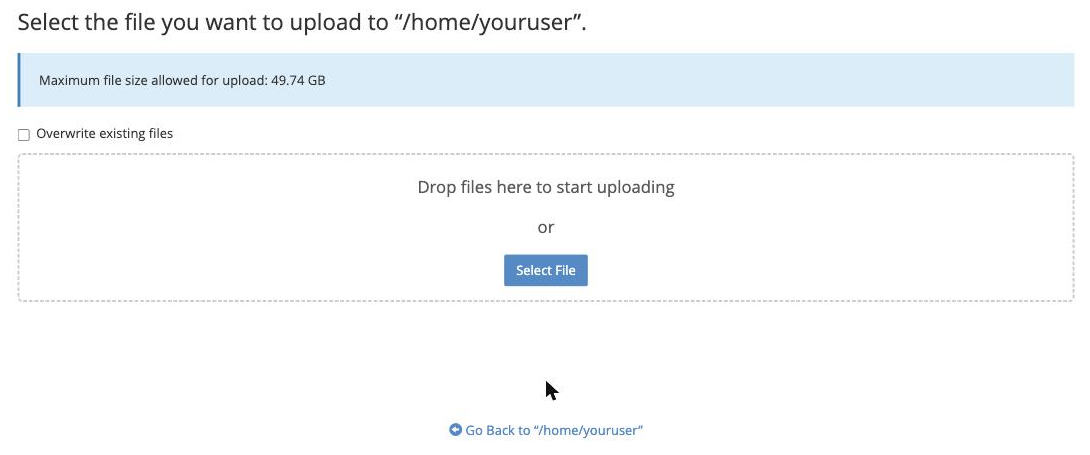
- Drag your files onto the upload page, or click Select File to choose them. Each file uploads automatically.
- Click Go Back to return to File Manager.
Create a folder or file
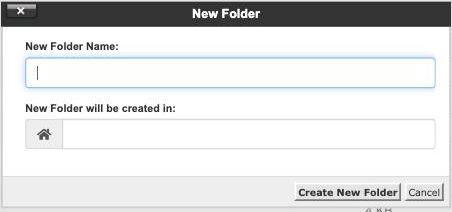
- Click + Folder to make a new folder, give it a name, and click Create New Folder.
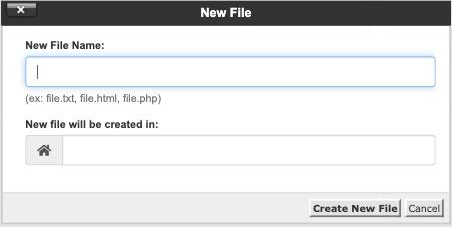
- Click + File to create a new, empty file in the same way.
Edit a file
- Click a file once to select it.
- Click Edit (for plain text) or HTML Editor in the toolbar.
- Make your changes and click Save Changes.
Move, copy, rename or delete
Select an item, then use Move, Copy, Rename or Delete in the toolbar. Deleted items go to the .trash folder - use View Trash and Empty Trash to manage them.
Extract or compress
Select a .zip (or similar) archive and click Extract to unzip it, or select files and click Compress to zip them up - handy for moving lots of files at once.
Change permissions
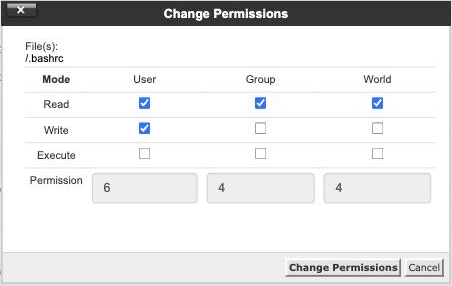
Select a file or folder and click Permissions to view or change its read/write/execute settings. Most files should be 644 and most folders 755 - only change these if you know you need to.
Take care when deleting or editing files outside your website's content. System folders (those starting with a dot, such as .cpanel) are used by your account and should be left alone.
If you need a hand, our support team is available 24/7 - just open a support ticket.