
On this page
Backing up your WordPress website with WP Toolkit
WP Toolkit lets you create instant, site-specific backups of a single WordPress installation - the right files and database, nothing else. Learn how to create, restore, download and manage those backups, and how they complement your JetBackup account snapshots.
Backups are like parachutes: you don't think much about them when everything's going fine, but the moment something goes wrong, you'll be glad you had one packed.
At Kualo, your hosting plan includes regular JetBackup snapshots to keep your data safe. JetBackup is powerful and flexible - you can restore your whole account, or drill down into specific files, databases, or directories. But if you have more than one site in your account, that means figuring out which files and database belong to the site you want to roll back.
That's where WP Toolkit backups come in. Instead of picking the right files and databases yourself, you just choose the WordPress instance in WP Toolkit and it handles everything. It creates a snapshot of just that one WordPress site - the right files, the right database, nothing else. It's quick, precise, and puts you in control.
When should you take a manual WP Toolkit backup?
You may not need to take one every day - JetBackup already provides account-level protection - but WP Toolkit backups are particularly useful when you want an immediate, site-specific safety net. For example:
- Installing a new plugin or theme.
- Updating plugins or themes without using Smart Update.
- Making code or configuration changes.
- Doing major content edits without another backup running.
- Creating an export you want to download or share with a developer.
WP Toolkit backups are your quick "save point" for one WordPress site. JetBackup covers you more broadly at the account level. Used together, they give you both convenience and resilience.
Best practice for updates
While you can back up and update live, a more reliable approach is:
- Smart Updates: When using Smart Updates, WP Toolkit creates a temporary clone, tests updates there, and only applies them live if everything looks good. A restore point is created automatically.
- Staging sites: For larger batches of updates or bigger changes, clone your site to staging, test there, and push changes live when you're satisfied.
Creating a manual backup in WP Toolkit
-
Log in to cPanel and open WP Toolkit by clicking WordPress Management on the left side.
-
Find the WordPress installation you want to back up.
-
Select the Back Up/Restore button.

-
Click Back Up.

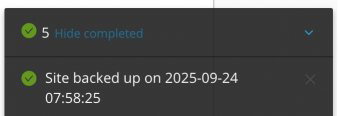
WP Toolkit will generate a compressed archive containing your site's files and database. Depending on how large your site is, this may take some time. You can close the modal window and you will be updated in the task manager pane at the bottom right once it completes.
Where are WP Toolkit backups stored?
Backups are stored inside your cPanel account's user space, typically under:
/home/username/wordpress-backups/
Each backup is saved as a compressed archive. Keep in mind:
- They count towards your account's disk space usage.
- Large sites or multiple backups can quickly eat into your quota.
- Always check you have enough free space before creating a backup.
- Delete older WP Toolkit backups when you no longer need them.
Restoring, downloading or deleting a backup
- In WP Toolkit, select the Back Up/Restore button.
- You will see a list of your recent backups, including the time each backup was taken (in UTC).
- Choose to Restore, Download or Delete your backup.

When WP Toolkit creates backups automatically
You don't always need to make backups yourself - WP Toolkit can create them automatically at key points, or prompt you to do so:
- Smart Updates: A backup is taken before any Smart Updates are pushed to your live website.
- Cloning or copying sites: You are prompted to create a restore point.
- Core updates: Manual WordPress core updates in WP Toolkit offer a "Restore Point" option.
- Plugin/theme updates: May prompt for a restore point during manual updates. For automatic updates, Smart Updates or staging gives you more peace of mind.
Managing your backups
- Delete old backups in the Back Up/Restore section to free up space.
- Always keep at least one recent working backup.
- Use JetBackup in cPanel alongside WP Toolkit: JetBackup for whole-account, scheduled or selective restores; WP Toolkit for immediate, site-specific snapshots. If you need help restoring from a JetBackup backup, open a support ticket and we'll help.
Think of JetBackup as your reliable "time machine" for the whole account, and WP Toolkit as your instant "save game" button for a single WordPress site. Together, they give you both breadth and precision when it comes to backups.