
On this page
How to set up a cron job in cPanel
Schedule commands and scripts to run automatically with a cron job in cPanel.
A cron job runs a command or script automatically on a schedule - for example every hour, every night, or once a week. They are handy for tasks like clearing temporary files, sending scheduled emails, or running a script your application needs.
Cron jobs run shell commands, so they are aimed at users who are comfortable with the command line. If you are setting one up for a specific application (such as WordPress or a script you have installed), use the exact command its documentation gives you.
Add a cron job
-
Log in to cPanel.
-
In the Advanced section, click Cron Jobs.
-
Under Add New Cron Job, set when the job should run, then enter the command.
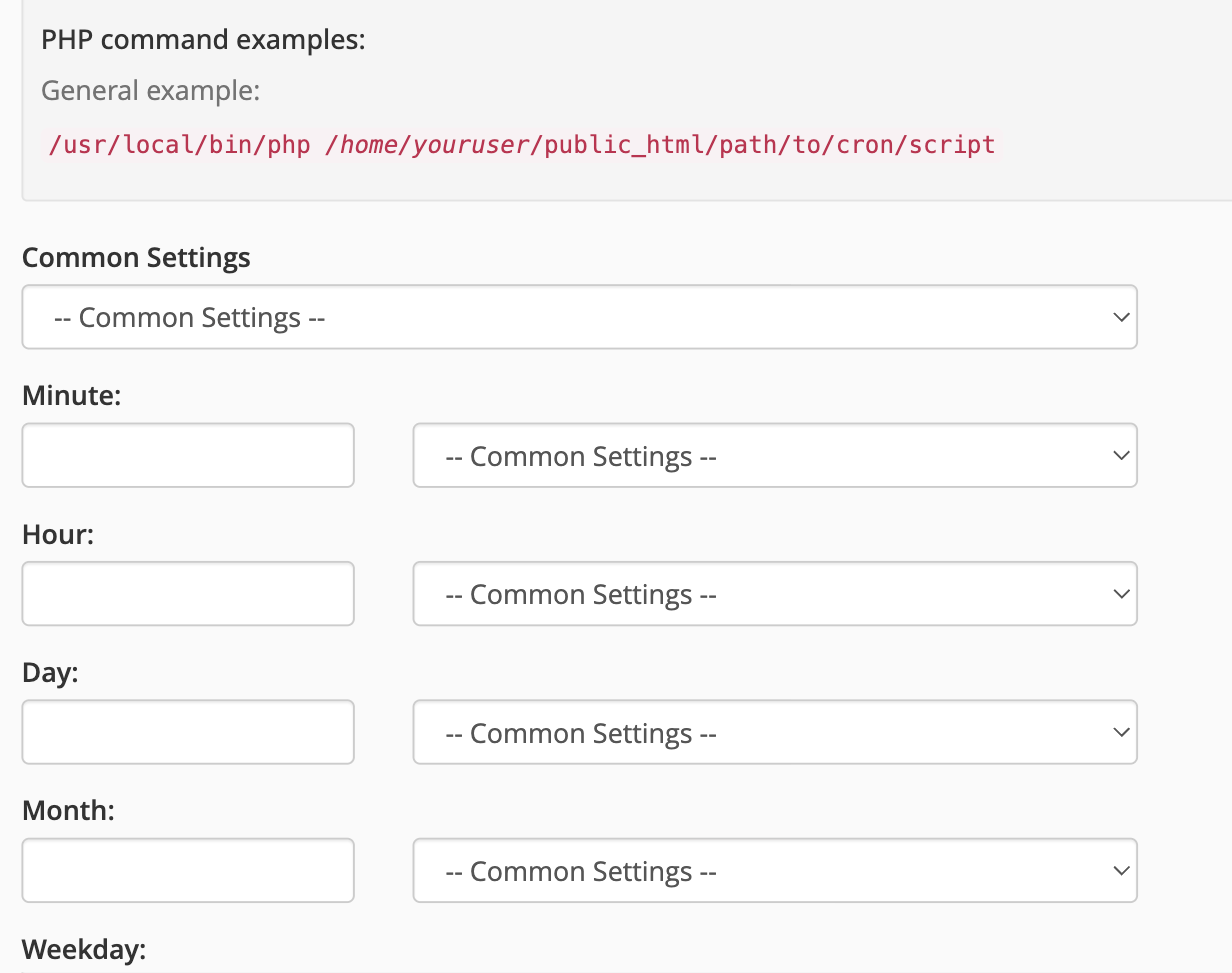
Set the schedule
You can set the schedule in two ways:
- The easy way: open the Common Settings drop-down and pick a ready-made schedule, such as Once Per Hour or Once Per Day. cPanel fills in the timing fields for you.
- Manually: fill in the Minute, Hour, Day, Month and Weekday fields yourself. An asterisk (
*) means "every". For example,0 2 * * *runs the job at 2:00 AM every day.
Enter the command
In the Command field, type the command to run. For a PHP script the format is:
/usr/local/bin/php /home/youruser/public_html/path/to/script.php
Replace the path with the location of your own script.
- Click Add New Cron Job. The job then appears in the Current Cron Jobs list below, where you can Edit or Delete it later.
Get the output by email
By default, cron emails the output of each run to your account. To change where these go, or to stop them, set or clear the address in the Cron Email box near the top of the page. To stop emails for a single job, add >/dev/null 2>&1 to the end of its command.
Avoid scheduling jobs to run more often than they need to - running a heavy script every minute can use up your account's resources. Once per hour is plenty for most tasks.
If you need a hand, our support team is available 24/7 - just open a support ticket.