On this page
How to reset your cPanel password
There are three ways to reset your cPanel password, depending on your hosting type and whether you know your current password.
There are three ways to reset your cPanel password. Which method you use depends on your hosting type and whether you already know your current password.
Method 1: From within cPanel (requires your current password)
-
Log in to cPanel.
-
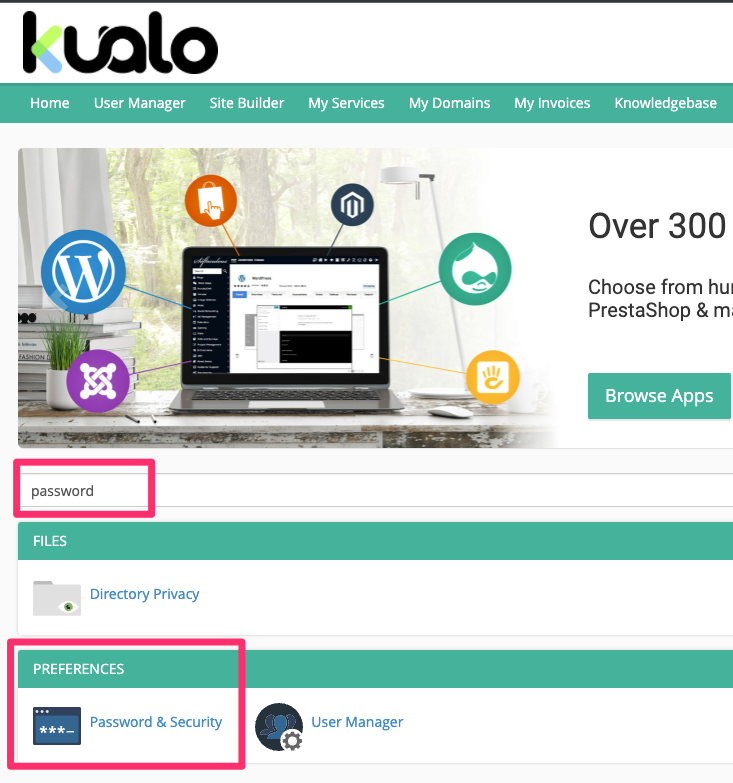
Go to Preferences and click Password & Security.
-
Enter your current password, then your new password.
-
Click Change your password now!
Method 2: Via the Kualo client area
-
Log in to the Kualo client area at my.kualo.com.
-
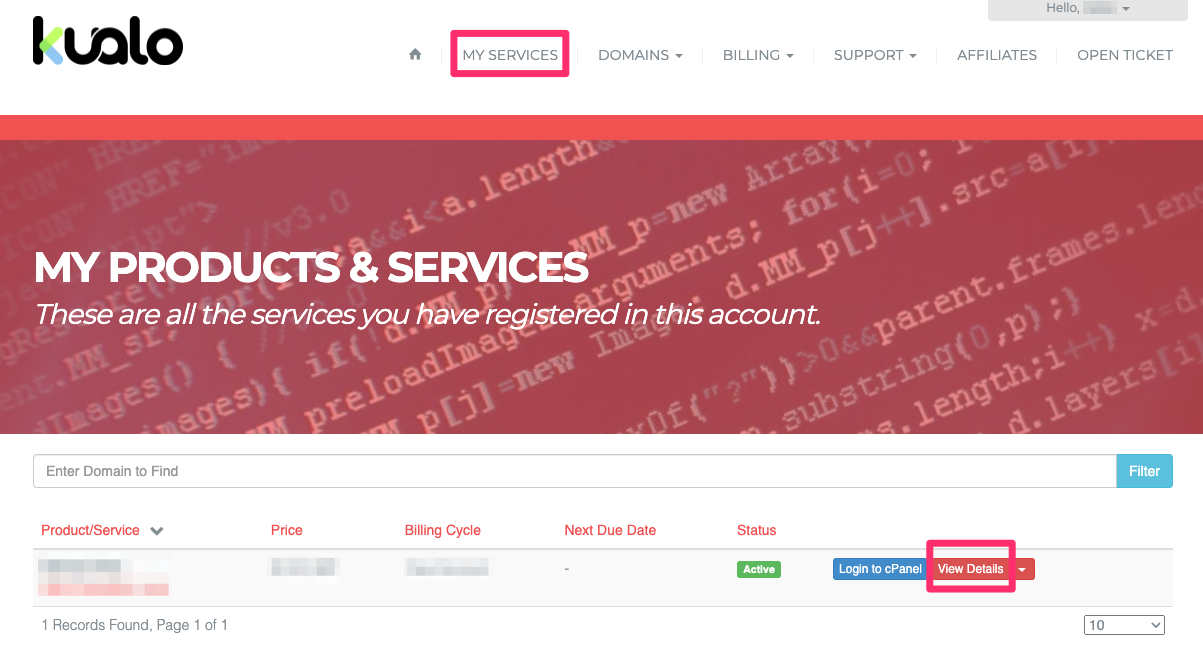
Go to My Services and click View Details for the relevant hosting account (click the text link, not the dropdown arrow beside it).
-
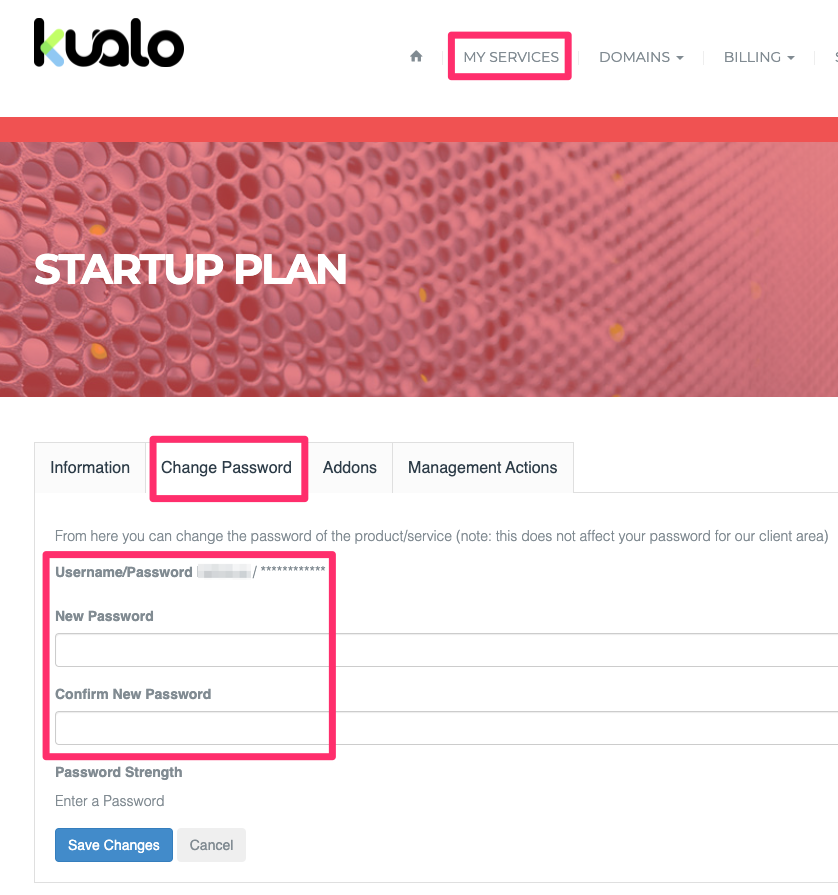
Click the Change Password tab.
-
Enter and confirm your new cPanel password, then save.
Method 3: Via WHM (reseller, VPS, and dedicated server accounts)
-
Log in to WHM.
-
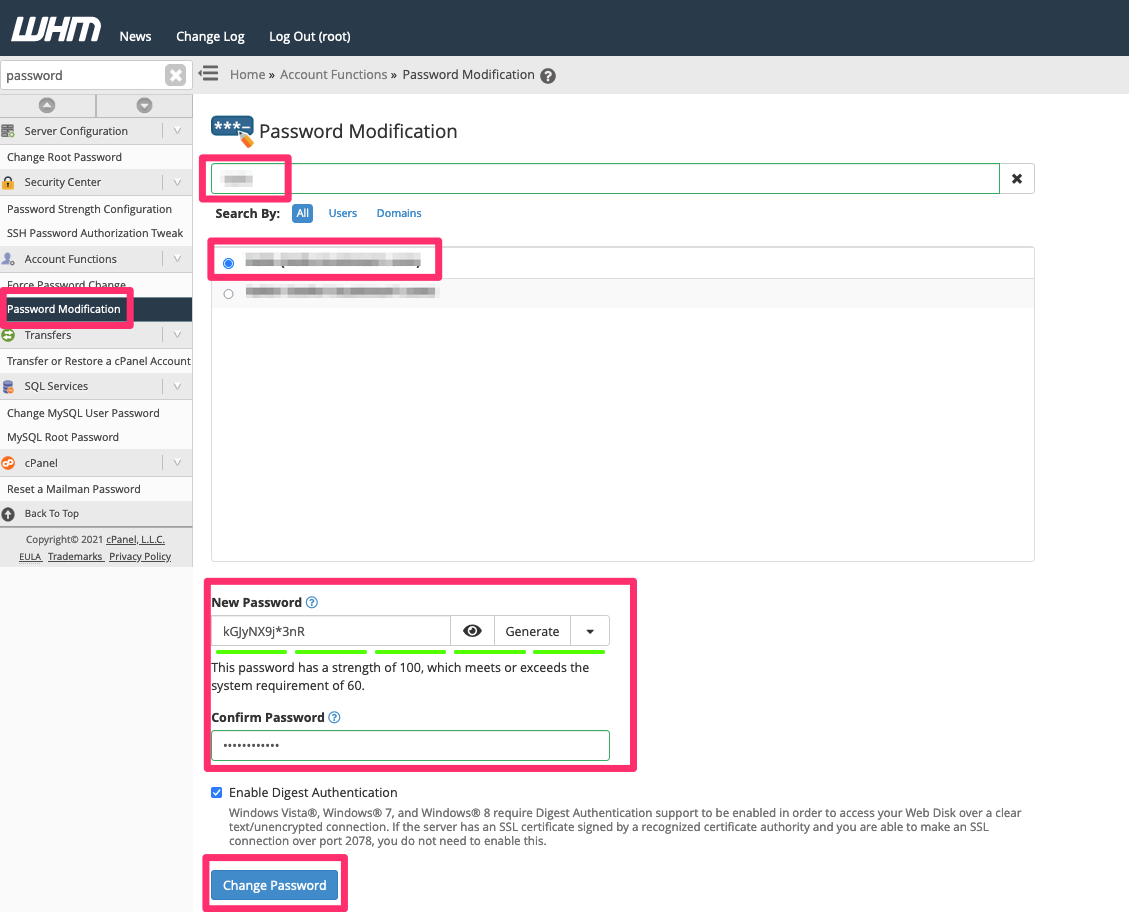
Search for and open Password Modification.
-
Find the cPanel account whose password you want to change and select it.
-
Enter the new password at the bottom of the page and click Change Password.