
On this page
How to manage the PHP version in cPanel using the Select PHP Version tool
Switch PHP versions, enable extensions, and configure PHP options in cPanel with the Select PHP Version tool.
The Select PHP Version tool (also called the PHP Selector) lets you choose your own PHP version, enable or disable extensions, and adjust PHP settings - all independently of other users on the server.
Changing the PHP version here applies to your entire hosting account. If you need different PHP versions for different folders, subdomains, or addon domains, see our guide on Setting PHP versions per folder or website using .htaccess.
Switching your PHP version
-
Log in to cPanel.
-
Under the Software section, click Select PHP Version.
-
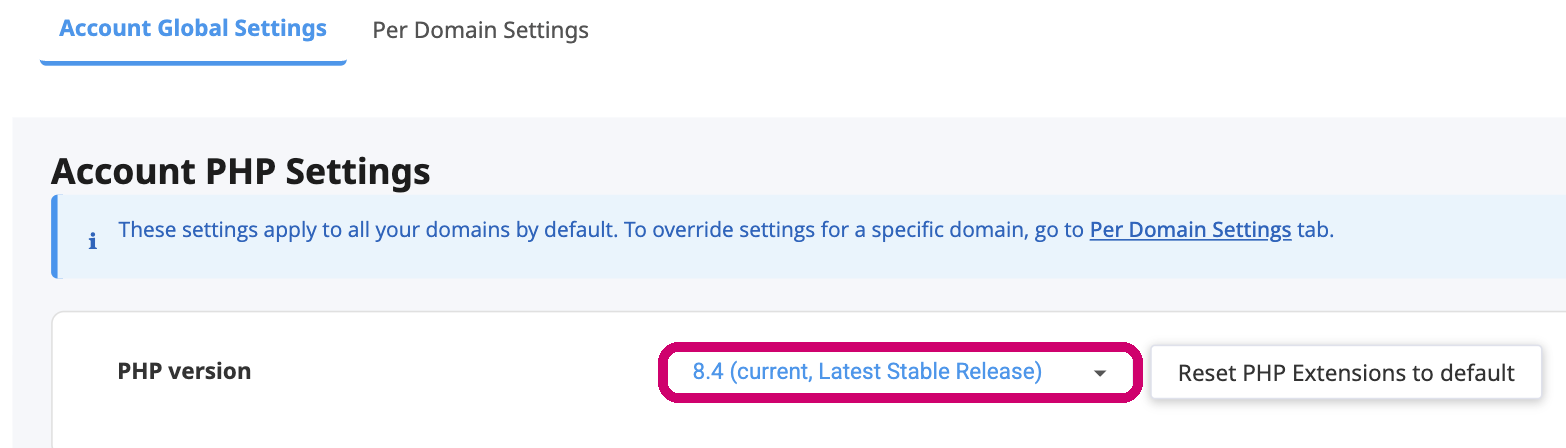
The tool opens on the Account Global Settings tab. Next to PHP version, open the drop-down and choose the version you want. To set a version for one specific domain instead, use the Per Domain Settings tab.
-
The change applies straight away and your sites start using the selected version. Review your extensions and options (see the sections below) so the new version has everything your sites need.
Enable OpCache for best performance. We strongly recommend keeping the OpCache extension enabled. If it is unchecked, your site may run noticeably slower.
Managing PHP extensions
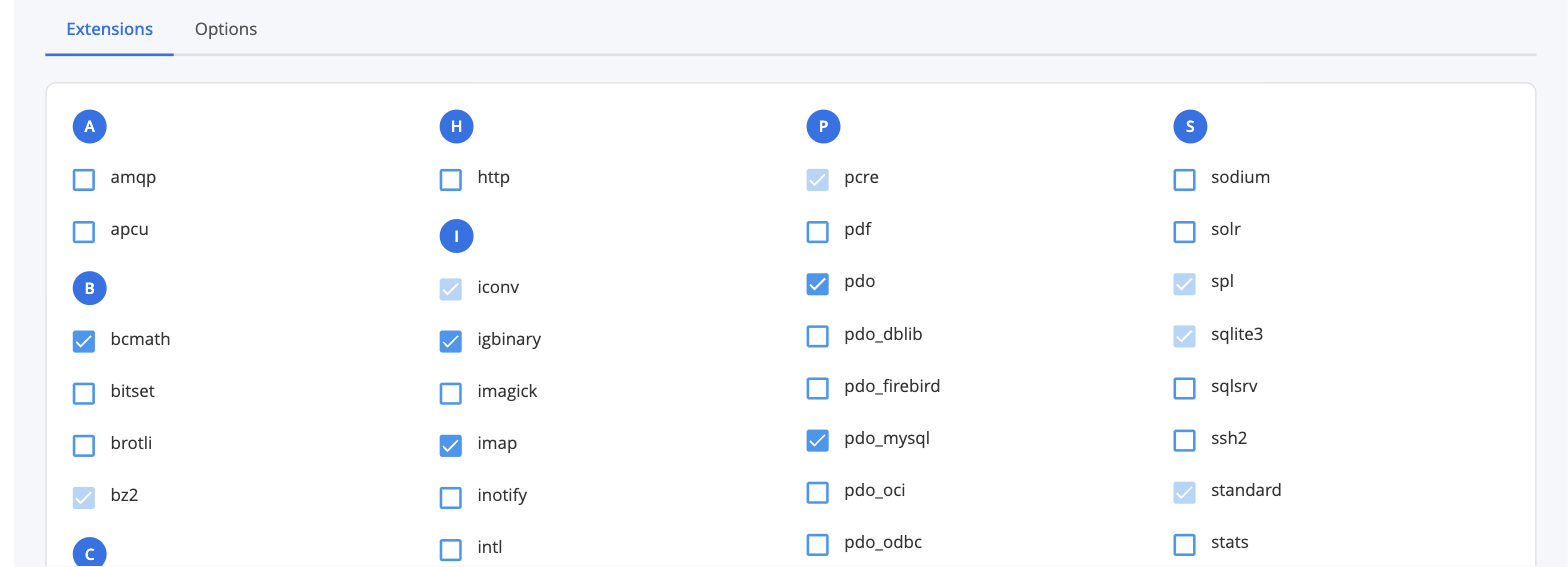
On the Extensions tab, tick or untick a module to enable or disable it. Changes take effect immediately - there is no Save button. Greyed-out, already-ticked extensions are built in and cannot be turned off, and Reset PHP Extensions to default restores the defaults for the selected version.
Modifying PHP options
Click the Options tab (next to Extensions) to adjust individual PHP configuration settings such as allow_url_fopen, max_execution_time, memory_limit, upload_max_filesize, and more.
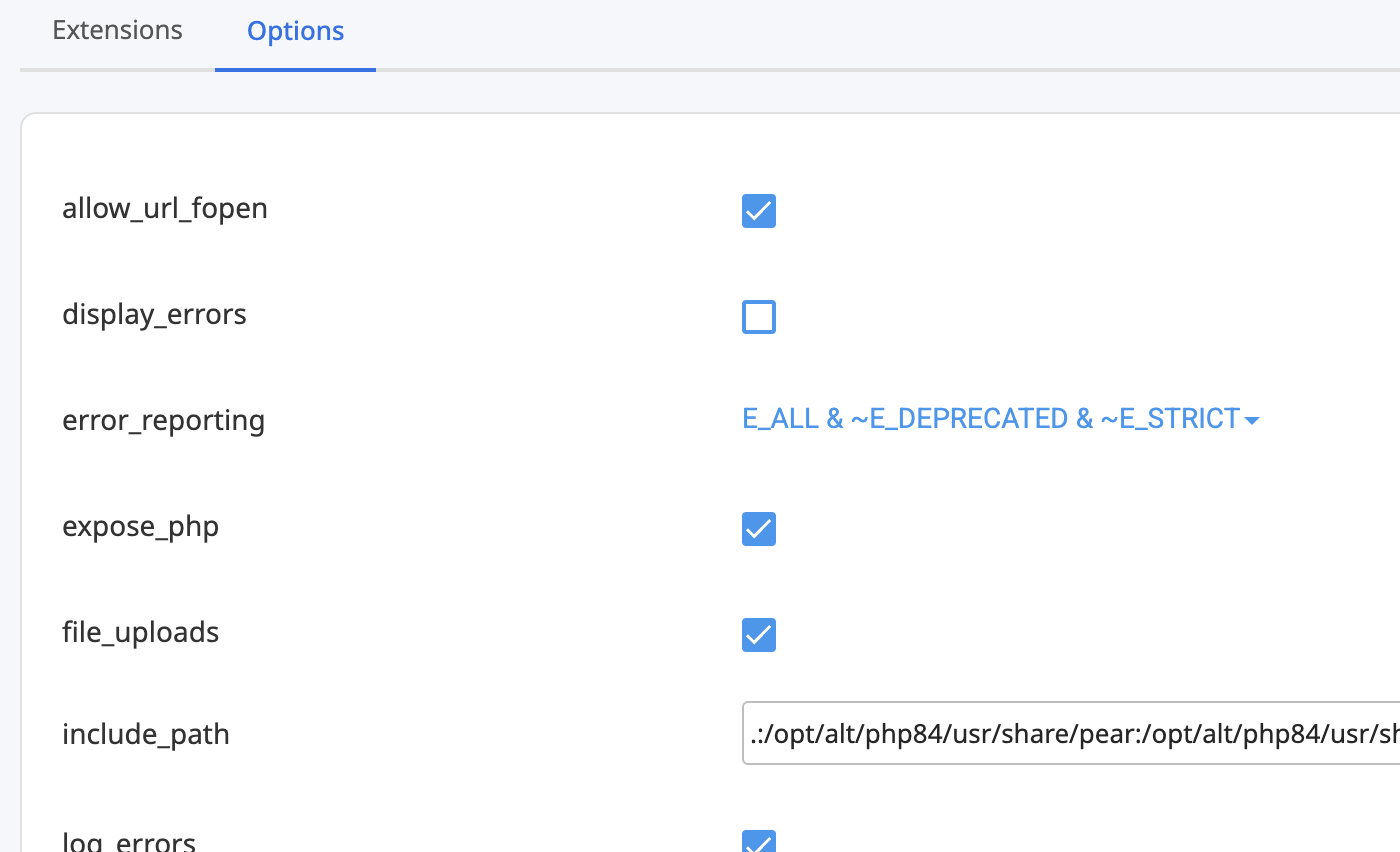
Changes here are saved as you make them. If you are unsure about a setting, use the reset option to return it to the recommended default.
PHP options explained
The sections below describe the most commonly used PHP options and our recommendations for each.
Performance and stability
max_execution_time- Controls how long a script can run before it times out. A typical value is 30 or 60 seconds, but long-running tasks such as imports or backups may need a higher value.memory_limit- Defines how much memory a single PHP process can use. Do not set this too high. If your plan has 1 GB of RAM, setting this to1Gmeans one PHP process could consume all available memory. Keep it as low as your application needs - typically 128M to 256M.realpath_cache_ttl- Controls how long realpath cache entries are stored. A value of 7200 (two hours) can improve performance on sites with many file operations.realpath_cache_size- Defines the size of the realpath cache. 4096K is generally recommended for optimal performance.
PHP memory for CLI and cron jobs
The memory_limit setting applies to web-based PHP requests. For command-line scripts and cron jobs, you can use a higher limit without raising the global web limit. Pass the -d flag in your command instead:
php -d memory_limit=512M /path/to/script.php
Security settings
allow_url_fopen- Allows PHP to fetch external URLs viafile_get_contents()and similar functions. Enable only if your application requires it, as it carries a security risk.expose_php- Controls whether PHP advertises its version in HTTP response headers. Set this to Off to avoid giving attackers information about your PHP version.open_basedir- Restricts PHP scripts to specific directories, preventing access to files outside the web root.session.save_path- Defines where PHP stores session files. Leave this as the default (/opt/alt/phpXX/var/lib/php/session) unless you have a specific reason to change it.
File uploads and limits
file_uploads- Controls whether PHP allows file uploads. Set to On if your site accepts user-uploaded files.upload_max_filesize- Sets the maximum size for a single uploaded file. Increase this if users have trouble uploading large files (for example, 128M).post_max_size- Defines the maximum size of all POST data, including file uploads. This must be equal to or larger thanupload_max_filesize.upload_tmp_dir- Temporary directory used during file uploads. Leave as the default unless you have a specific requirement.
Error handling and debugging
display_errors- Controls whether PHP errors are shown in the browser. Set to Off on live sites for security; enable only when debugging.log_errors- Logs PHP errors to a file. By default, errors are written to anerror_logfile in the root folder of your application (for example,public_htmlfor your main site, or the root folder of an addon domain or subdomain).error_reporting- Controls which errors are logged. A common setting isE_ALL & ~E_NOTICE & ~E_DEPRECATED, which captures critical issues while suppressing minor notices.
Legacy code compatibility
short_open_tag- Allows<?as a shorthand for<?php. Keep this Off unless a legacy script specifically requires it.include_path- Defines the search paths for included files. Leave as the default unless your application requires otherwise.
Important things to keep in mind
- Settings apply account-wide. The PHP version and options set here affect your entire hosting account unless overridden via
.htaccess. .htaccesscan override cPanel settings. If your PHP version does not appear to change, check whether an.htaccessfile is enforcing a different version.- Check compatibility. Before switching PHP versions, confirm that your scripts, themes, and plugins support the version you are selecting.
- OpCache improves performance. Always verify that OpCache is enabled after making changes.
Need different PHP versions for different folders or websites? See our guide on Setting PHP versions per folder or website using .htaccess.
If you need a hand, our support team is available 24/7 - just open a support ticket.