On this page
Setting up your email signature on your iPad
Add an automatic signature to every email you send from your iPad using the Mail app settings.
Add a signature in your iPad's Mail app and it will appear automatically at the bottom of every new email you compose.
Set your signature
-
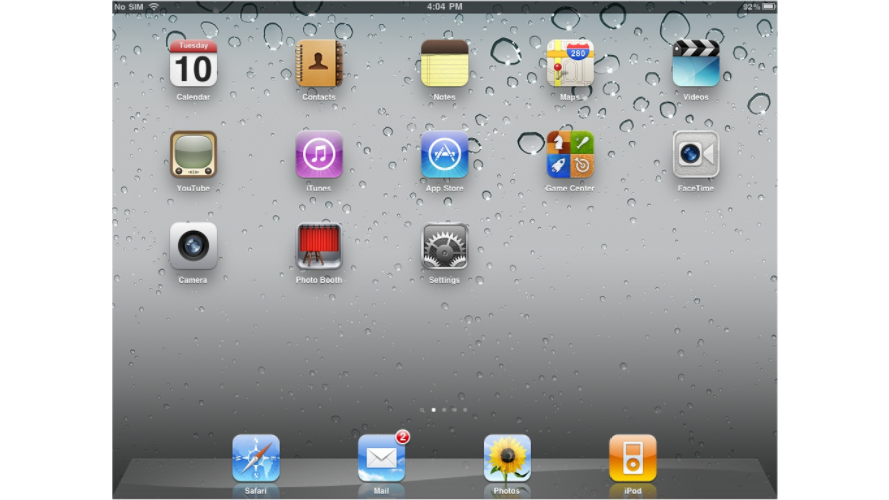
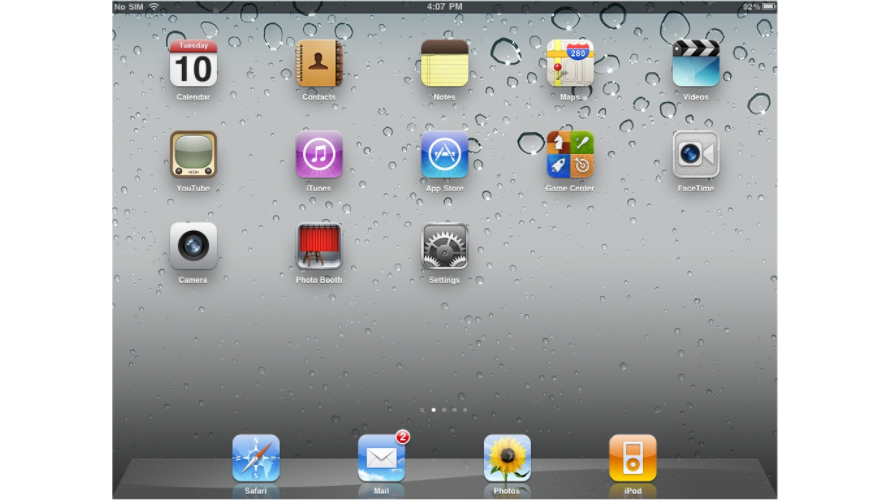
Open the Settings app on your iPad. The icon may be on a different screen or in a different position than shown in the screenshots below.
-
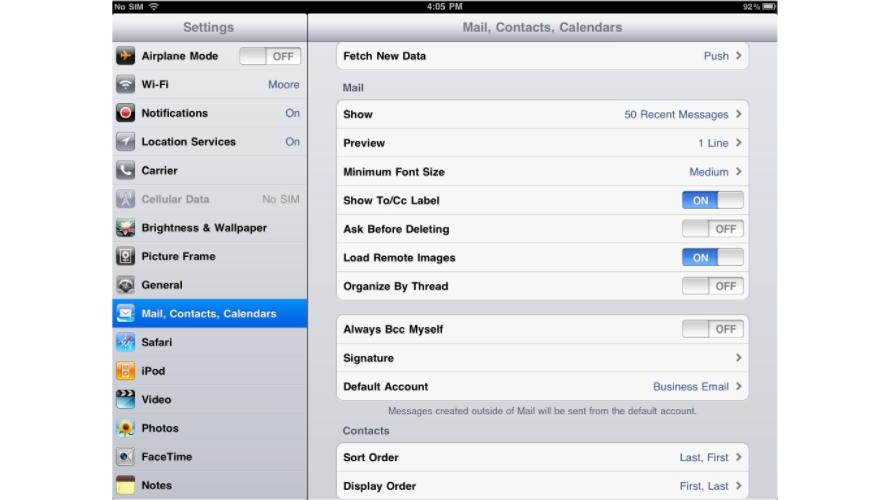
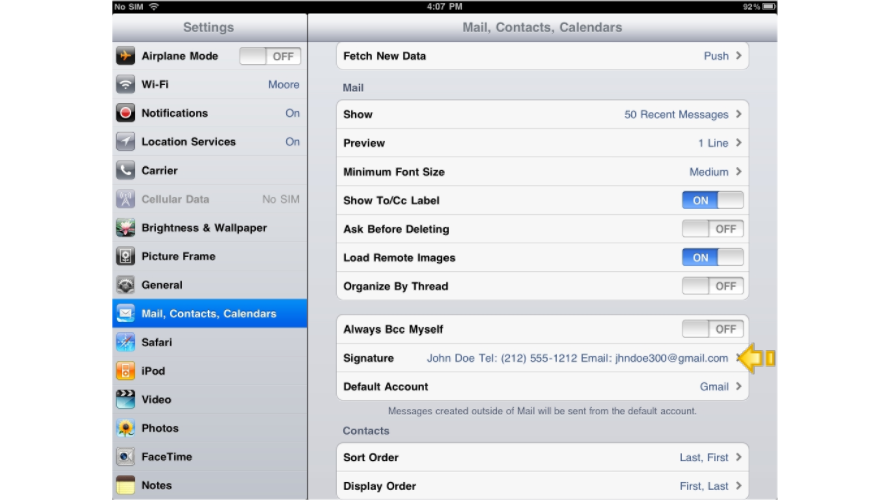
Scroll down and tap Mail. (On older versions of iOS this option is labelled Mail, Contacts, Calendars.)
-
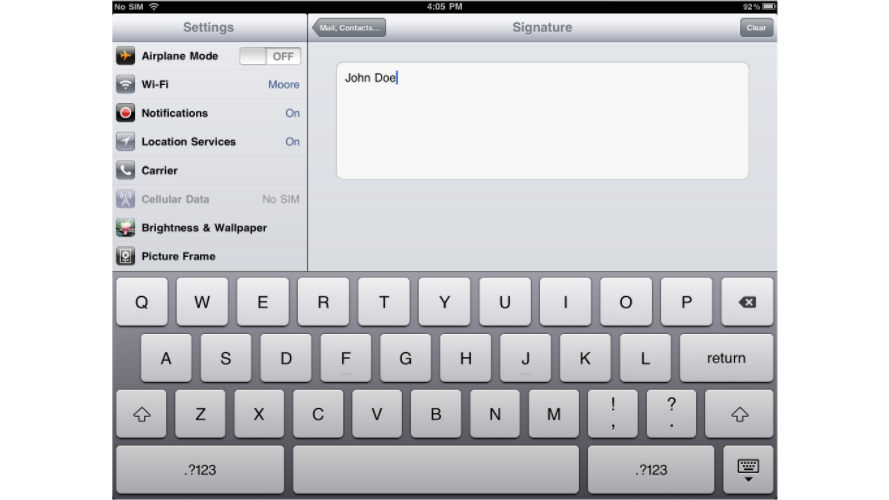
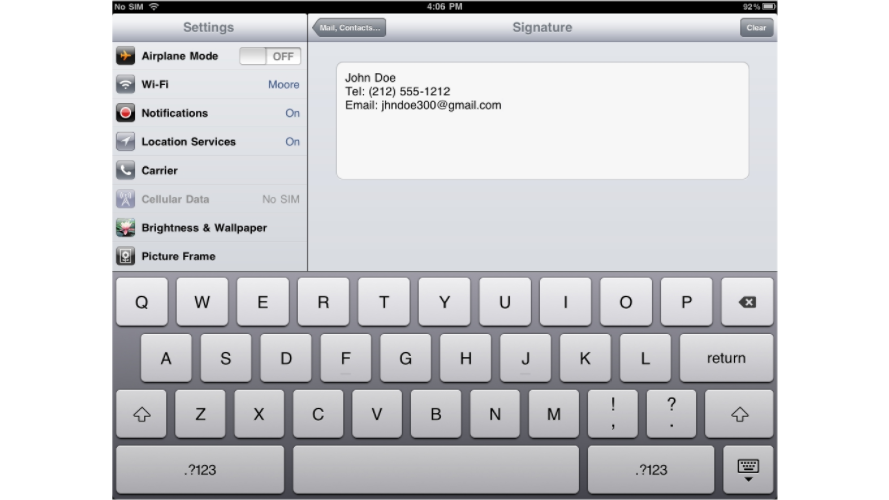
Tap Signature and type the text you want added automatically to the end of every email you send from your iPad.
-
Tap the back button to return to the Mail settings screen. Your signature is saved automatically.
Test your signature
-
Go to your home screen and open the Mail app.
-
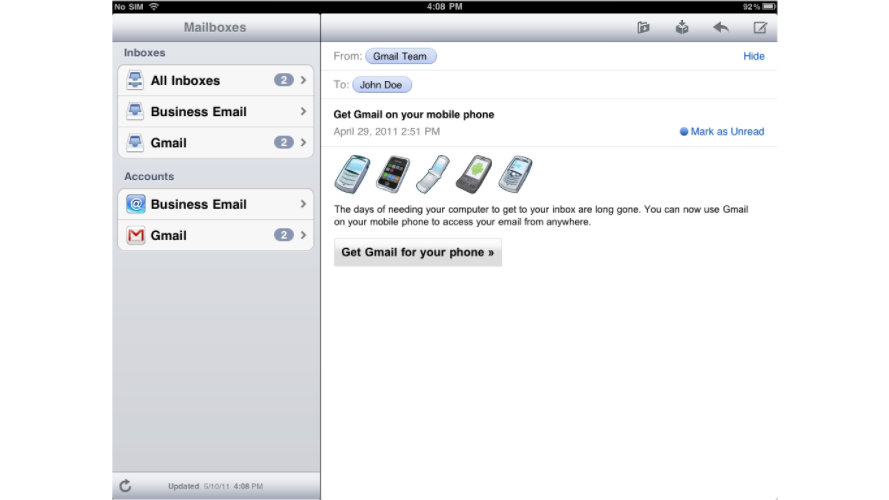
Tap the Compose icon in the upper-right corner to start a new message.
-
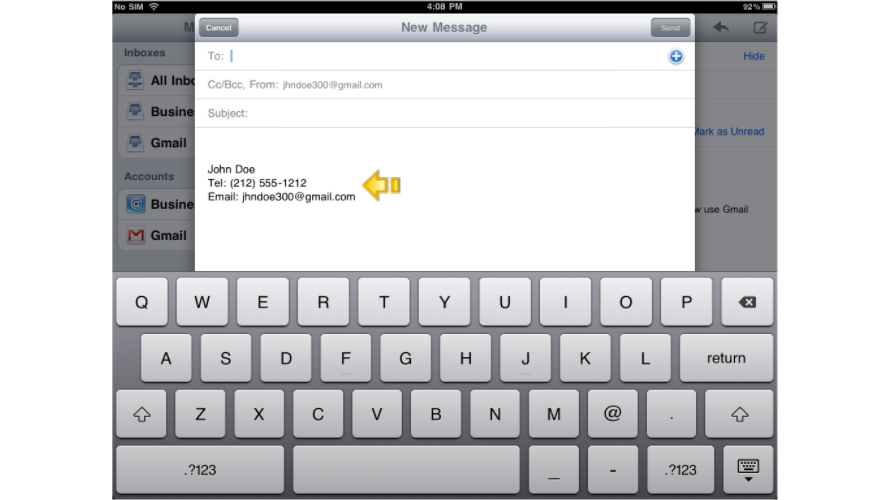
Your signature appears automatically at the bottom of the new message.