
On this page
How to import email accounts with the Address Importer in cPanel
The Address Importer in cPanel lets you create many email accounts or forwarders at once from a spreadsheet or CSV file.
If you need to set up a lot of email accounts or forwarders at once, the Address Importer saves you creating them one by one. You prepare a simple spreadsheet (.xls) or CSV (.csv) file listing the addresses, and cPanel creates them all in a single step.
Prepare your file
Create a spreadsheet with one row per address:
- For email accounts - a column for the email address and a column for the password.
- For forwarders - a column for the source address and a column for the destination it should forward to.
Save it as either an Excel spreadsheet (.xls) or a comma-separated values file (.csv). The tool links to an example file you can follow.
Import the addresses
-
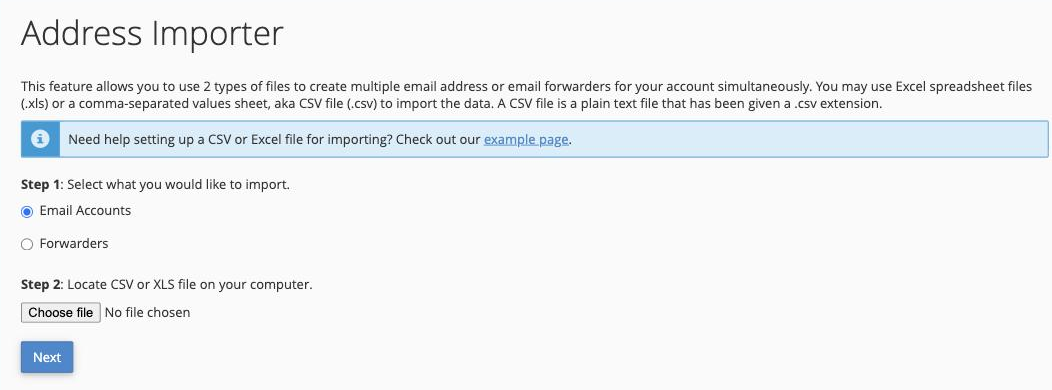
Log in to cPanel and, in the Email section, click Address Importer.
-
Under Step 1, choose what you are importing: Email Accounts or Forwarders.
-
Under Step 2, click Choose file, select your
.xlsor.csvfile, then click Next. -
Tell cPanel how your file is laid out - choose the delimiter that separates your columns (usually Comma for a
.csvfile), and tick Treat first row as column headers if your file has a header row. Click Next. -
Check the preview cPanel shows you, correct anything that is mismatched, and confirm to create the addresses.
Double-check the preview before the final step - the importer creates every address in your file, so it is worth making sure the columns line up first.