
On this page
How to open Apple Mail
Learn three ways to open Apple Mail on your Mac, ready to set up your email account.
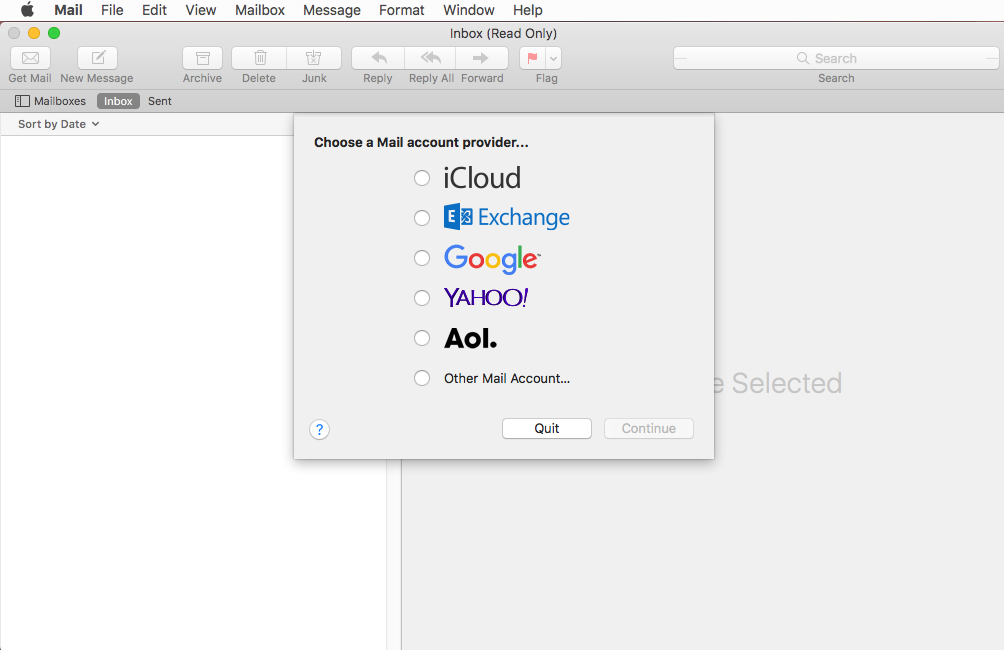
Apple Mail is an email program included with macOS. There are three ways to open it.
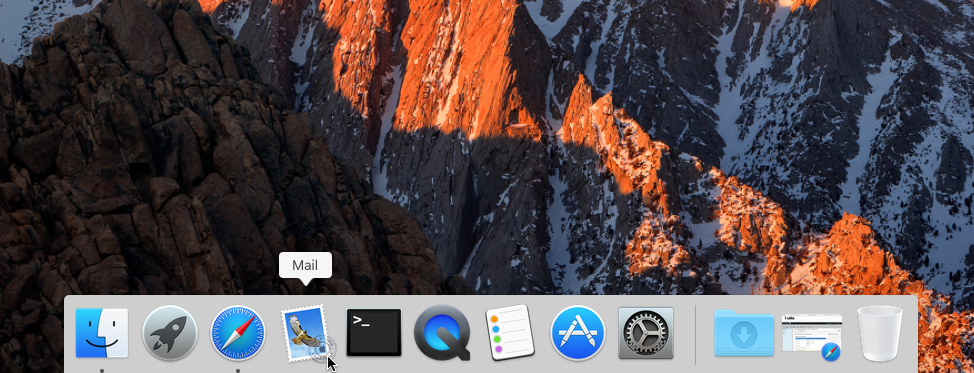
From the Dock
Look for the Mail icon in the Dock at the bottom of your screen, then click it to launch the app.
Using Spotlight search
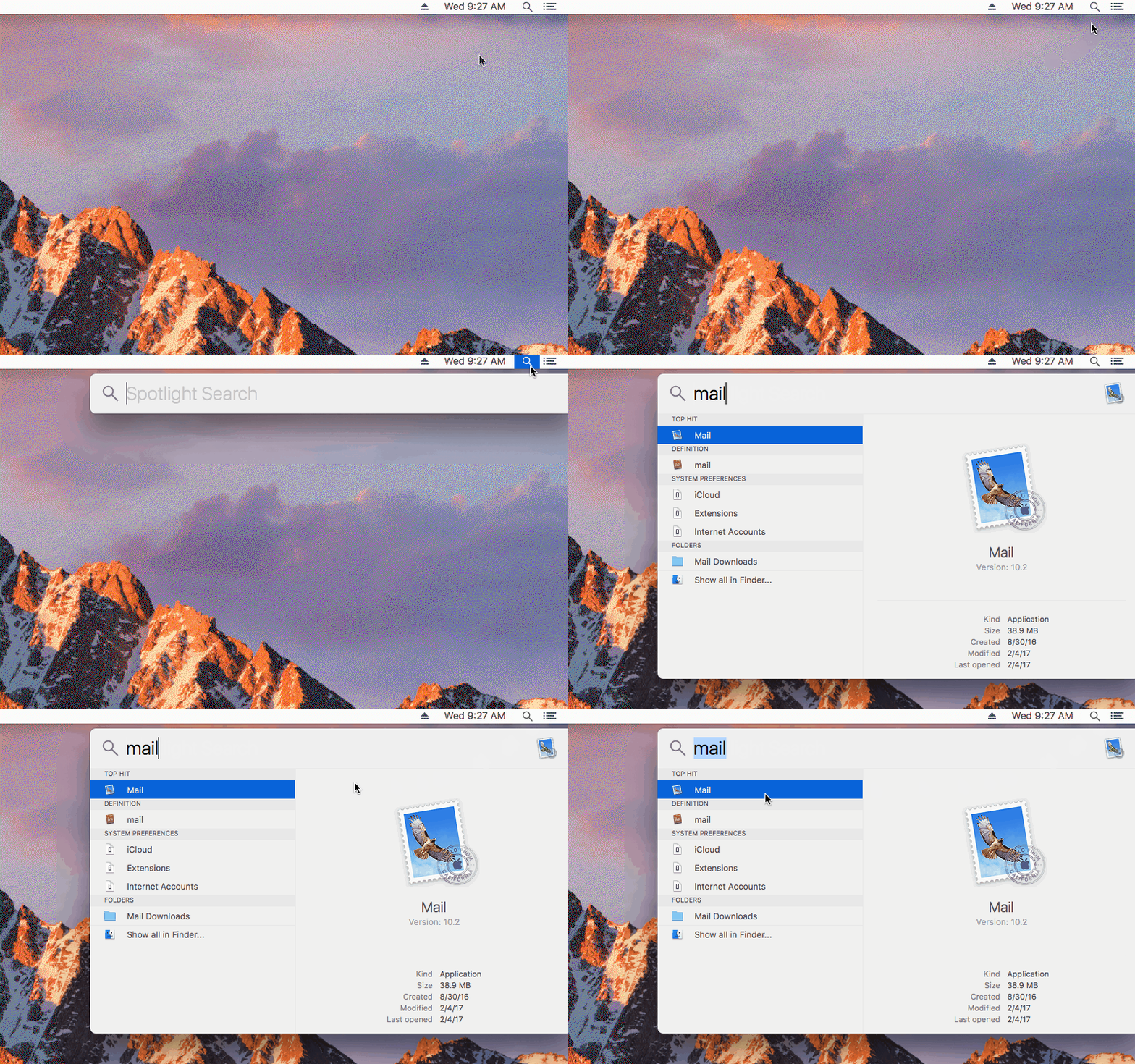
If you cannot find Mail in the Dock, click the magnifying glass icon in the top-right corner of your desktop. Type Mail in the search box, then click Mail when it appears in the results.
From Finder
-
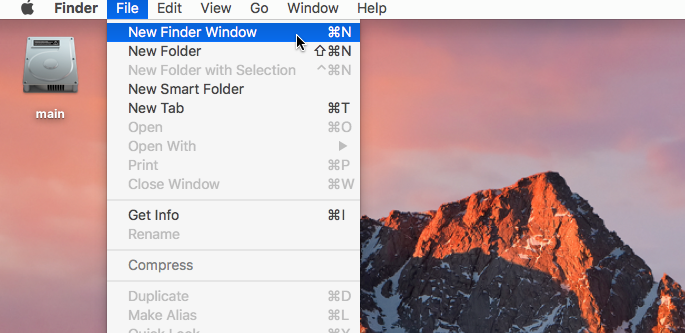
Click File in the menu bar, then select New Finder Window.
-
Click Applications in the left sidebar, then double-click the Mail icon.
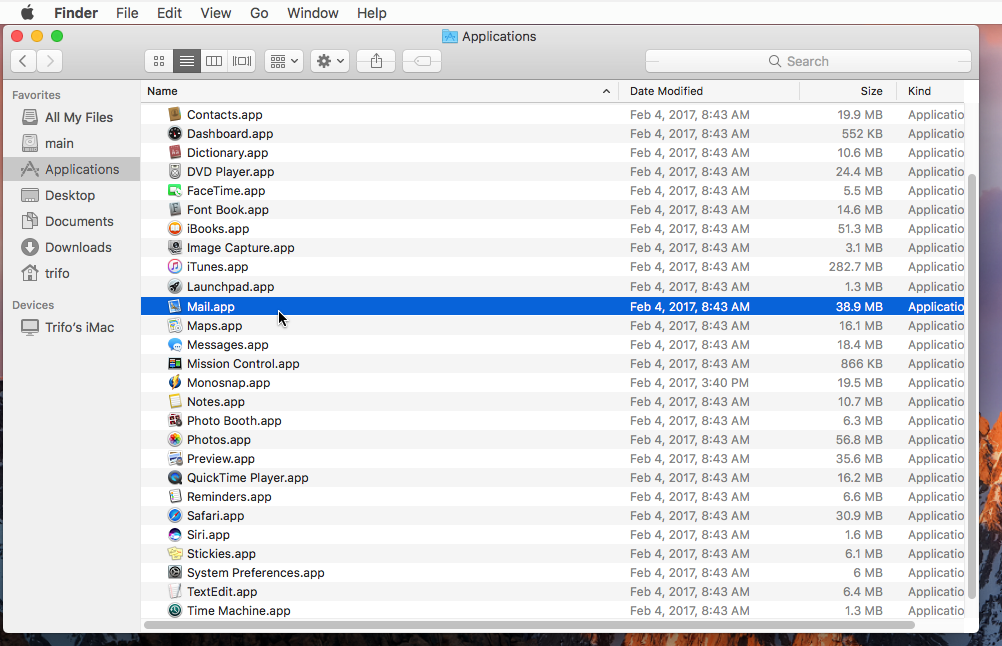
Apple Mail will open and you are ready to start using it.
Was this helpful?
Your feedback helps us find gaps in the docs.
Thanks for the feedback!
Related articles
Set up on Apple (Mac, iPhone, iPad)
How to set up a mail account using POP in Apple Mail
Learn how to add a POP email account to Apple Mail on your Mac in a few straightforward st...
Set up on Apple (Mac, iPhone, iPad)
How to set up a mail account using IMAP on Mac
Add your Kualo email account to Apple Mail on a Mac using IMAP in a few straightforward st...
Set up on Apple (Mac, iPhone, iPad)
How to read and send email messages in Apple Mail
A quick walkthrough of reading, replying to, and composing email messages in Apple Mail.
Set up on Apple (Mac, iPhone, iPad)
An overview of settings and preferences in Apple Mail
A quick tour of the preferences tabs in Apple Mail, so you know where to find every settin...
Still need a hand?
Real people, around the clock - start a chat or open a ticket and we'll help you put it right.