
On this page
Finding the email client configuration details in cPanel
Find your incoming and outgoing mail server settings in cPanel to configure any email client.
To set up your email account in a client such as Outlook, Mac Mail, or Thunderbird, you first need to locate your connection settings in cPanel.
This article assumes you have already set up an email account in your control panel. If you have not done that yet, start there first.
Finding your email settings
-
Log in to cPanel and go to Email > Email Accounts.
-
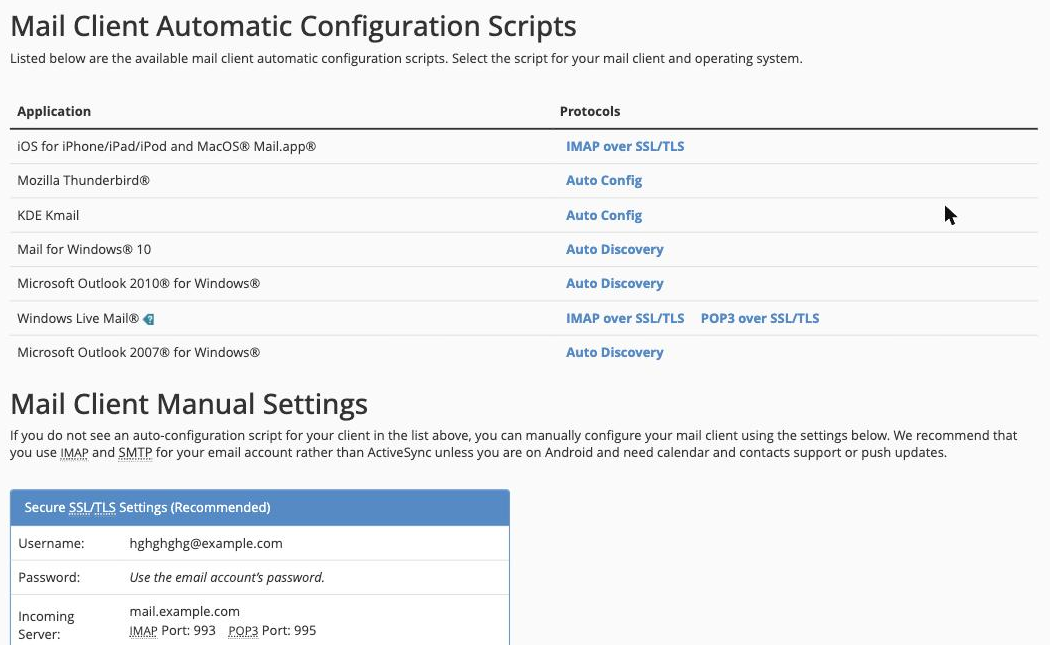
Find the email account you want to configure, then click Connect Devices (or Configure Email Client in older cPanel versions).
-
At the top of the page you will find a set of Automatic Configuration Scripts. If your email client supports them, download and run the appropriate script to configure your account automatically.
-
If you prefer to configure your client manually, scroll down to the Mail Client Manual Settings and use the Secure SSL/TLS Settings - these are the recommended values.
Manual configuration tips
When entering the settings into your email client, keep the following in mind:
- Always choose the SSL/TLS option for both incoming (IMAP or POP3) and outgoing (SMTP) connections.
- Your outgoing (SMTP) connection must use password authentication - use your full email address as the username and your email account password.
- Avoid using the non-SSL port options shown on the page; the secure settings protect your login credentials in transit.
Related articles
- Apple Mac - Configuring Email
- iPad - Configuring Email
- iPhone - Configuring Email
- Windows - Configuring Email
- Android - Configuring Email