
On this page
How to subscribe to RSS feeds in Apple Mail
Add and manage RSS feeds in Apple Mail by finding them in Safari and configuring your preferences.
Apple Mail supports RSS feeds, letting you read site updates alongside your email. This guide shows you how to find a feed in Safari and manage it in Apple Mail.
Finding and adding an RSS feed
-
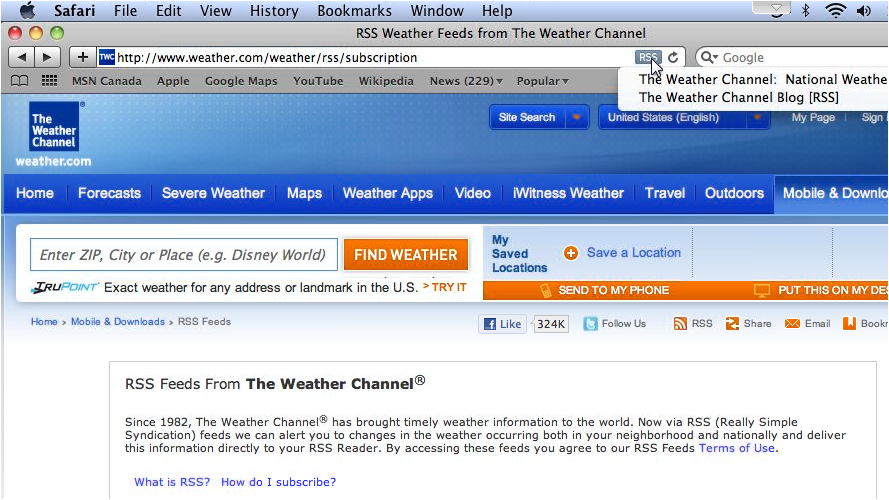
In Safari, navigate to the website you want to follow. If the site has an RSS feed available, an RSS icon will appear at the far right of the address bar. Click it and select the feed you want to add.
-
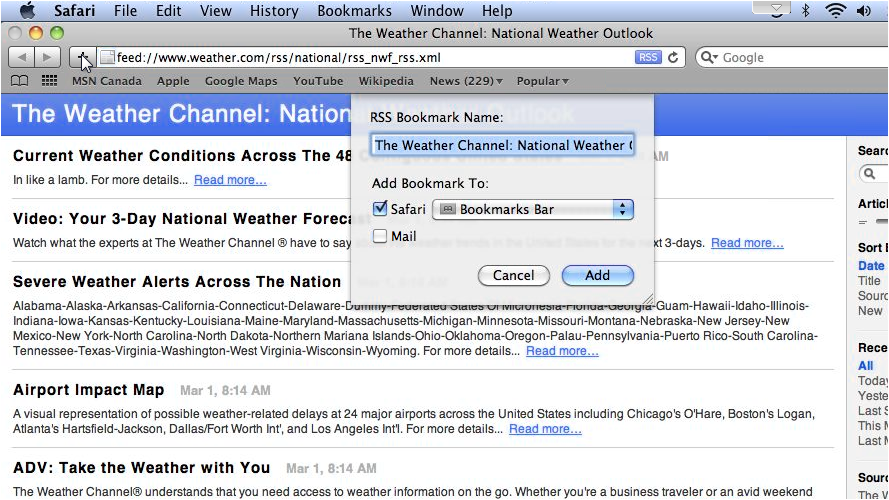
Click the plus icon, select where you want to save the bookmark, then click Add.
-
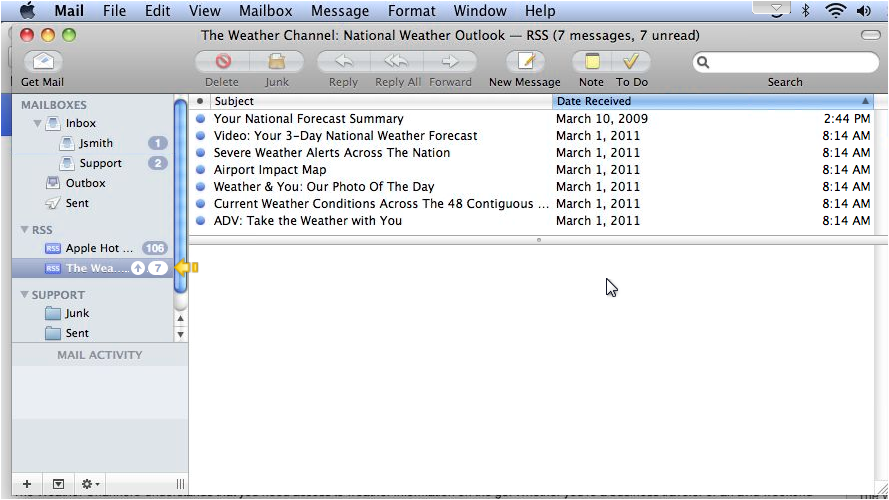
Return to Apple Mail. Your feed will now appear in the sidebar.
Managing general RSS preferences
-
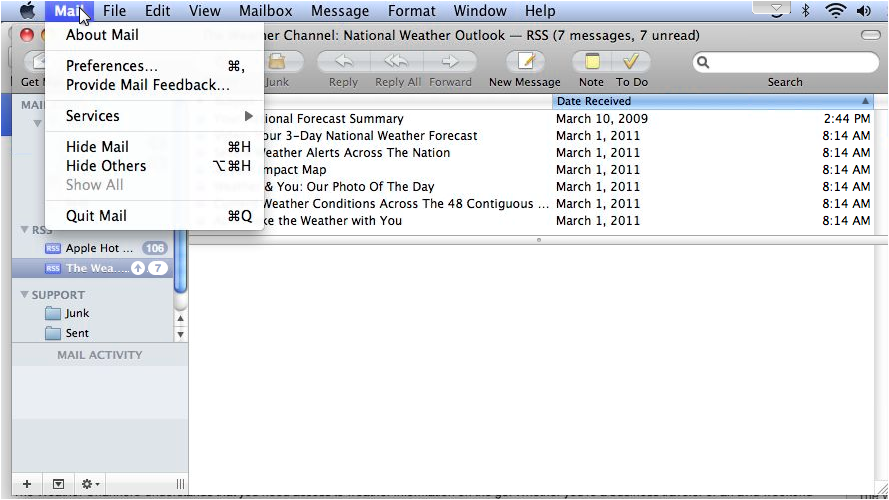
In Apple Mail, go to Mail and click Preferences.
-
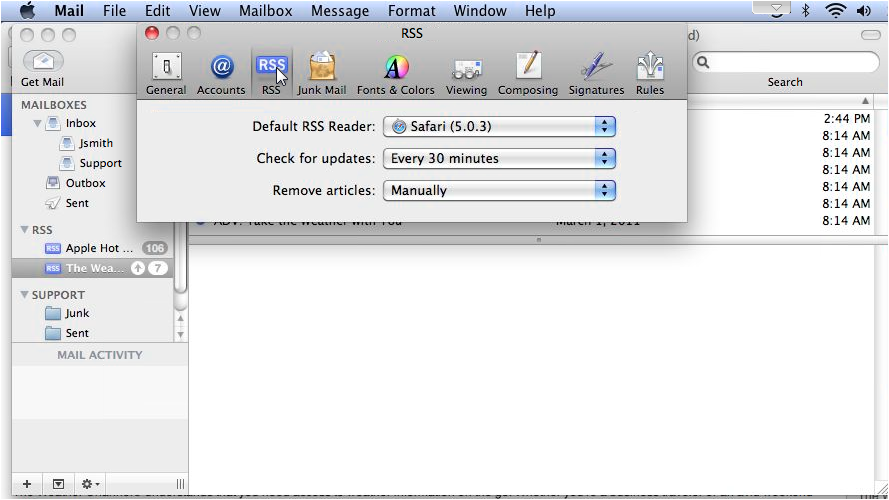
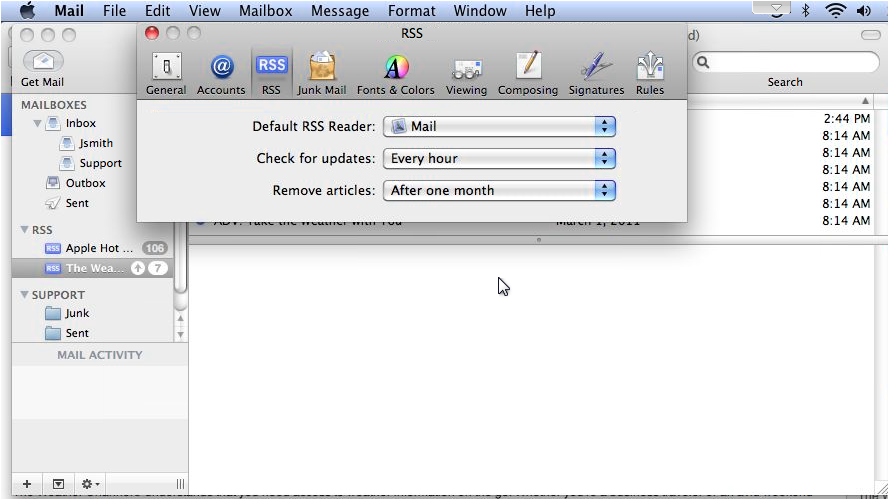
Click the RSS tab. Here you can change your default RSS reader, set how often Mail checks for updates, and choose when to remove old articles.
-
Close the Preferences window when you are done.
Managing individual feeds
-
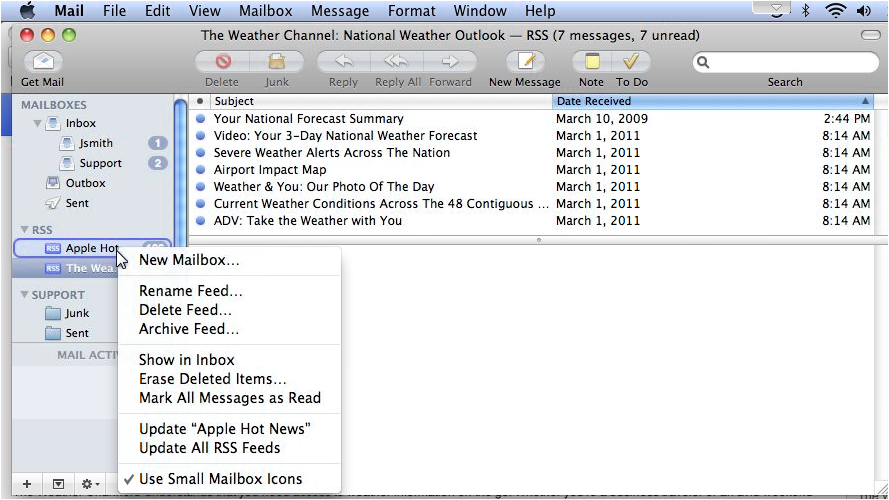
Right-click any feed in the sidebar to see options specific to that feed. From this menu you can rename, delete, or archive the feed, among other actions.
The Mail > Preferences path applies to macOS Monterey and earlier. On macOS Ventura and later, preferences moved to Mail > Settings.