On this page
How to set up a POP email account on your iPad
Follow these steps to add a POP email account to your iPad using the built-in Mail app.
Follow these steps to add a POP email account to your iPad using the built-in Mail app. You will need your email address, password, and the incoming and outgoing mail server details from Kualo.
Add the account
-
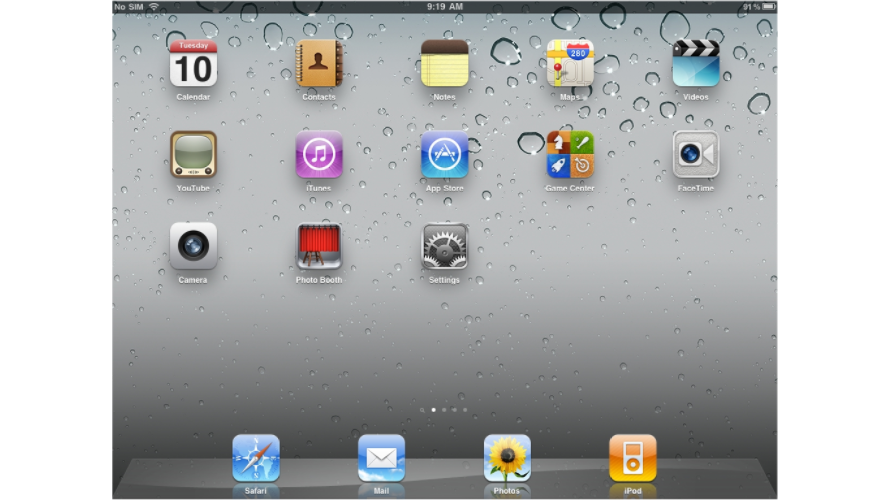
Open the Settings app on your iPad. Its location on your home screen may vary.
-
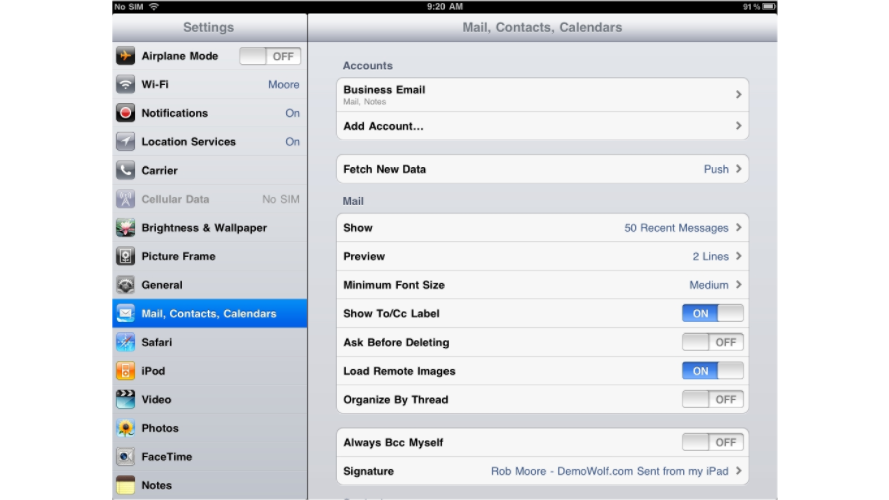
Go to Mail and tap Accounts, then tap Add Account.
-
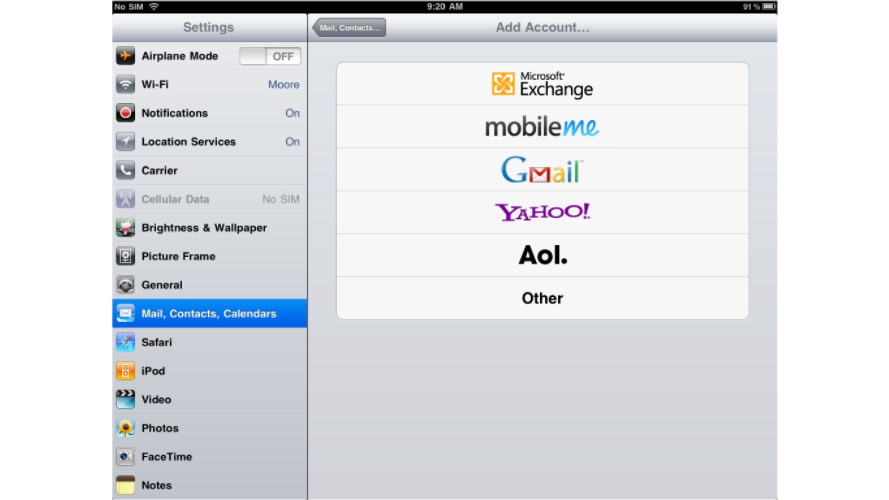
Tap Other.
-
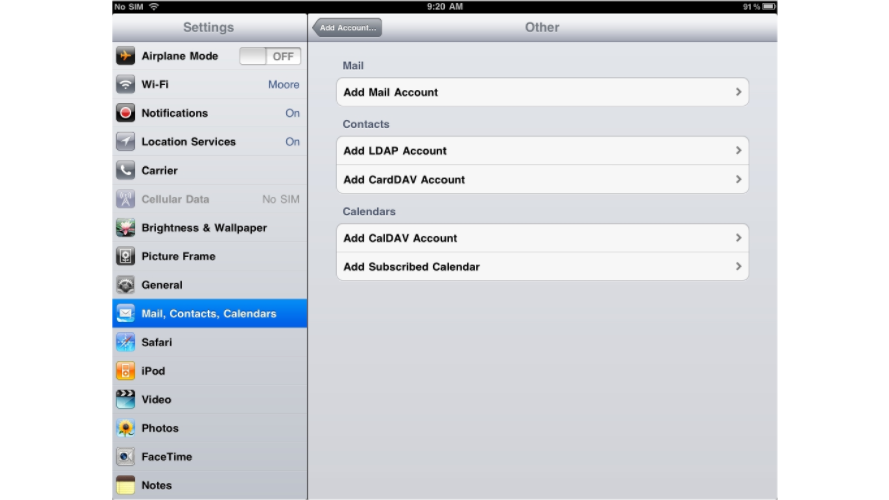
Tap Add Mail Account.
-
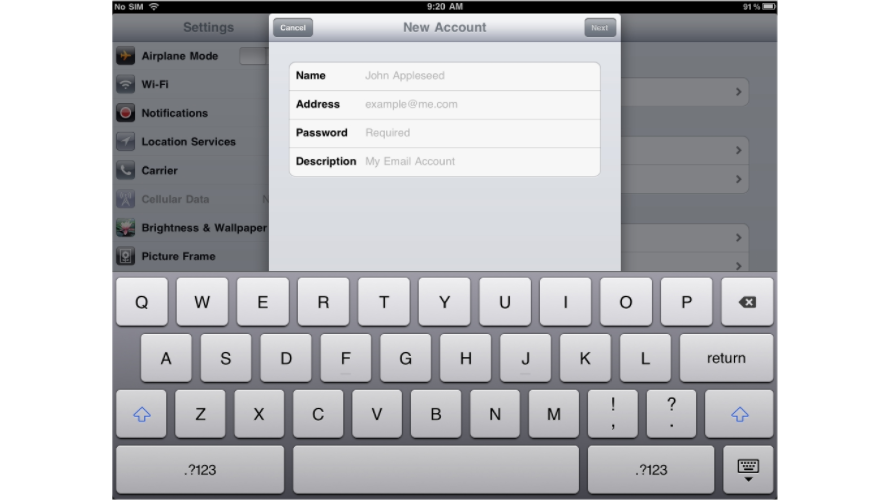
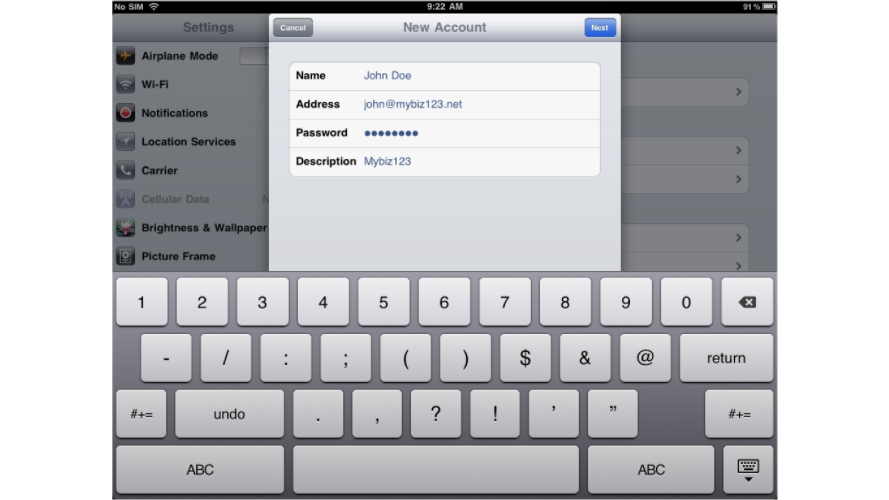
Enter your Name, Email address, and Password. A description is filled in automatically, but you can change it if you like. Tap Next.
Enter server settings
-
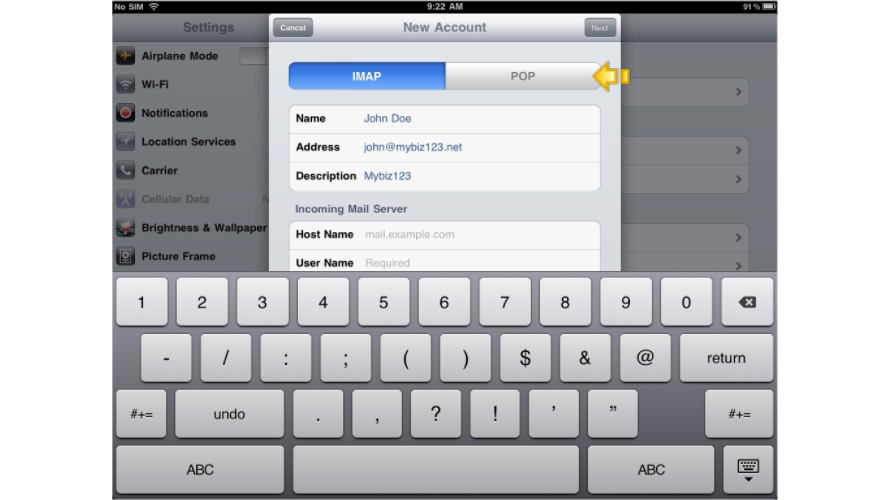
At the top of the next screen, select POP.
-
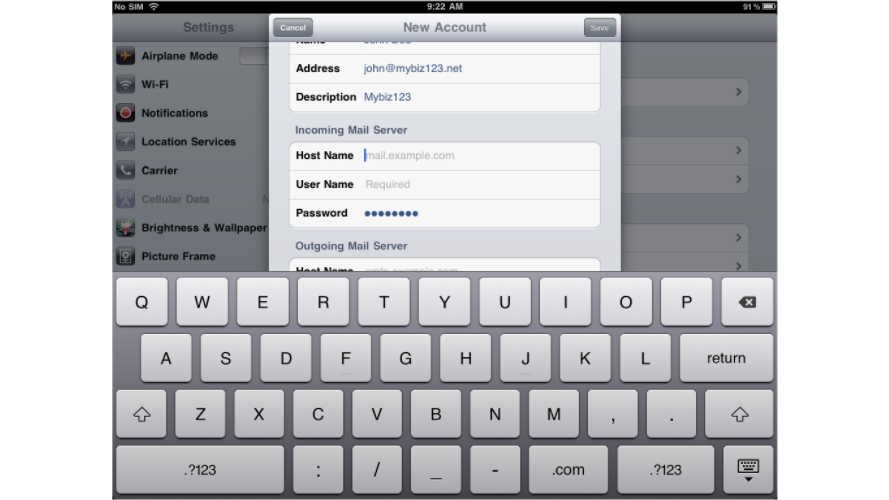
Under Incoming Mail Server, enter the Host Name, User Name, and Password.
-
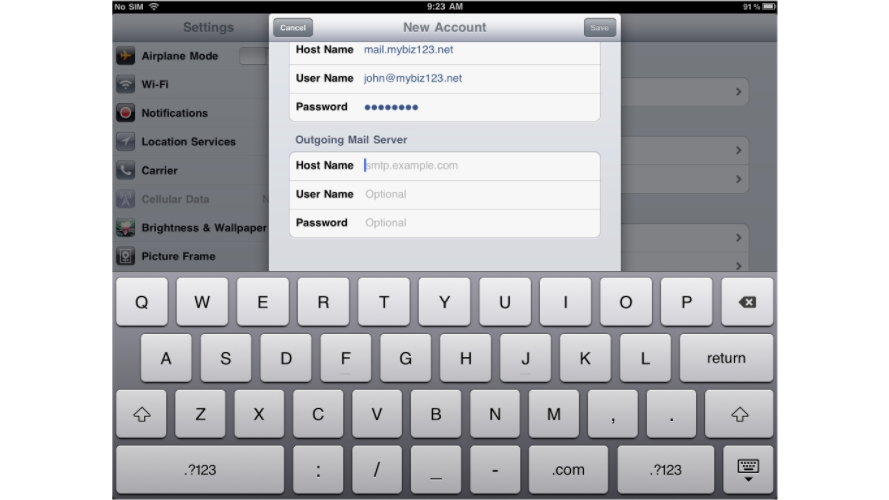
Under Outgoing Mail Server, enter the Host Name, User Name, and Password.
-
Tap Save.
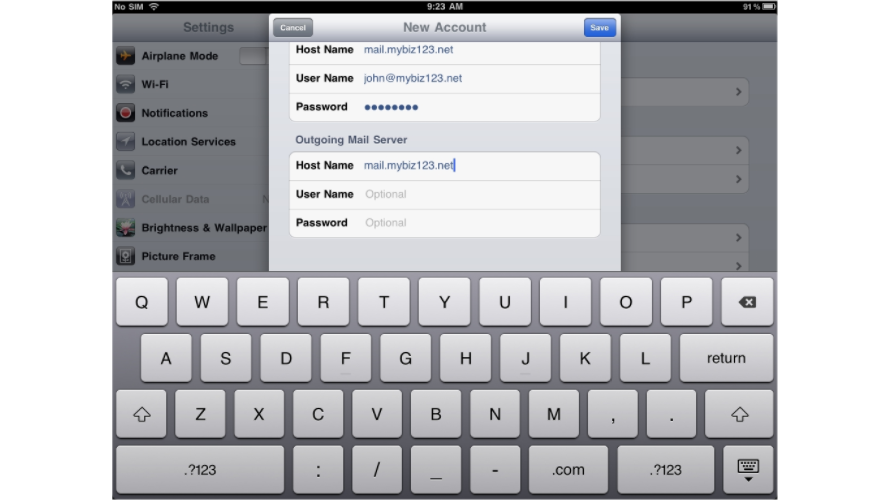
If you are unsure of your mail server settings, log in to cPanel and go to Email Accounts. Select Connect Devices next to the relevant address to see the recommended server details.
Check your email
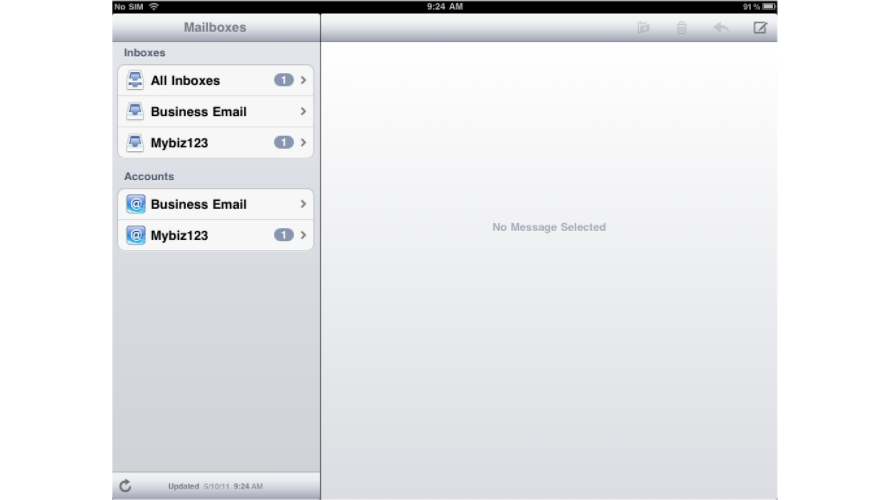
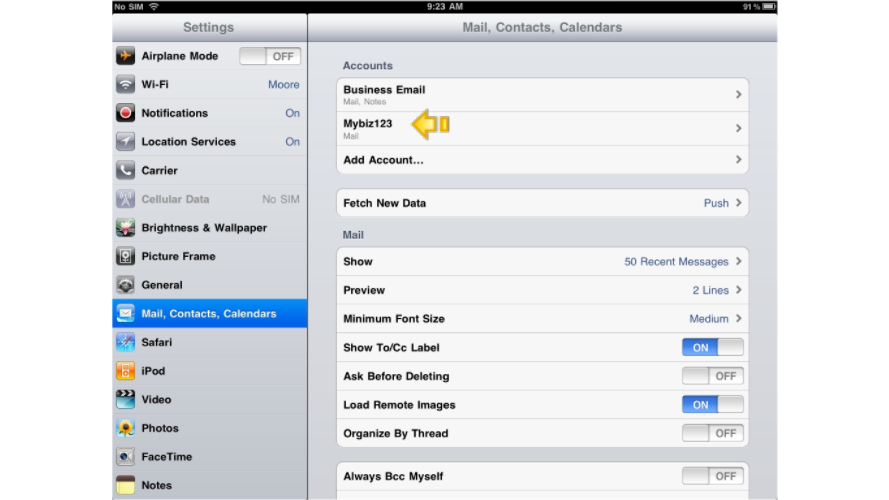
Your new account will now appear under Accounts in Settings.
-
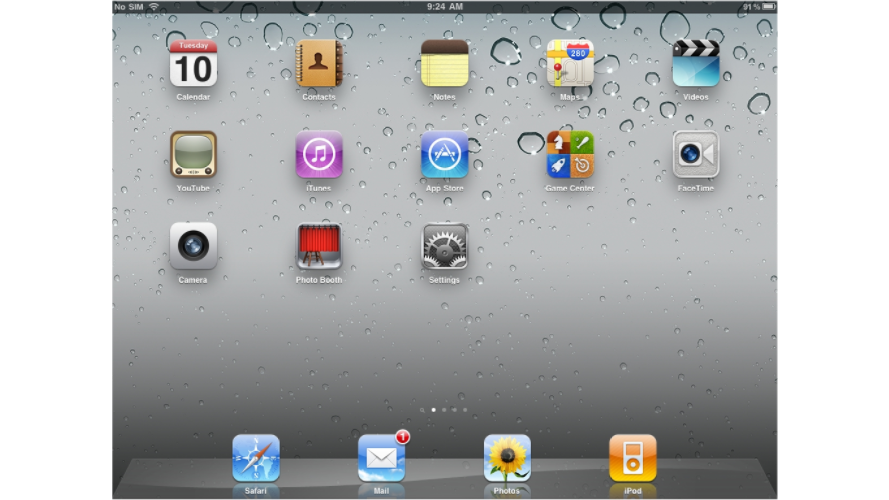
Press the Home button (or swipe up on newer iPads) to return to the home screen, then tap the Mail icon. Its location may vary.
-
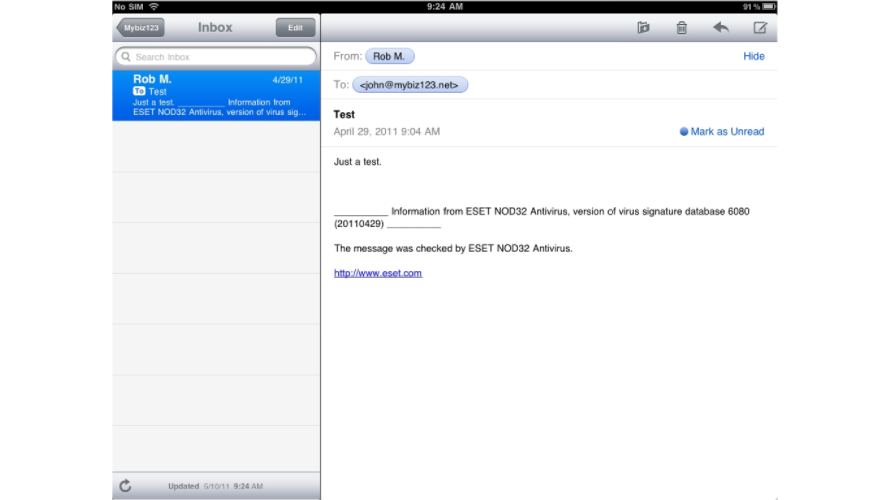
If you have more than one email account set up, they are all listed here. Tap the account you just added to view your inbox.