
On this page
Getting started with SpamExperts
SpamExperts is an enterprise-grade spam filter included free with your Kualo hosting account, protecting your inbox from spam, phishing, and viruses.
Your Kualo hosting account includes SpamExperts, an enterprise-grade spam filtering solution that protects your inbox from spam, phishing emails, and viruses - completely free of charge.

SpamExperts filters both inbound and outbound email. Outbound filtering is particularly valuable: if any account on a shared server is compromised and used to send spam, SpamExperts blocks those messages before they leave the server, helping to keep the server's sending reputation clean and your email delivery reliable.
The filter has a 99.98% accuracy rate. Nothing is perfect, so it is important to know how to monitor the quarantine and release any legitimate emails that have been incorrectly caught. This article covers the essentials:
- How to log in to the SpamPanel
- How to set up periodic domain reports
- How to release emails from the spam quarantine
- How uncertain spam is handled
- How to report spam to improve filtering accuracy
Logging in to the SpamPanel
-
Log in to cPanel, then click the SpamExperts icon.
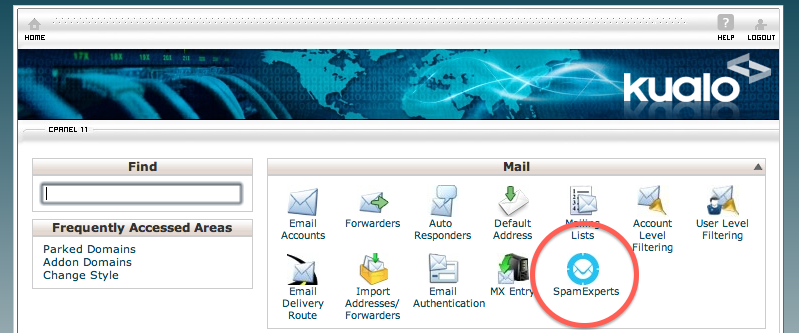
-
You will see a list of your domains, including any addon and parked domains. Click the Login link next to the domain you want to manage.
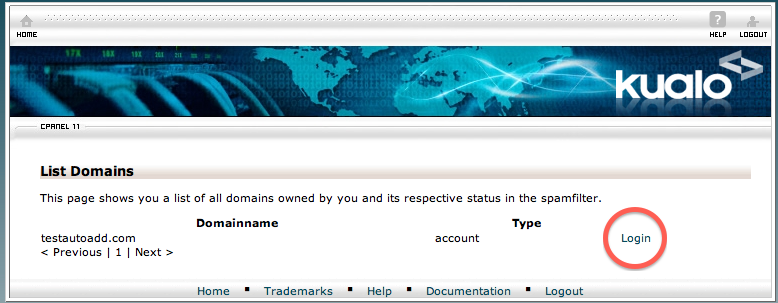
-
You are now logged in to the SpamExperts domain control panel.
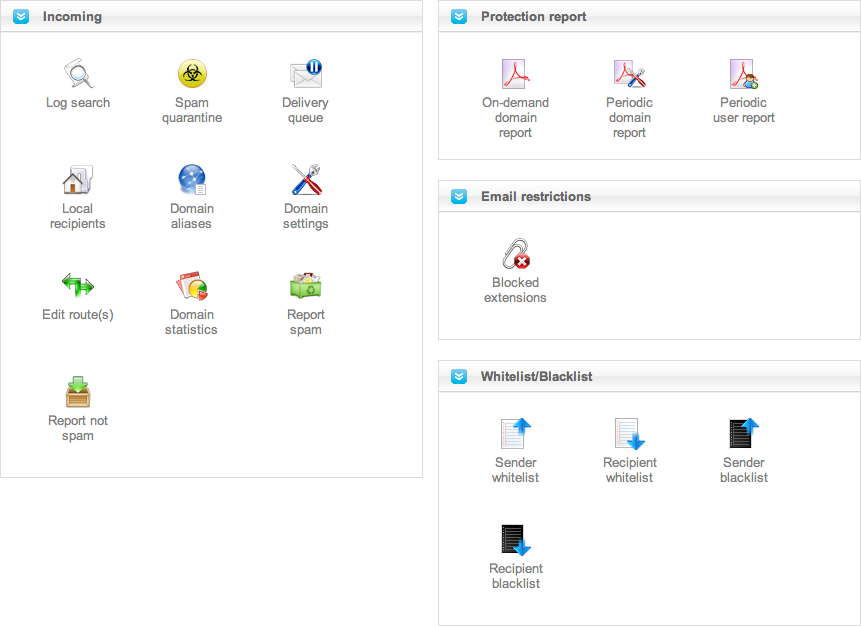
Setting up periodic domain reports
We recommend setting up a periodic domain report as one of your first tasks. These reports give you a regular overview of spam statistics for your domain and a list of quarantined emails, so you can quickly spot any false positives.
-
In the SpamExperts panel, click Periodic Domain Report.
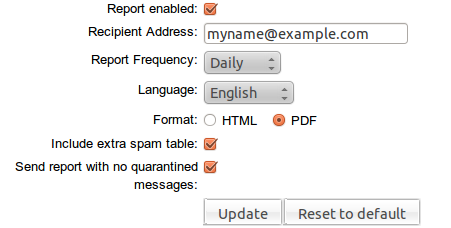
-
Choose whether to receive the report as a PDF attachment or inline HTML, and set your preferred frequency.
The PDF report includes:
- A summary of spam and viruses blocked for the domain
- Total mail volume processed
- A table of messages that were rejected but not quarantined (this can be disabled via the web interface if it becomes too large)
- A table of quarantined messages, with direct links to release each one
Releasing emails from quarantine
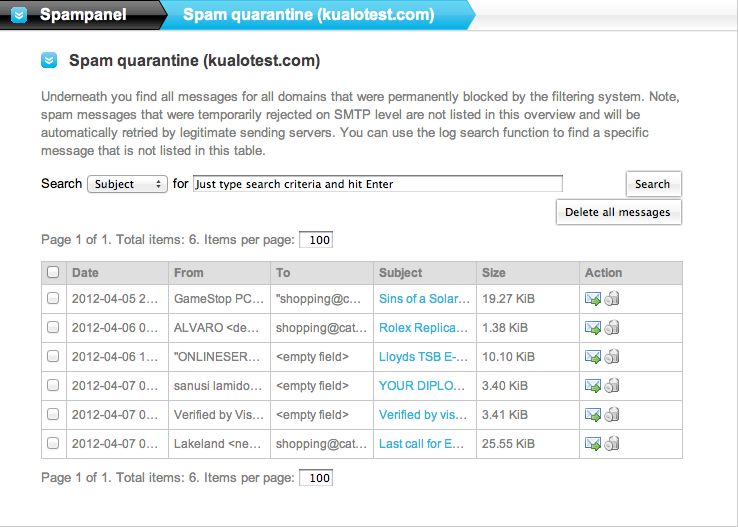
The Spam Quarantine holds messages identified as spam for 28 days. Given the 99.98% accuracy rate, you will rarely need to check it, but it is worth reviewing periodically.
- Click the Spam Quarantine icon in the SpamExperts panel.
- Browse or search the quarantined messages by subject, sender, or recipient. The most recent messages appear at the top.
- To release a message to your inbox, click the envelope icon with a green arrow next to it.
Uncertain spam email
When SpamExperts is not confident enough to quarantine a message outright, it delivers it to your inbox with the subject line prefixed by ***SPAM***.
This lets you identify borderline messages at a glance. You can set up a filter rule in your email client to move these messages to a dedicated folder automatically. The exact steps vary by client, so check your client's documentation for instructions on creating subject-line filters. If you do create such a folder, check it regularly to make sure no legitimate email has been caught.
Reporting spam
If a spam message reaches your inbox, you can report it to SpamExperts to help improve its accuracy.
Using the web interface
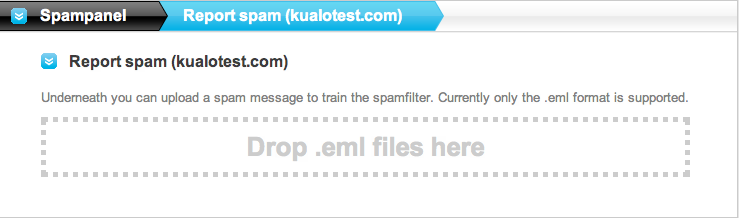
The SpamExperts panel includes a Report Spam function with a drag-and-drop upload area. Save the spam email to your computer, then drag and drop it into the upload area.
Only emails that have been processed by the SpamExperts cluster can be reported this way. The accepted format is .eml only.
Using an email client add-on
- Outlook (.msg format): Use the free Outlook Email Client add-on to report spam directly from Outlook.
- Mozilla Thunderbird: Use the free Thunderbird add-on to report spam without leaving your client.
Details for both add-ons are available in the SpamExperts knowledgebase.
Forwarding spam by email
If your email client is not supported (for example, Apple Mail), you can report spam by forwarding the message as an attachment in .eml format to [email protected].
Using the IMAP quarantine
SpamExperts also supports reporting via a dedicated IMAP system. Configuration guides for Thunderbird and Outlook are available in the SpamExperts knowledgebase.