
On this page
How to read and send email messages in Apple Mail
A quick walkthrough of reading, replying to, and composing email messages in Apple Mail.
Once you have added an email account and configured an outgoing server, you can start sending and receiving messages straight away.
Reading messages
- Unread messages are marked with a blue dot in your inbox.
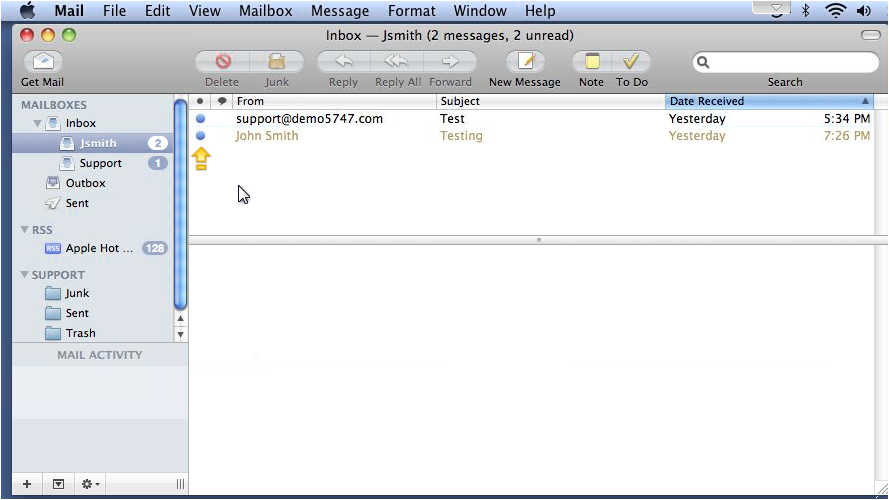
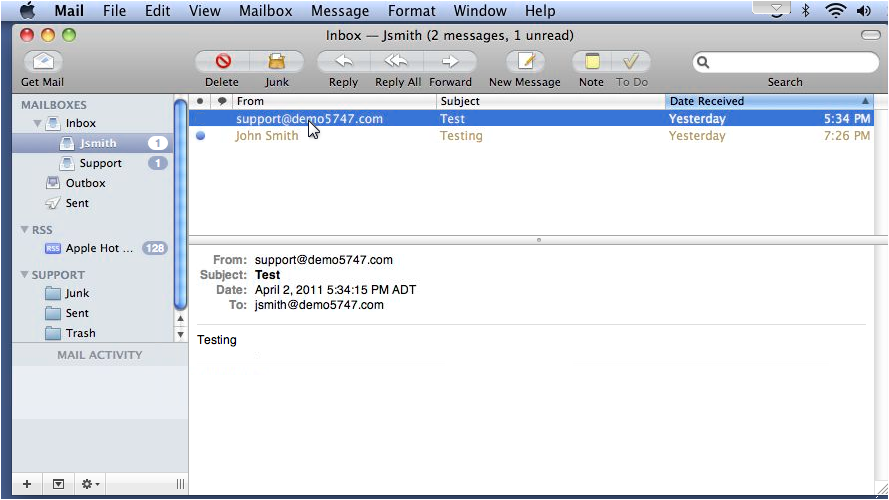
- Click any message to open it. The content appears in the preview pane below, and the message is marked as read.
Replying to a message
- With a message open, click Reply to respond to the sender.
- Type your reply and click Send when ready.
Composing a new message
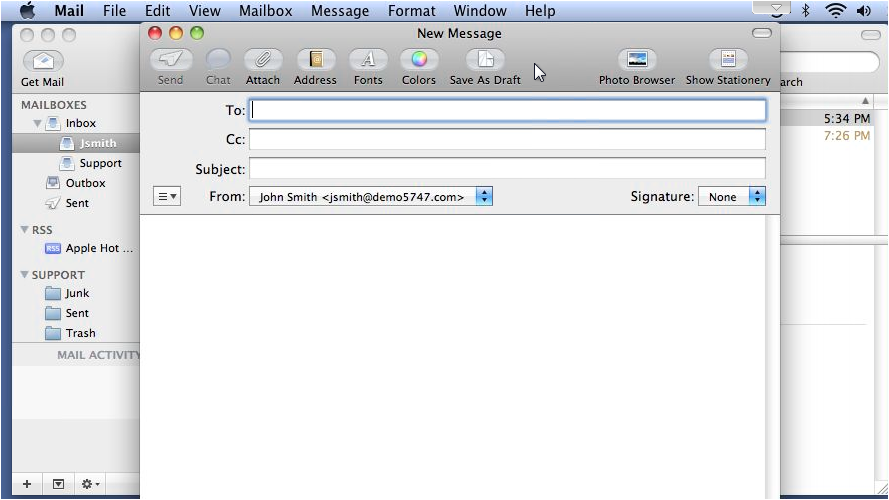
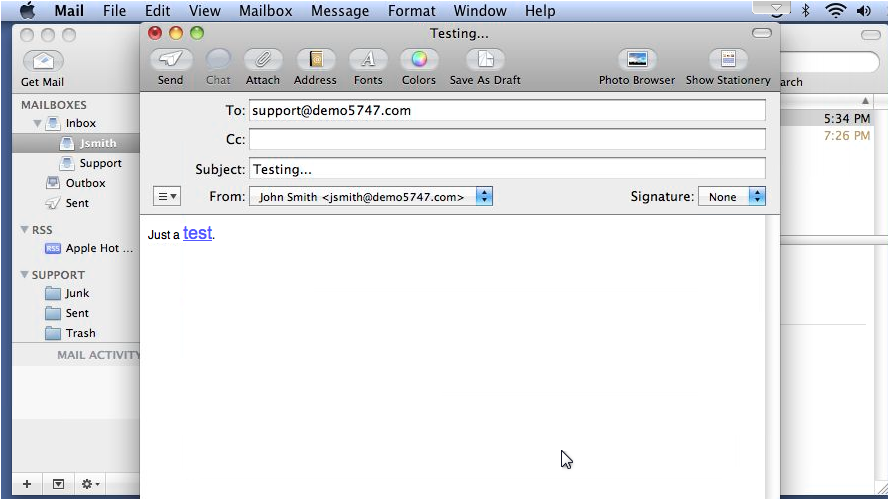
- Click New Message to open a blank compose window.
- Type the recipient's email address in the To field.
- Enter a subject in the Subject field.
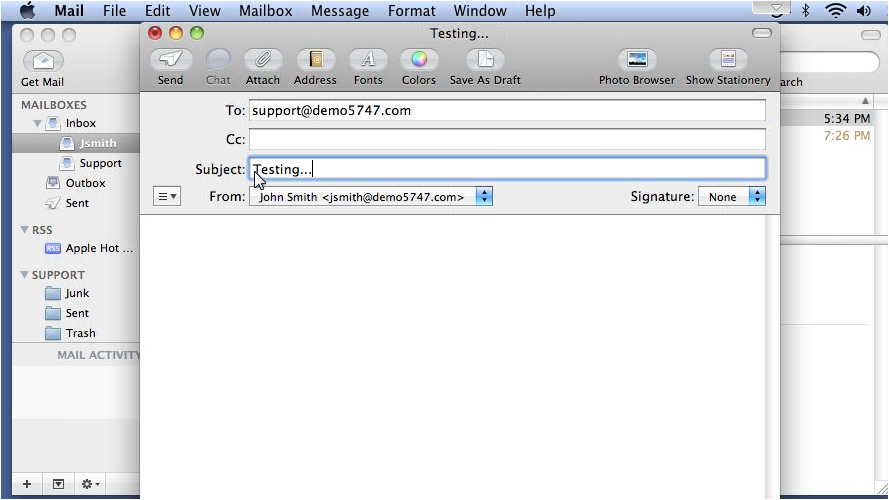
- If you have more than one email account set up, choose the address you want to send from using the From dropdown.
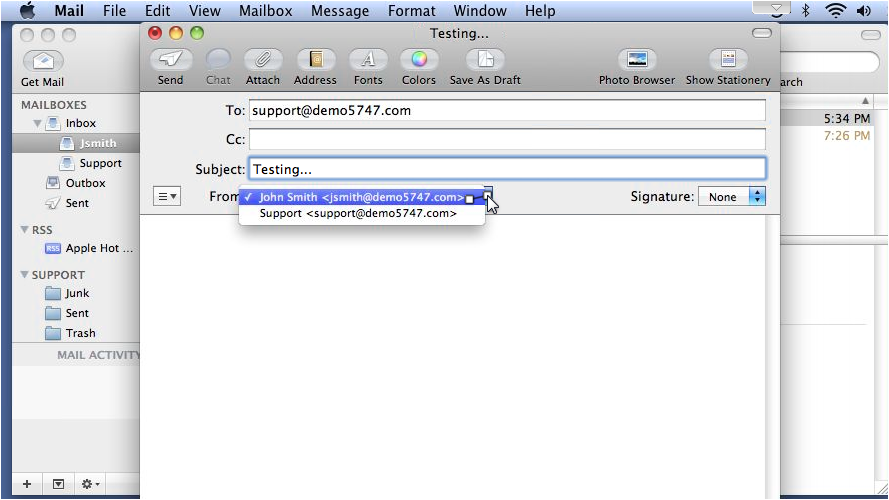
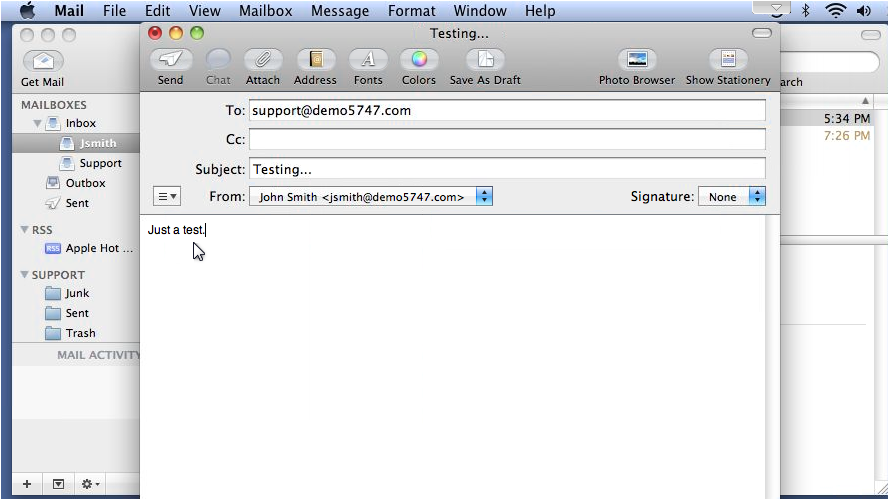
- Type your message in the body area.
Formatting text
- Click the Fonts icon in the toolbar to open the formatting panel.
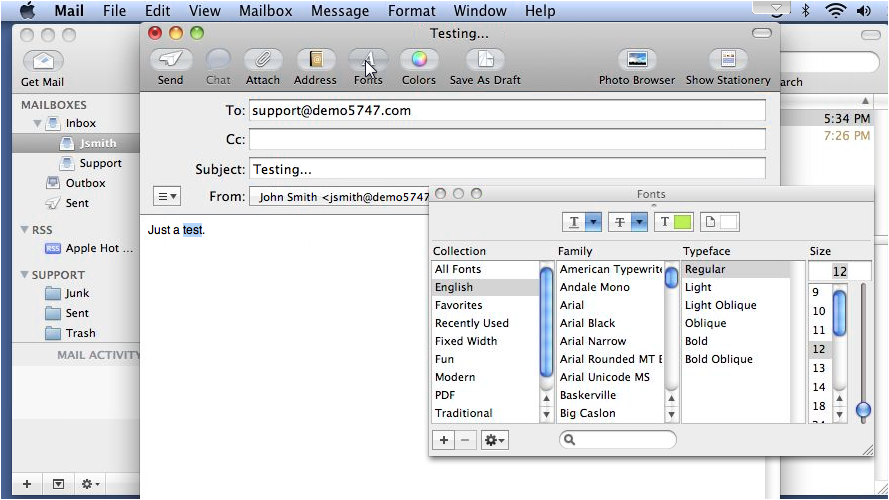
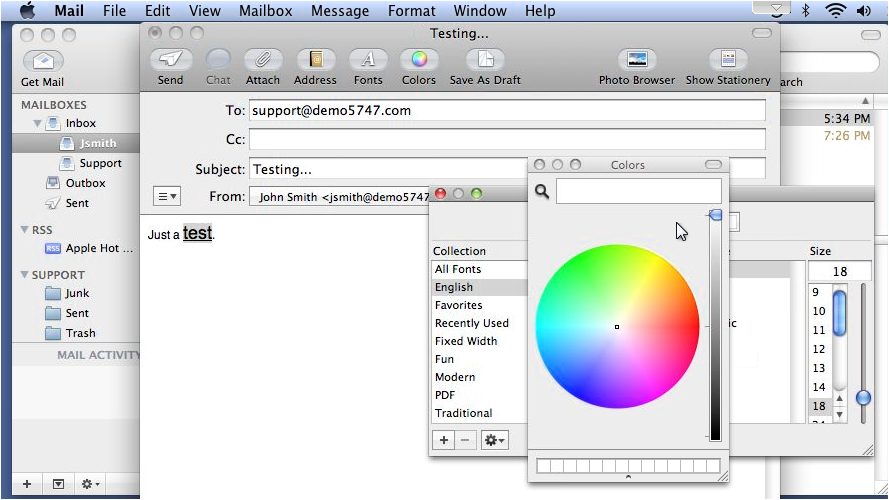
- Highlight the text you want to change, then choose a font family, size, or colour.
- Use the colour wheel to pick a custom text colour.
Attaching a file
- Click the Attach icon (paperclip) in the toolbar.
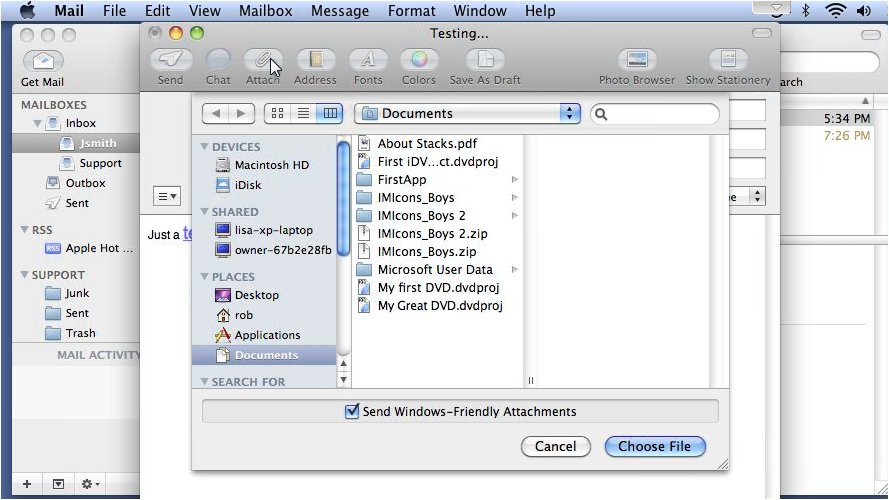
- Browse to the file you want to attach and click Choose File.
Sending your message
- When you are happy with your message, click Send.
- You can confirm the message was sent by checking the Sent folder in the sidebar.
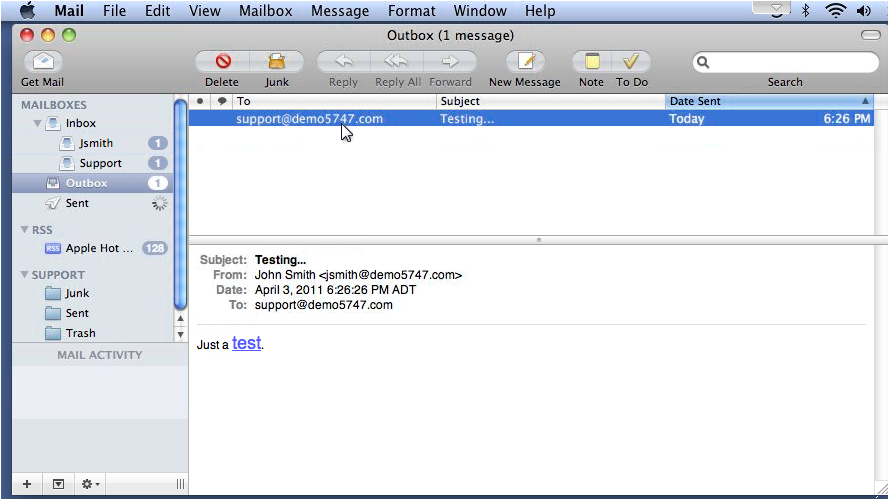
If a message appears to be stuck, check your Outbox folder. Messages held there usually indicate a problem with your outgoing (SMTP) server settings.
Was this helpful?
Your feedback helps us find gaps in the docs.
Thanks for the feedback!
Related articles
Set up on Apple (Mac, iPhone, iPad)
How to set up a mail account using POP in Apple Mail
This guide explains how to add a POP email account to the Mail app on a Mac, including whe...
Set up on Apple (Mac, iPhone, iPad)
How to set up a mail account using IMAP on Apple Mail
Add your Kualo email account to the Mac Mail app using IMAP, with automatic setup for most...
Set up on Apple (Mac, iPhone, iPad)
An overview of settings and preferences in Apple Mail
A quick tour of the preferences tabs in Apple Mail, so you know where to find every settin...
Set up on Apple (Mac, iPhone, iPad)
How to create and manage signatures in Apple Mail
Apple Mail lets you create multiple signatures and assign a different one to each email ac...
Still need a hand?
Real people, around the clock - start a chat or open a ticket and we'll help you put it right.