
On this page
Setting up a Zimbra Exchange email address in Outlook for Mac
Connect your Kualo Zimbra email account to Outlook for Mac using the Exchange-compatible setup available on Professional plans and above.
This article explains how to connect a Kualo Zimbra email account to Outlook for Mac using the Exchange-compatible method, which is available on the Professional plan and higher.
Before you start, make sure you have:
- Your email address
- Your email address password
Adding the account
-
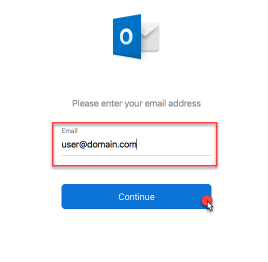
Open Outlook for Mac, then go to Outlook > Preferences > Accounts and click Add Email Account. Enter your email address and click Continue.
-
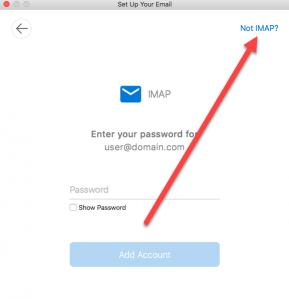
In the top-right corner of the window, click Not IMAP?
-
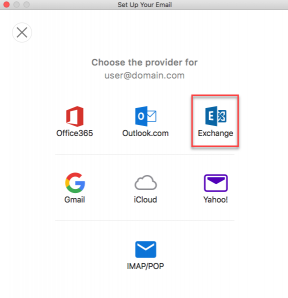
Select Exchange.
-
Fill in the following fields, then click Add Account:
Field Value Email address Your full email address Username Your full email address Password Your email password Server webmail.kualo.com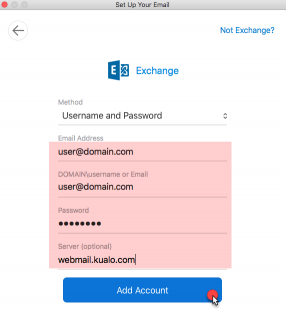
-
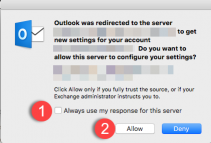
Outlook will detect the server settings and ask for your permission. Tick Always use my response for this server, then click Allow.
-
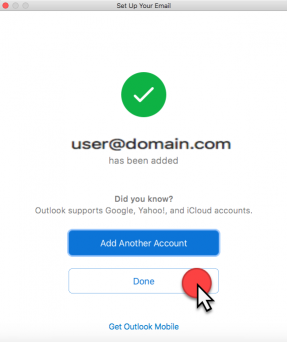
Once the setup completes successfully, click Done.
If Outlook does not detect the server settings automatically, double-check that the server is set to webmail.kualo.com and that your username matches your full email address exactly.