On this page
How to create and manage outgoing mail servers
Learn how to add, edit and delete outgoing SMTP mail servers in Apple Mail on macOS.
An outgoing mail server (SMTP server) is what Apple Mail uses to send messages. Without at least one configured, you will not be able to send email.
Accessing outgoing mail server settings
-
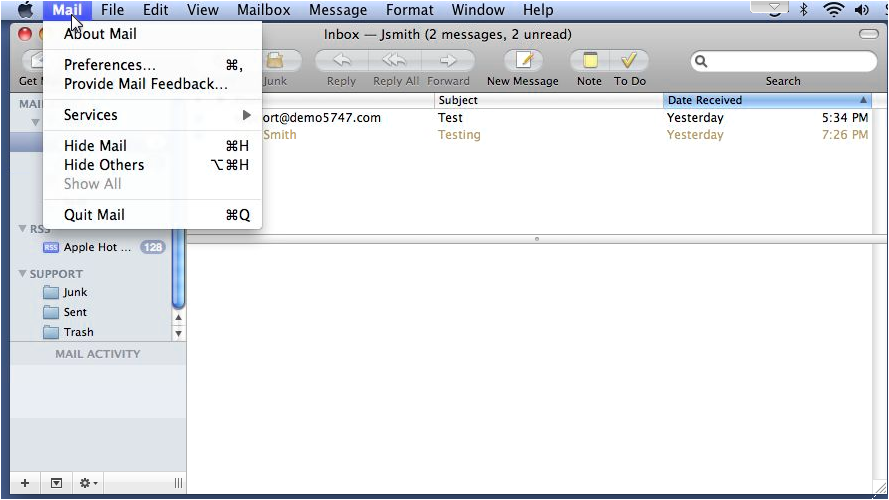
Open Mail, then click Mail in the menu bar and select Preferences (macOS Ventura and later: Settings).
-
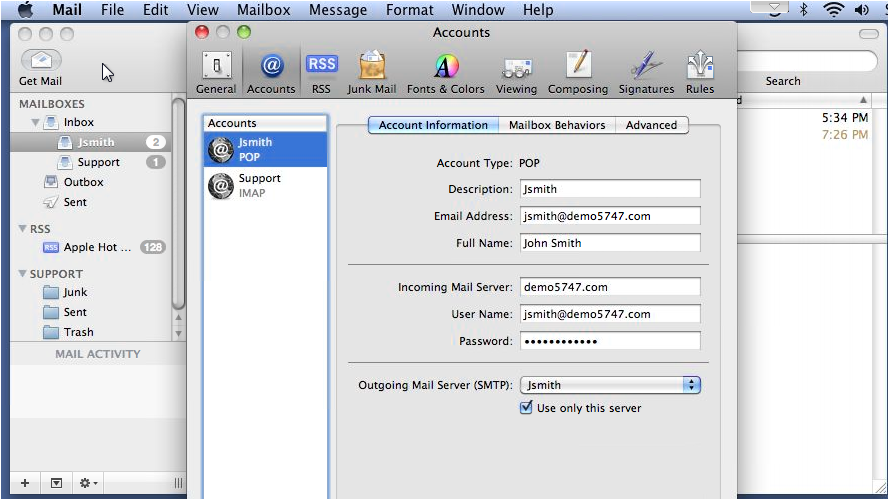
Make sure the Accounts tab is selected.
-
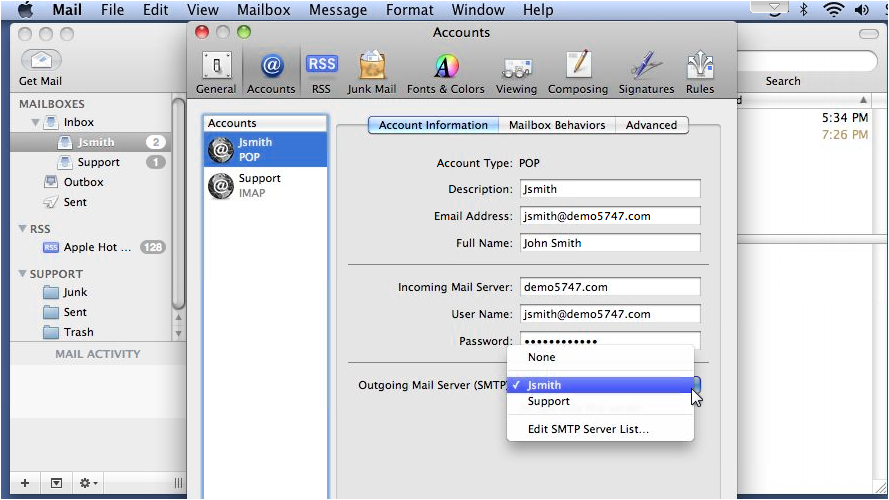
You can assign a different outgoing mail server to each account. Click the Outgoing Mail Server dropdown and choose Edit SMTP Server List to manage your servers.
-
The top pane lists all configured outgoing servers; the bottom pane shows details for the selected server. Click Advanced to set a custom port, enable SSL, or choose an authentication method.
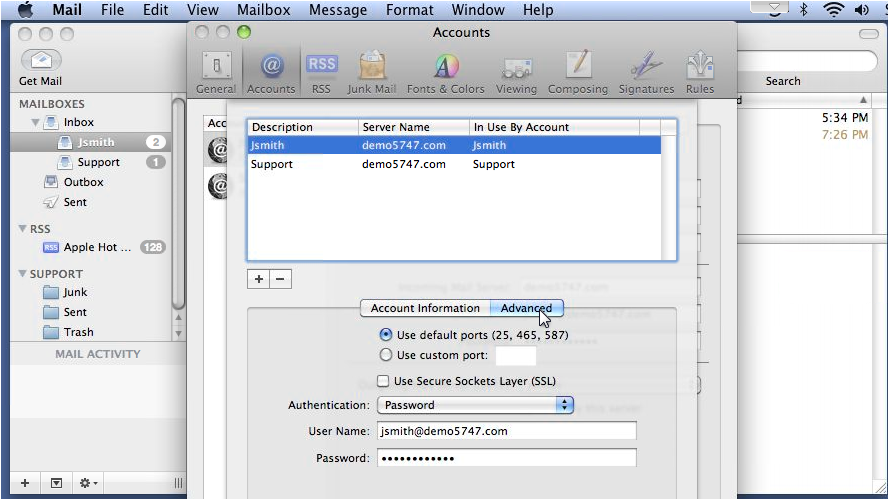
Deleting an outgoing mail server
- Select the server you want to remove, then click the minus (-) icon.
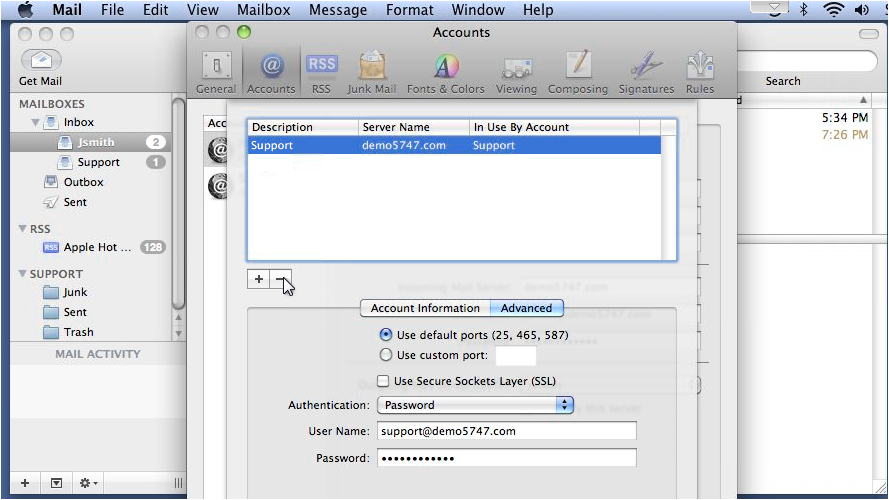
Deleting a server from the list is permanent and cannot be undone.
Adding an outgoing mail server
-
Click the plus (+) icon. Enter a short description for the server, then type the server name (for example,
mail.yourdomain.com).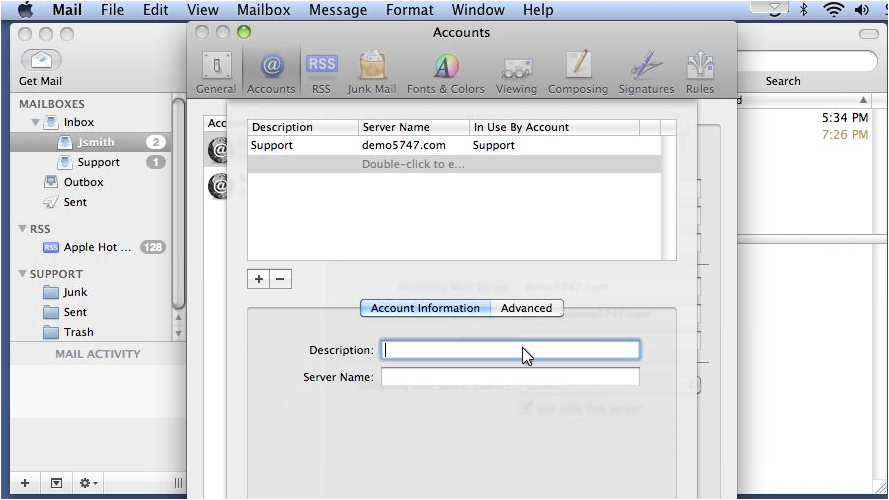
-
Click Advanced.
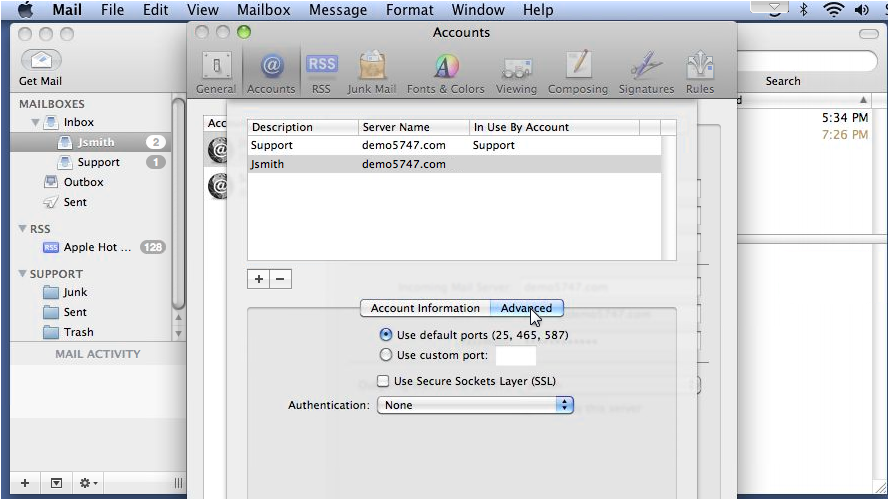
-
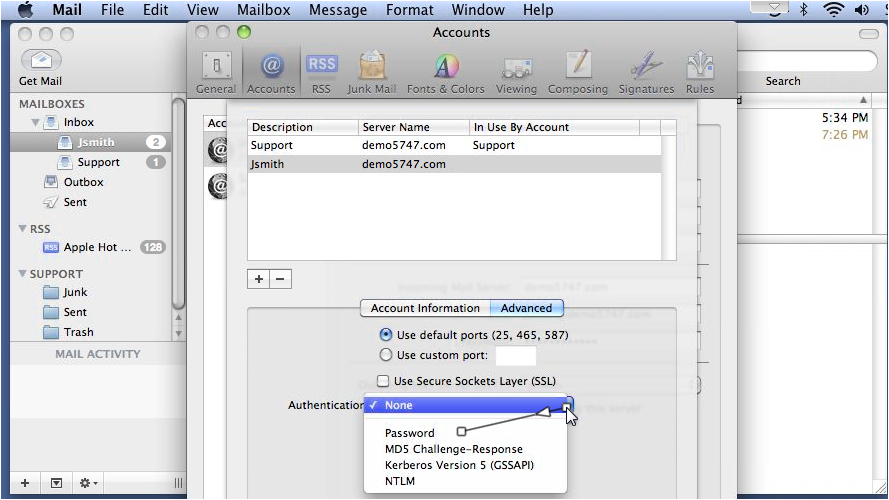
Select an authentication method from the dropdown. For most Kualo mail accounts, choose Password.
-
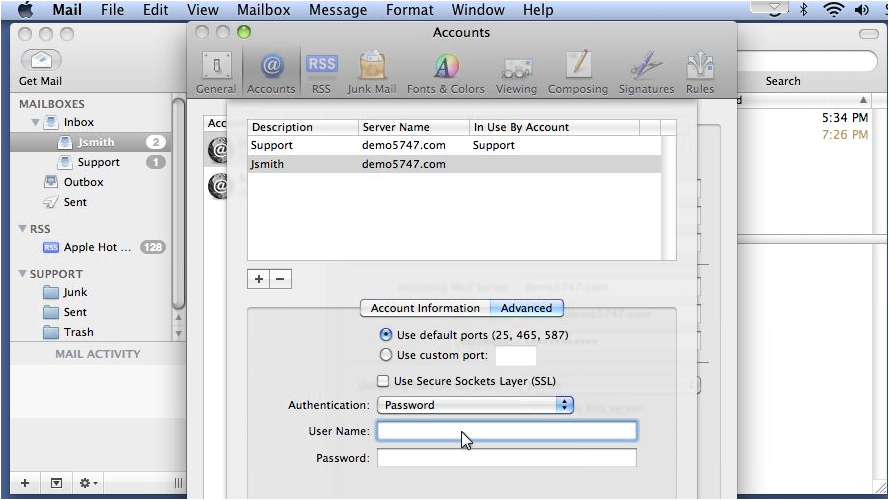
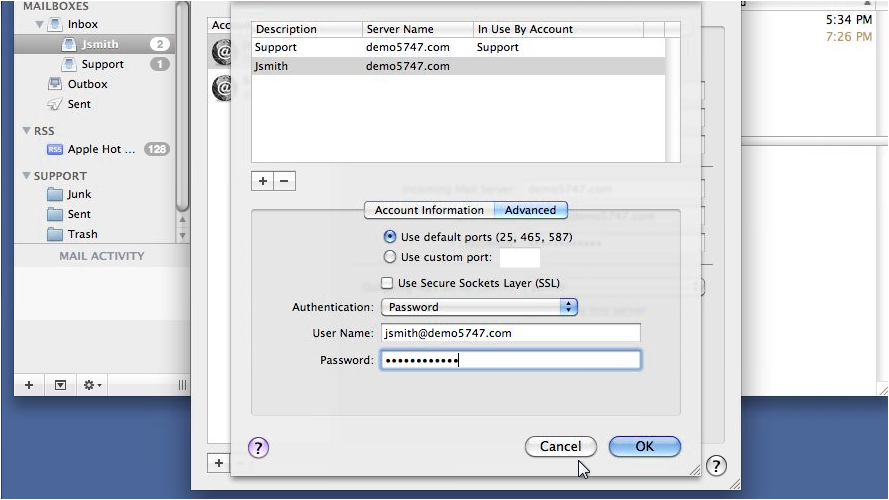
Enter your username (your full email address) and password.
-
Click OK to save.
Assigning the server to a mail account
-
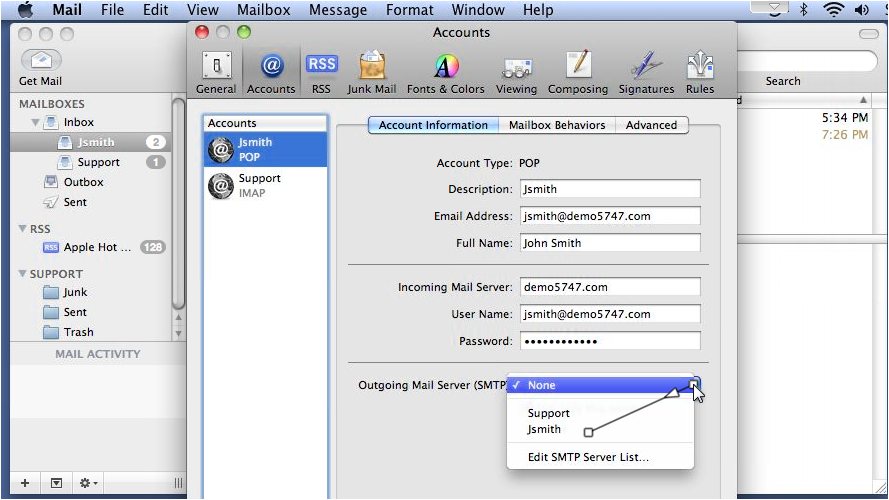
Back on the Accounts screen, select your mail account, then choose the new server from the Outgoing Mail Server dropdown.
-
Click Save to apply the changes.