
On this page
Mac Mail - configuring IMAP folders
Configure IMAP folders in Mac Mail to keep sent, drafts, junk and trash in sync across your Mac, iPhone and iPad.
When using Mac Mail with an IMAP account, you may need to configure your mailbox folders so that sent items, deleted mail and drafts stay in sync across multiple devices such as an iPhone or iPad. Follow the steps below to set this up.
Configure mailbox behaviours
- Open Mac Mail.
- On the Mail menu, click Settings (macOS Ventura and later) or Preferences (earlier versions), then click Accounts.
- Select your email account, then click the Mailbox Behaviors tab.
- You can now configure which server-side folders Mac Mail uses for Drafts, Sent, Junk, Trash and Archive.
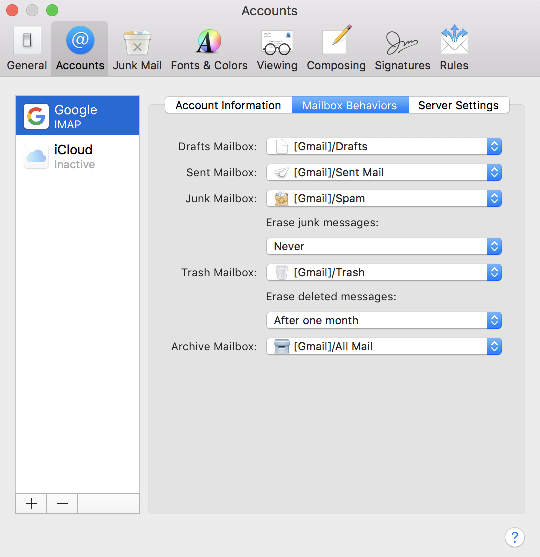
Set the IMAP folders
Once you are on the Mailbox Behaviors tab, you can assign the correct IMAP folders for Sent, Drafts, Junk and Trash. Your folder list on the left-hand side will initially look something like this:
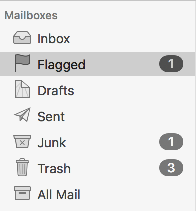
You may notice Sent and Trash folders with plain (undecorated) icons near the bottom of the list. The plain icons mean that Mac Mail does not yet recognise them as special folders - it will not automatically use them to store sent or deleted mail until you assign them in the Mailbox Behaviors tab.
If you see additional folders you do not recognise, you can safely ignore them. Only the folders you assign in Mailbox Behaviors will be used by Mac Mail for each message type.