
On this page
How to set up a secure SSL/TLS IMAP email account on Android using Samsung Email
Set up your Kualo email account on Android using the Samsung Email app with secure SSL/TLS settings.
Set up your Kualo-hosted email account on Android using the Samsung Email app with secure IMAP over SSL/TLS. You will need the Samsung Email app installed before you begin.
Prerequisites
- The Samsung Email app installed on your device (available from the Google Play Store)
- Your full email address and password
- Your mail server hostname - find this in cPanel under Email Accounts > Connect Devices. In most cases it is
mail.yourdomain.com
Add the account
-
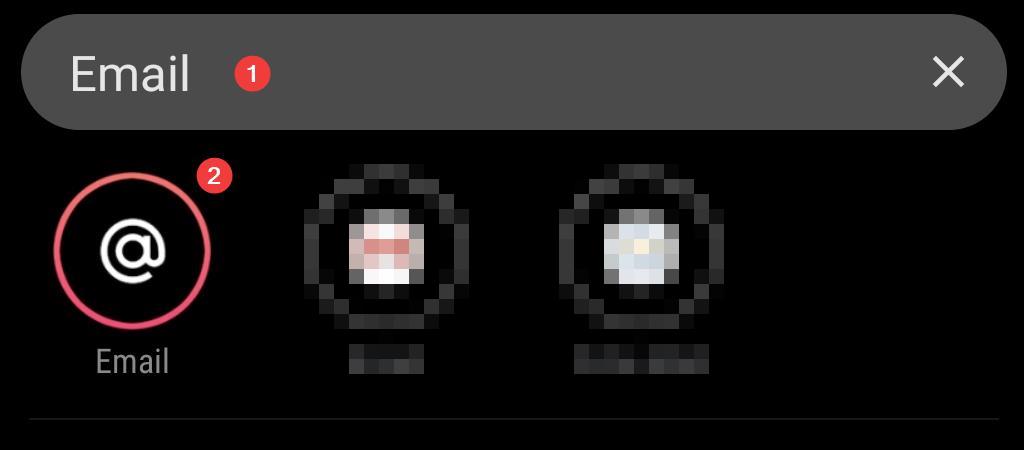
Swipe up on your home screen to open the app drawer, search for Email, then tap the app.
-
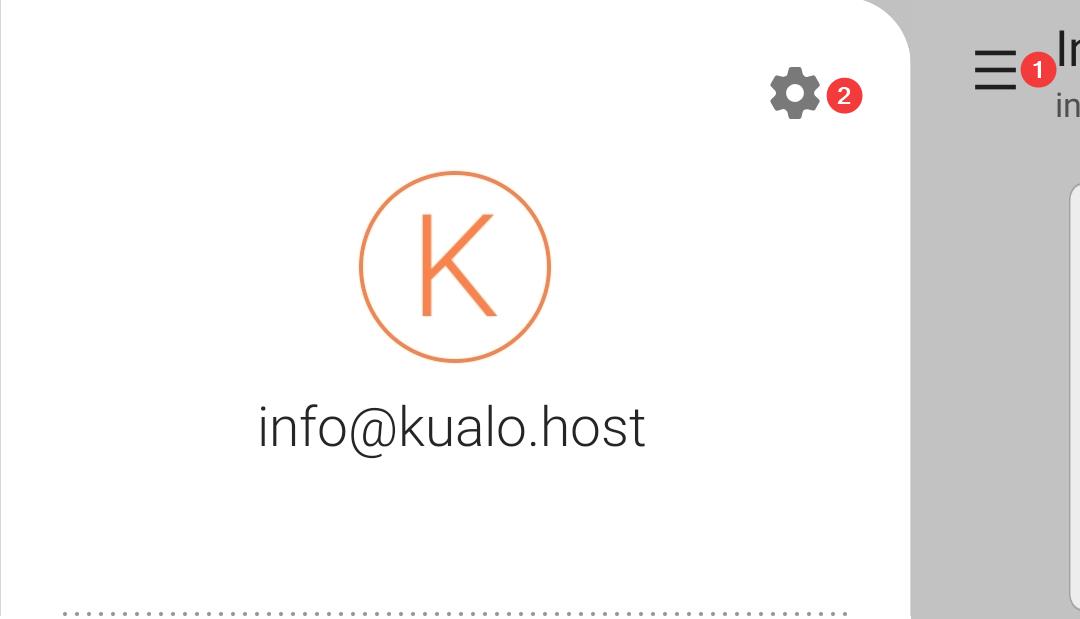
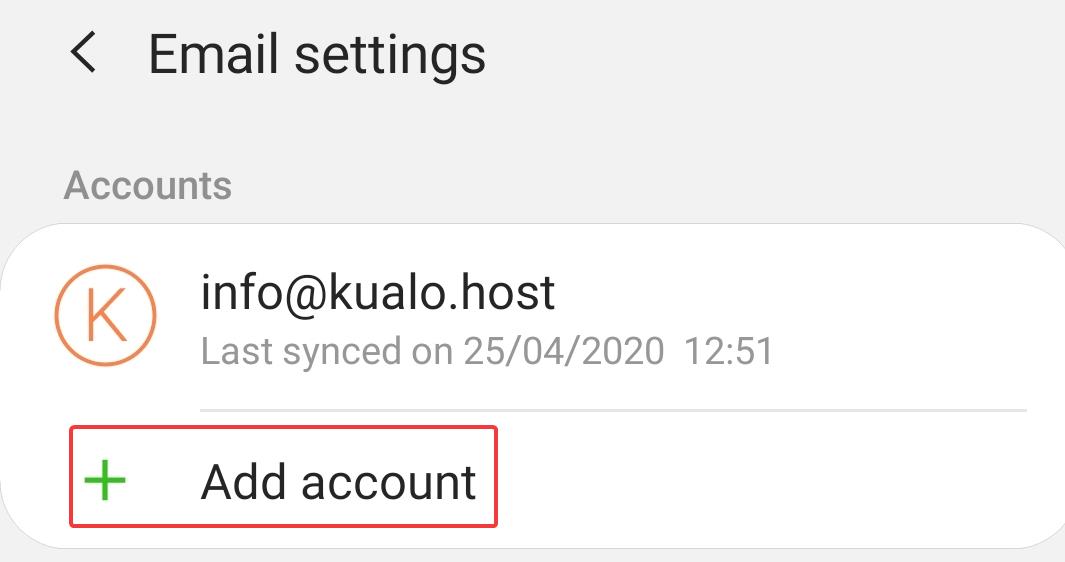
If you already have an account set up, tap the Menu button, then go to Settings > Add Account.
-
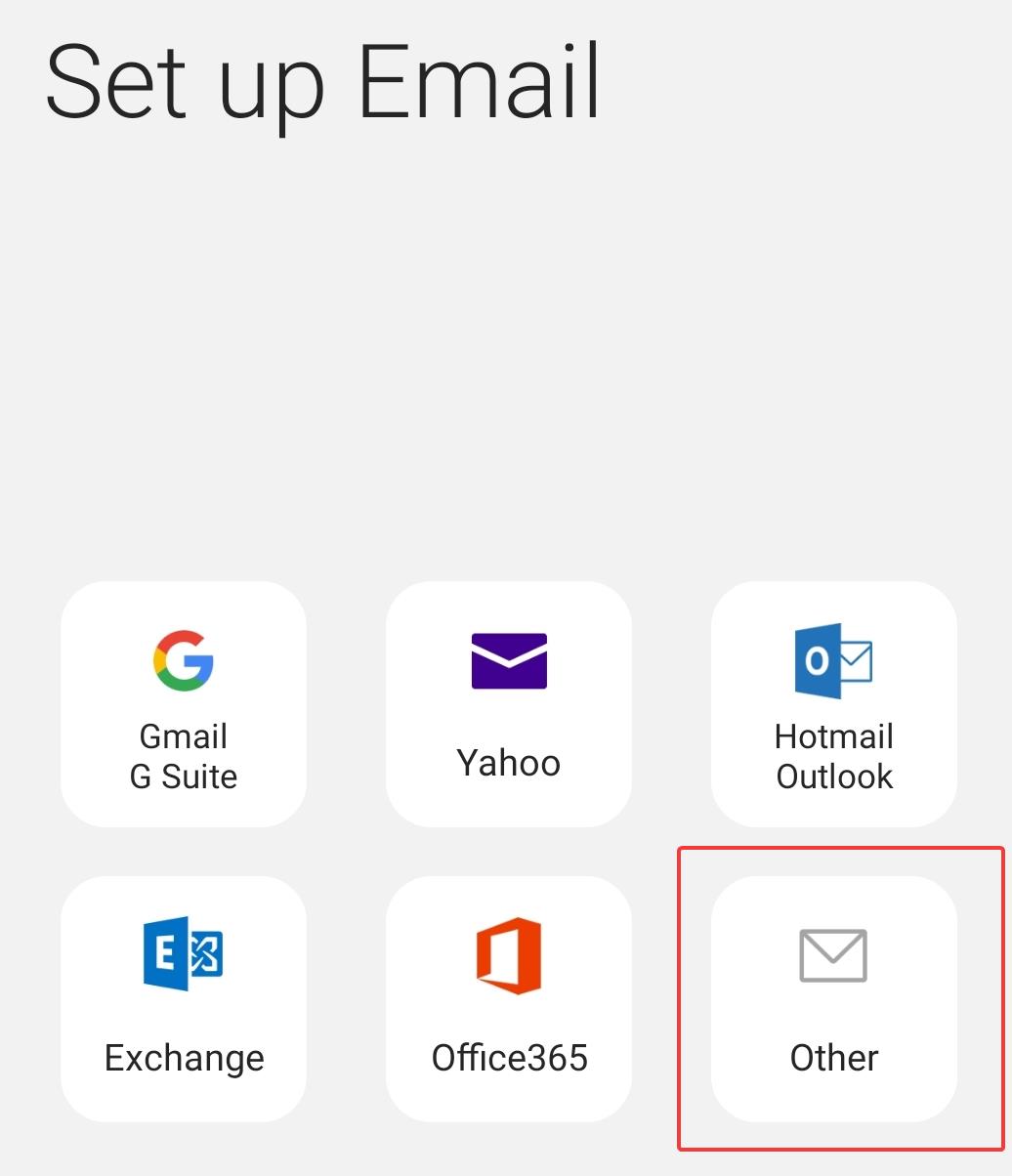
Select Other as the account type.
-
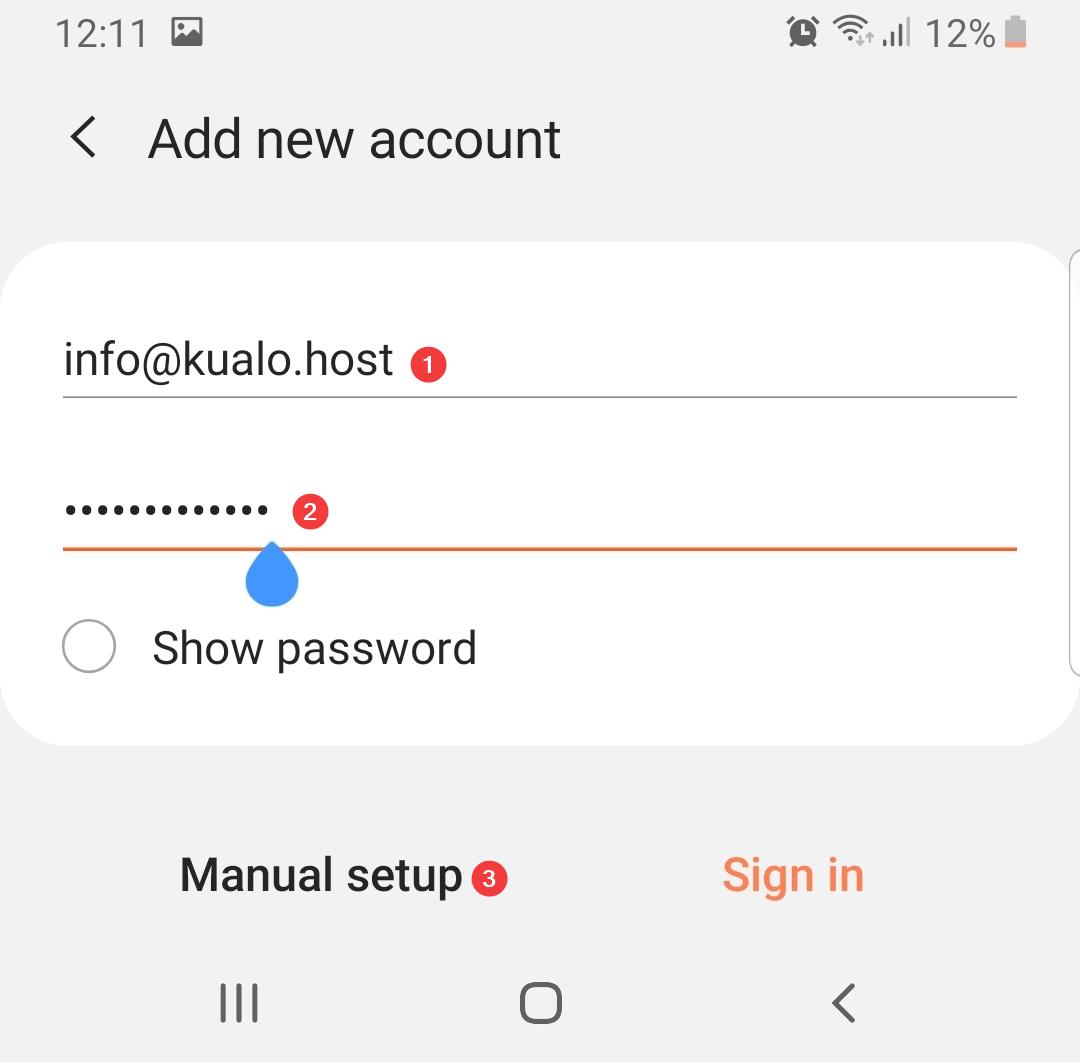
Enter your email address and password, then tap Manual setup.
-
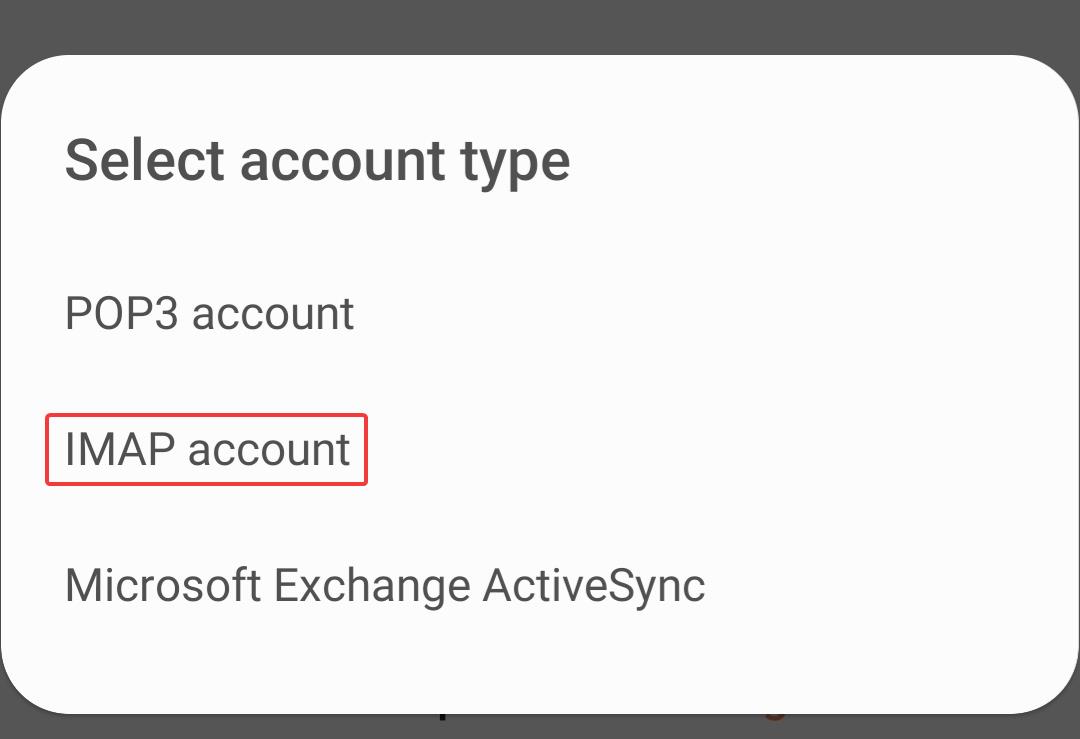
Select IMAP account.
Configure incoming mail (IMAP)
-
Scroll down and fill in the incoming server settings:
Setting Value Username Your full email address Password Your email password IMAP server mail.yourdomain.com(check cPanel > Email Accounts > Connect Devices)Security type SSL (Accept all certificates) Port 993 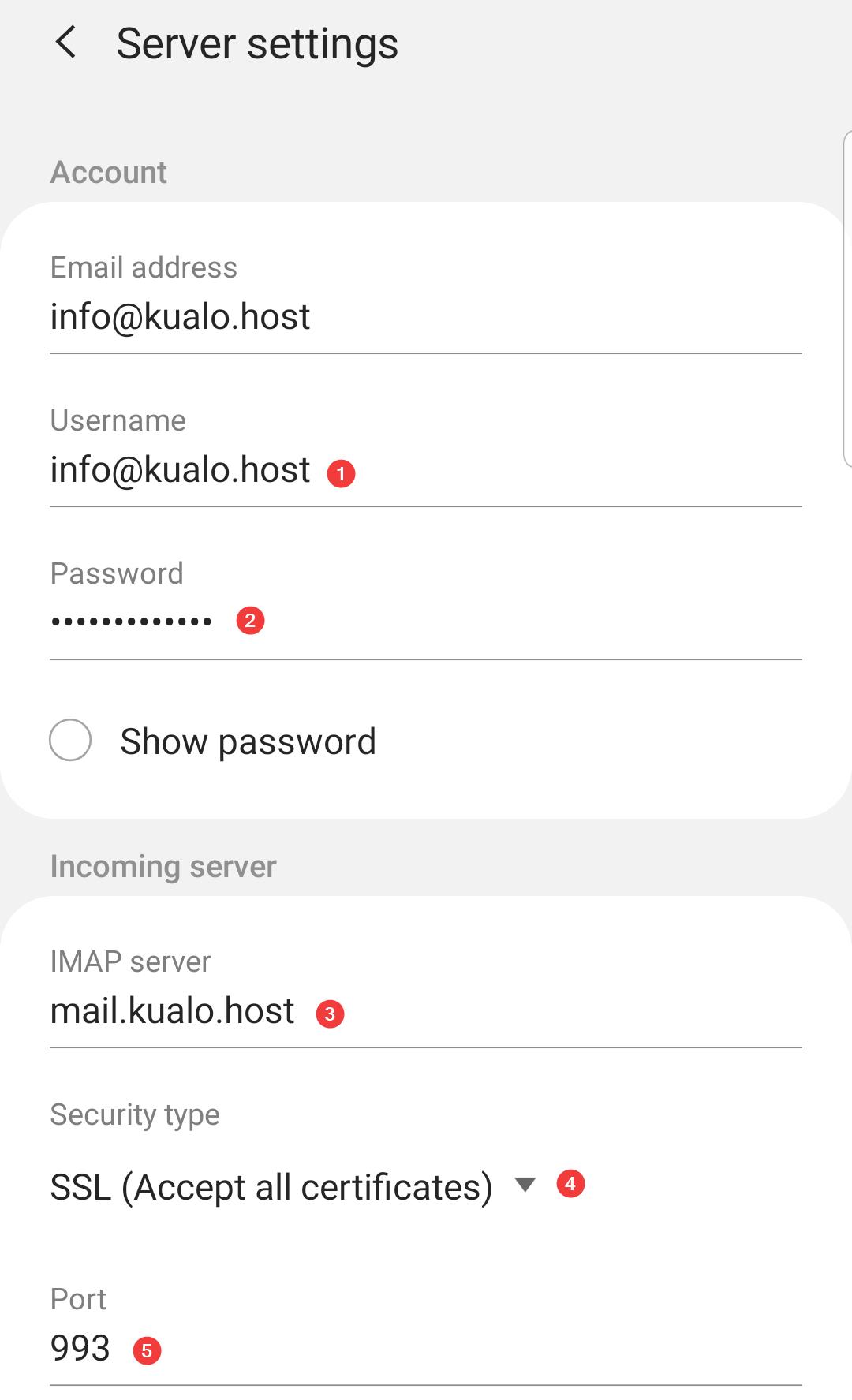
Configure outgoing mail (SMTP)
-
Scroll down and fill in the outgoing server settings:
Setting Value SMTP server mail.yourdomain.com(check cPanel > Email Accounts > Connect Devices)Security type SSL (Accept all certificates) Port 465 Require authentication Enabled Username Your full email address Password Your email password 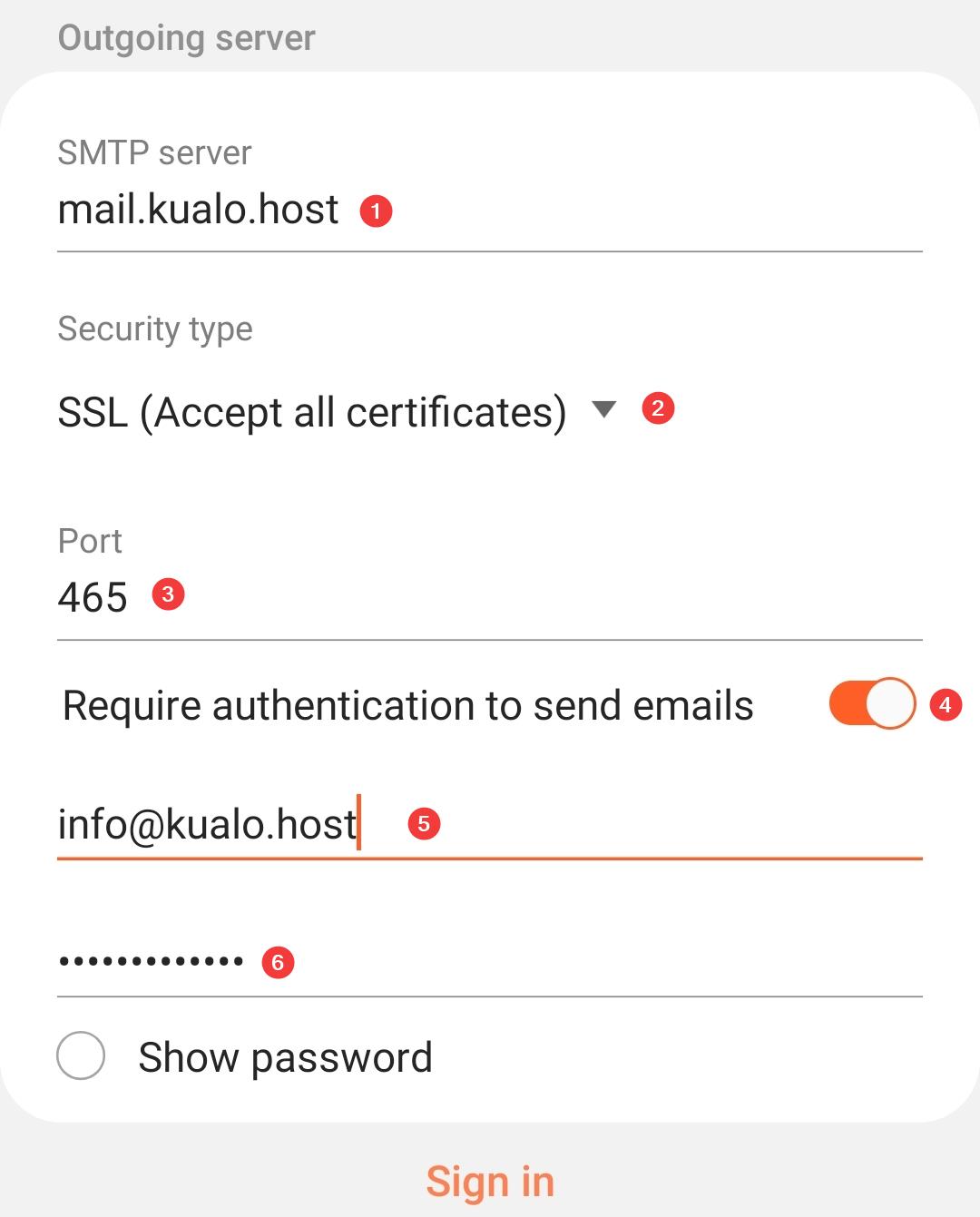
Finish setup
- Tap Sign in. If the details are correct, your inbox will load and the account is ready to use.
If the connection fails, double-check your server hostname in cPanel under Email Accounts > Connect Devices, and confirm your password is correct.
If you run into any problems, contact the Kualo support team.