
On this page
How to set up rules (filters) in Apple Mail
Rules in Apple Mail let you automatically sort incoming messages into folders based on conditions you define.
Rules in Apple Mail are filters that automatically sort your incoming messages into folders based on conditions you set up.
Creating a rule in Apple Mail
-
Open Mail, then go to Mail > Settings (or Preferences on older macOS versions) and select the Rules tab.
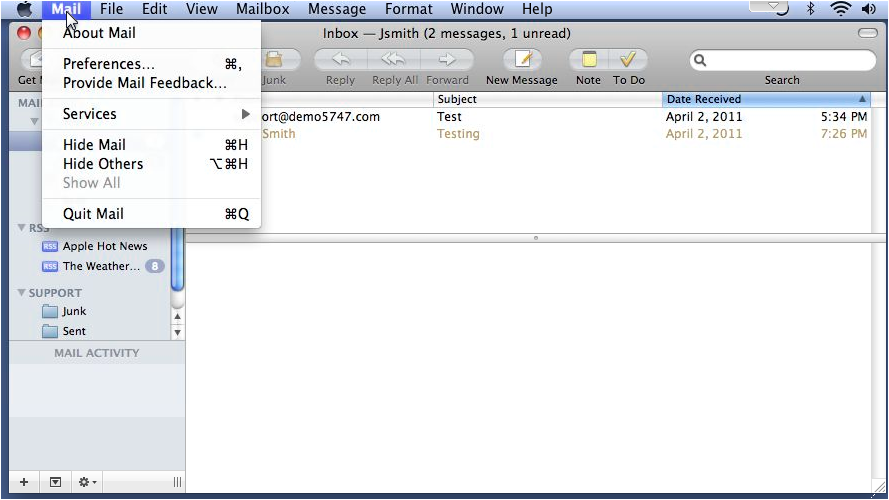
-
Click Add Rule.
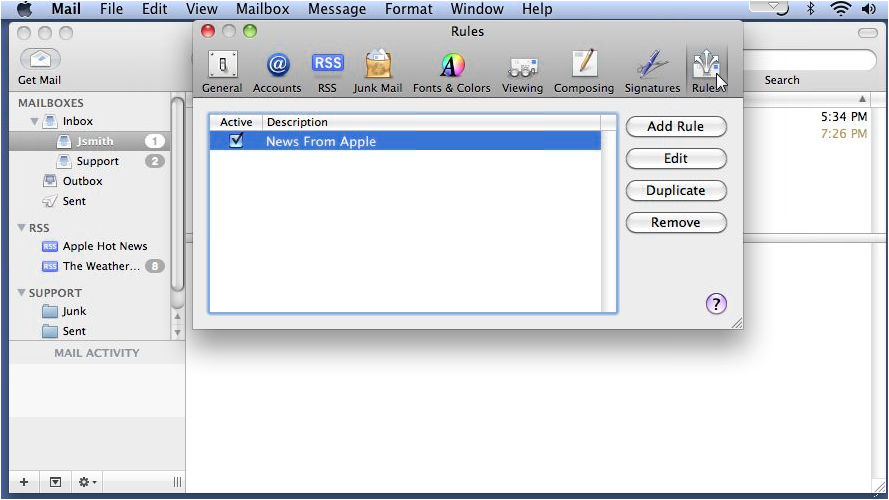
-
Enter a description for the rule so you can identify it later.
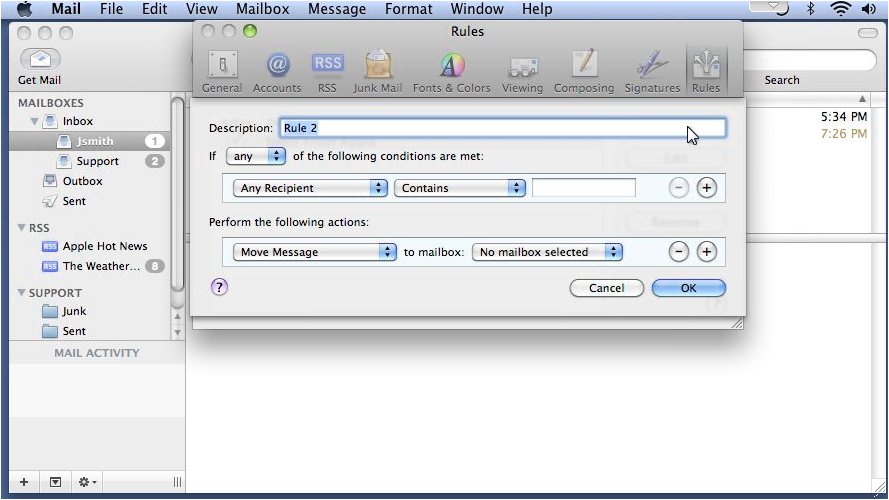
-
Choose whether the rule should trigger when any or all of the conditions are met.
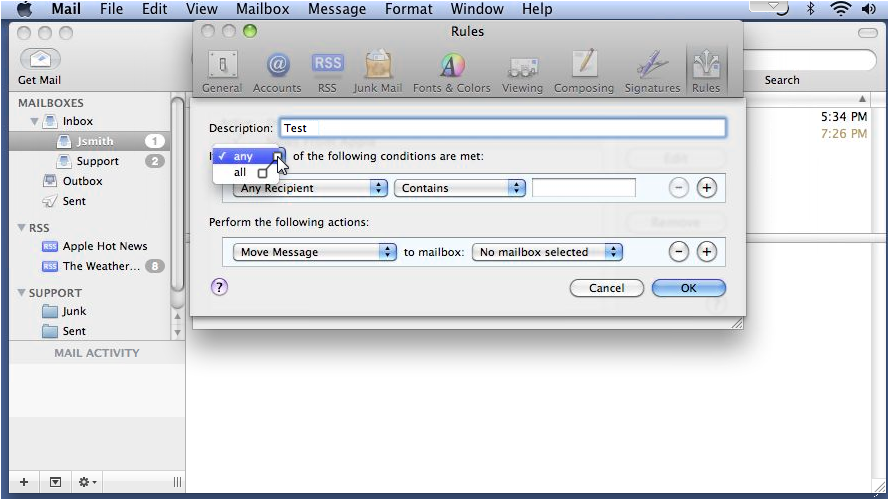
-
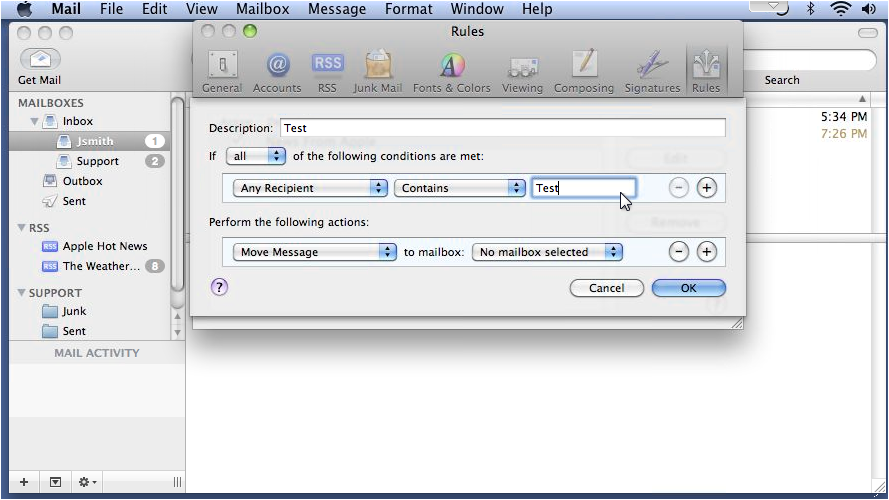
Set your condition. For example, the condition below matches any message whose subject contains the word "Test".
-
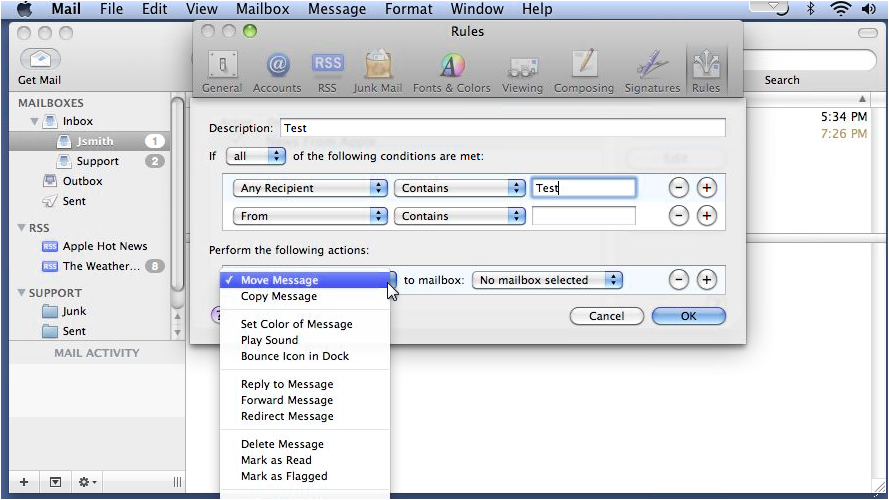
Click the + button to add further conditions if needed, then set the action to take when the conditions are met.
-
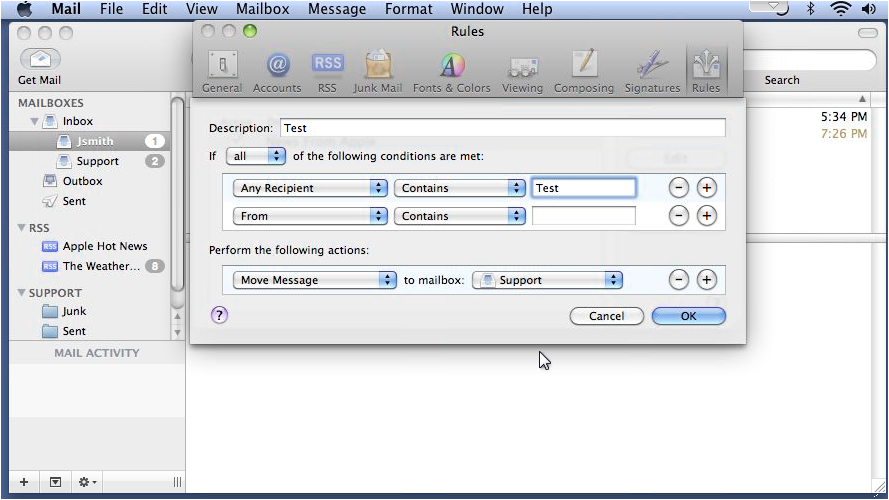
Configure the action - for example, moving matching messages to a specific mailbox such as "Support" - then click OK.
-
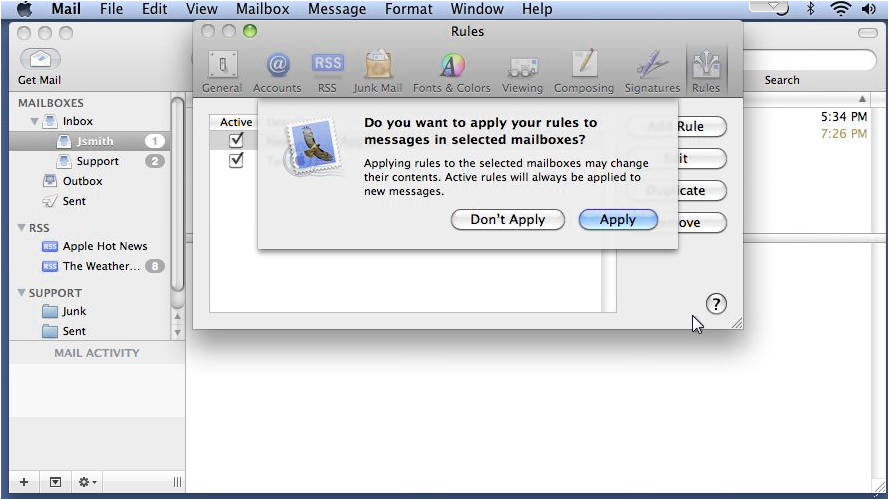
Click Apply to run the rule against messages already in your mailbox.
You can drag rules up and down in the Rules list to change the order in which they are applied. Mail processes rules from top to bottom.