On this page
An overview of settings and preferences in Apple Mail
A quick tour of the preferences tabs in Apple Mail, so you know where to find every setting you need.
Apple Mail keeps all its configuration in one place - the Preferences window. Here is a quick tour of each tab so you know where to find what you need.
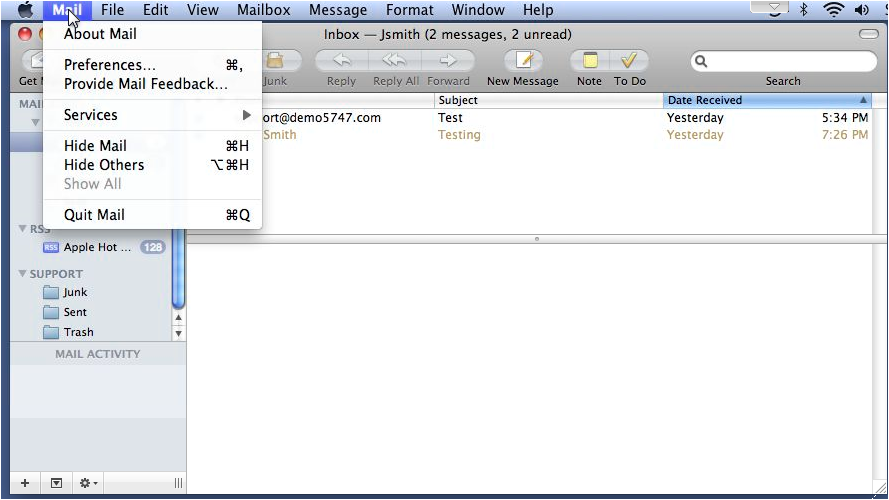
Opening preferences
- Open Mail in the menu bar.
- Click Settings (macOS Ventura and later) or Preferences (earlier versions).
Accounts tab
This is the tab that opens by default. It is where you manage the options for each of your mail accounts.
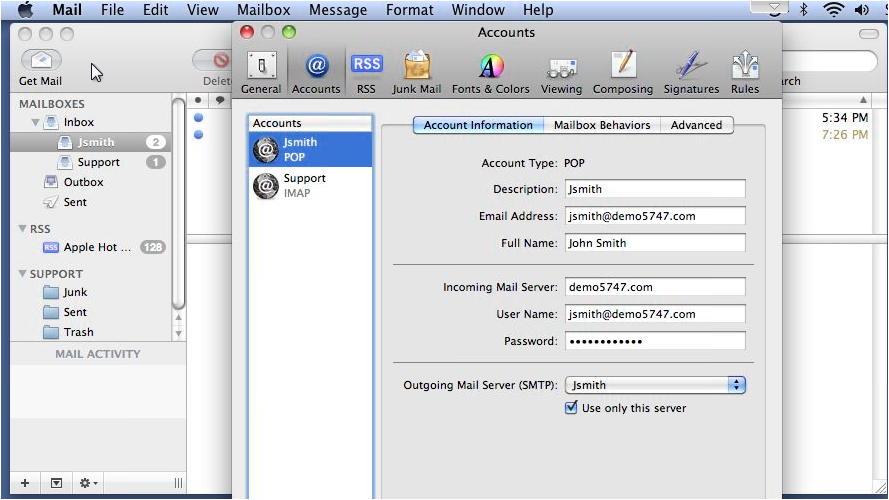
Mailbox behaviours
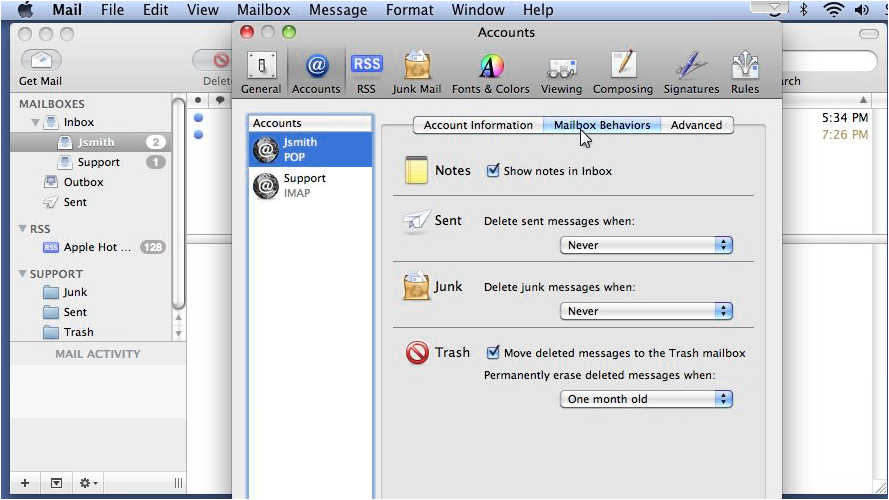
Within the Accounts tab, select Mailbox Behaviors to control how Apple Mail handles sent, junk, and deleted messages - for example, whether they are stored on the server or only on your device.
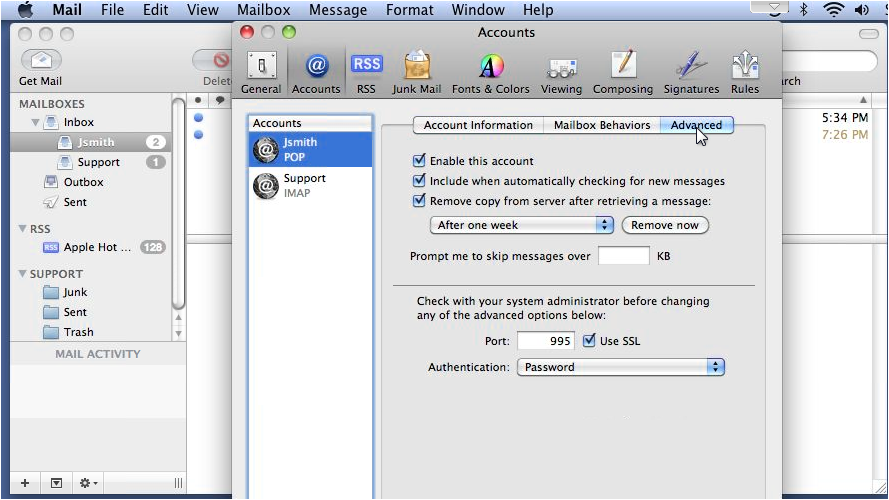
Advanced
The Advanced sub-tab shows additional options for the selected account, including SSL and port settings.
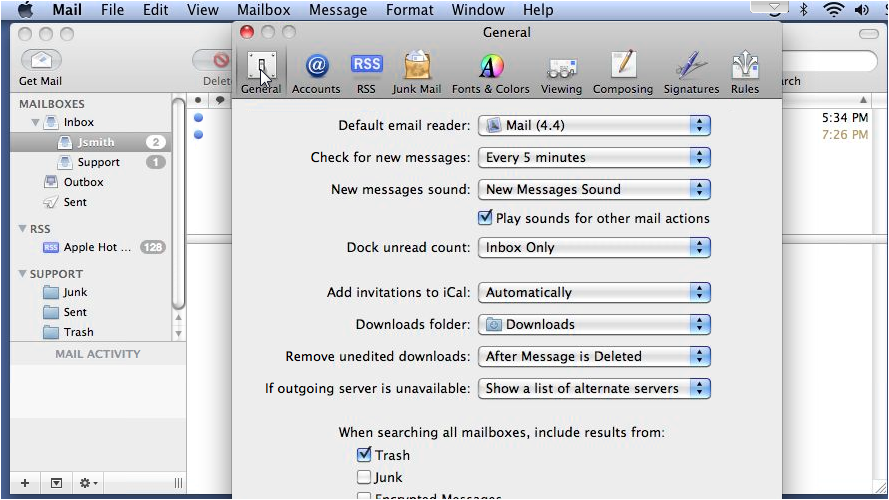
General tab
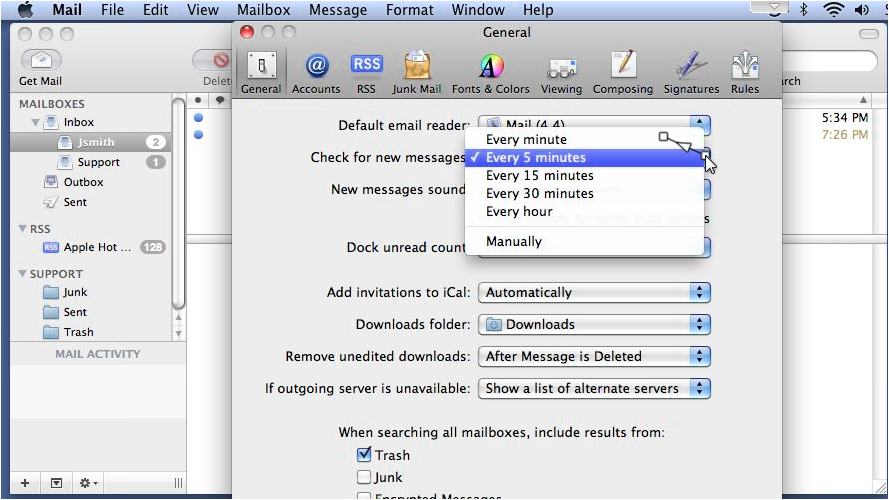
The General tab covers app-wide settings. The most commonly used option here is how frequently Apple Mail checks the server for new messages.
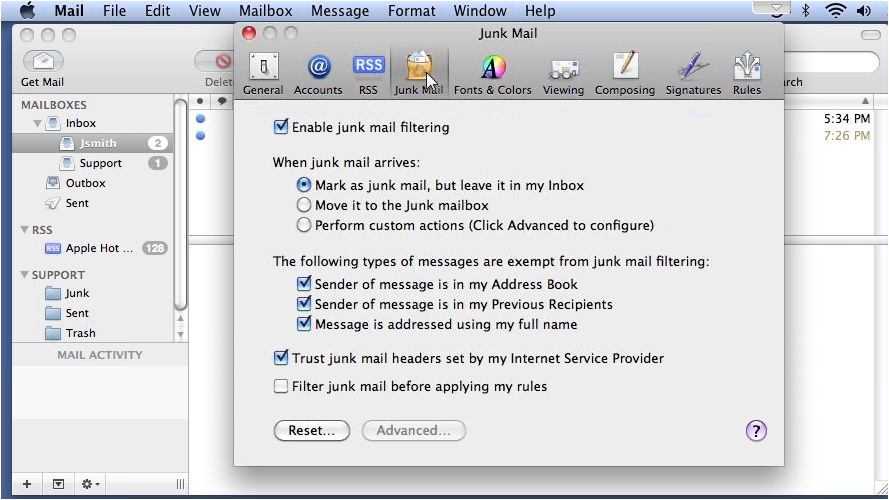
Junk mail tab
Use the Junk Mail tab to enable or disable Apple Mail's built-in junk mail filtering, and to choose what happens when a junk message is received.
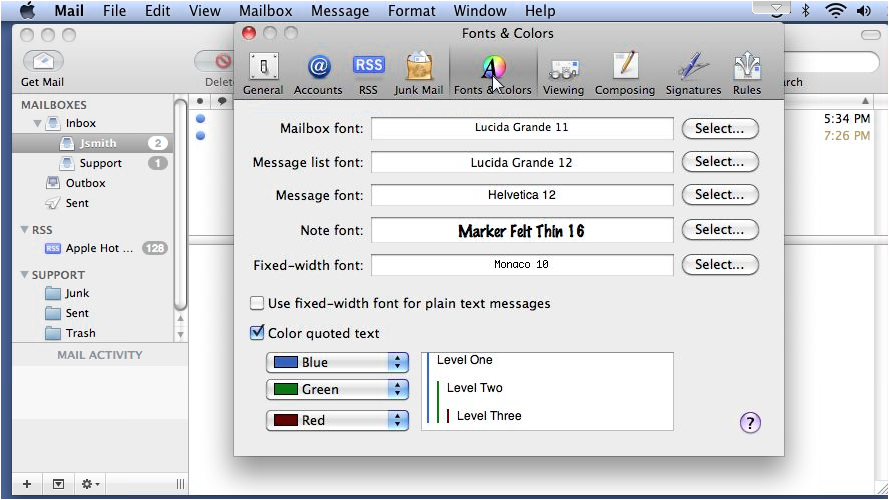
Fonts and colours tab
The Fonts & Colors tab lets you set the typeface and colour used for mailbox lists, message text, notes, and more.
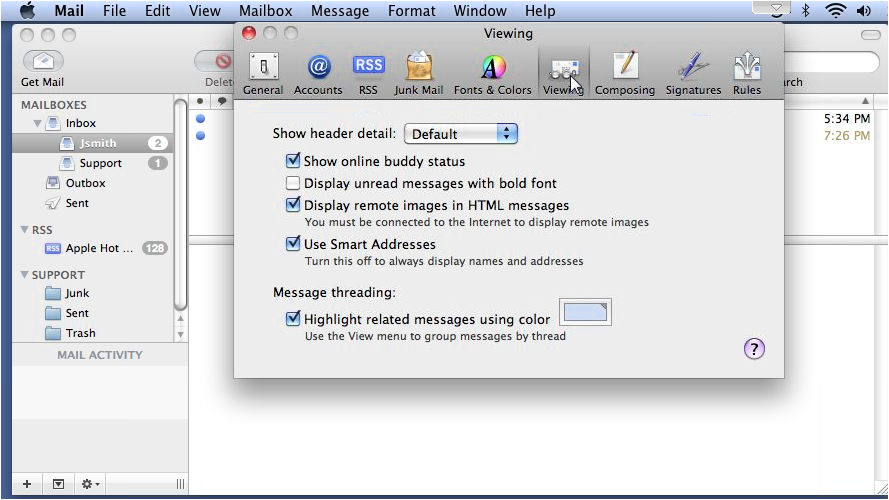
Viewing tab
The Viewing tab controls how messages are displayed, including the level of header detail shown and whether messages are grouped into threads.
Composing tab
The composing settings let you change the spell checker language, automatically send yourself a copy of outgoing messages, and configure address auto-completion behaviour.
In some versions of Apple Mail, composing options appear on the Viewing tab rather than a separate tab.
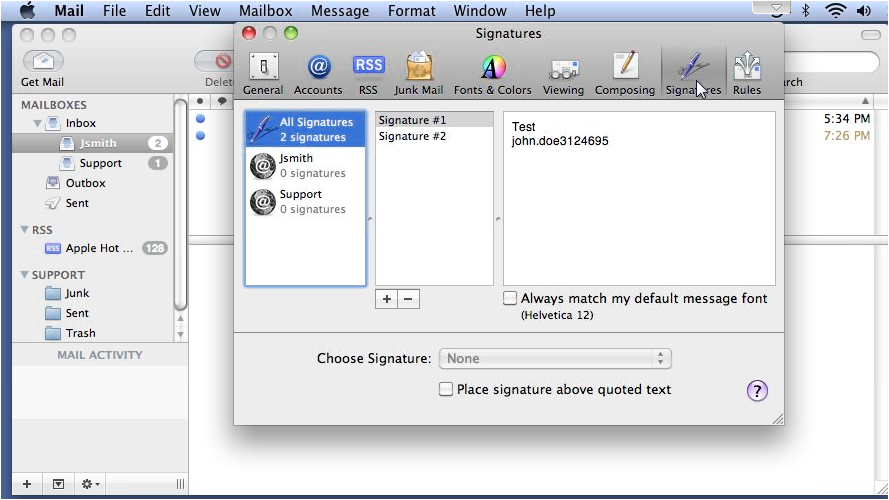
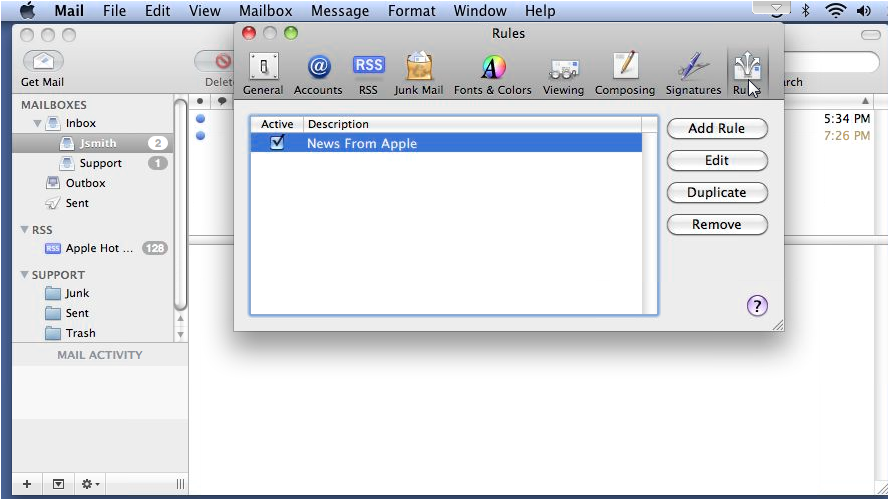
Signatures and rules
The Signatures and Rules tabs are covered in detail in separate articles in this series.
- Signatures - create one or more signatures to append automatically to outgoing messages.
- Rules - set up filters to sort incoming mail into folders automatically.