
On this page
How to change your email password on your iPad
Update your email account password on your iPad in a few quick steps through the Settings app.
If you have changed your email password in cPanel, you will need to update it on your iPad too, otherwise your mail will stop sending and receiving.
Steps to update your email password
-
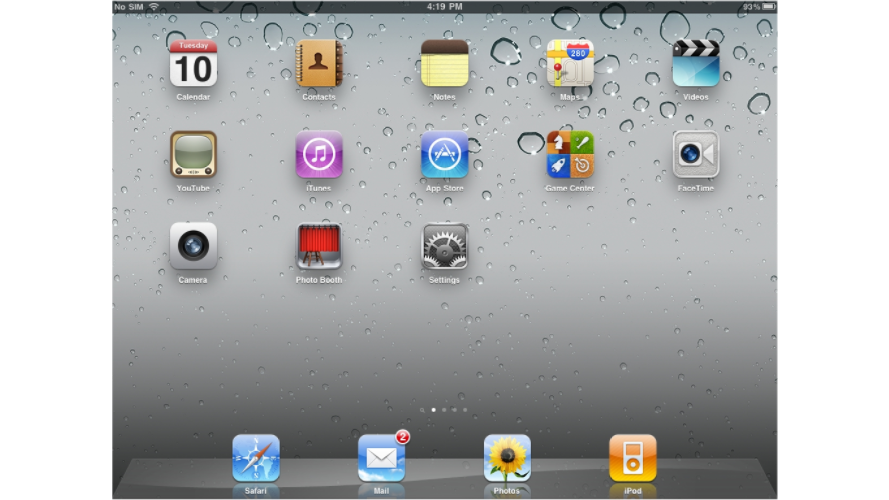
Open the Settings app on your iPad. The icon may be on a different screen or in a different location than shown in the screenshots below.
-
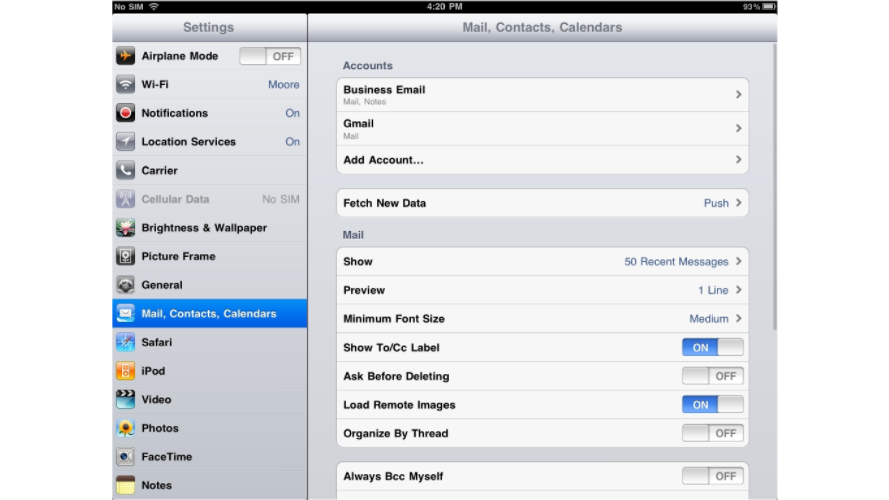
Scroll down and tap Mail, then tap Accounts.
-
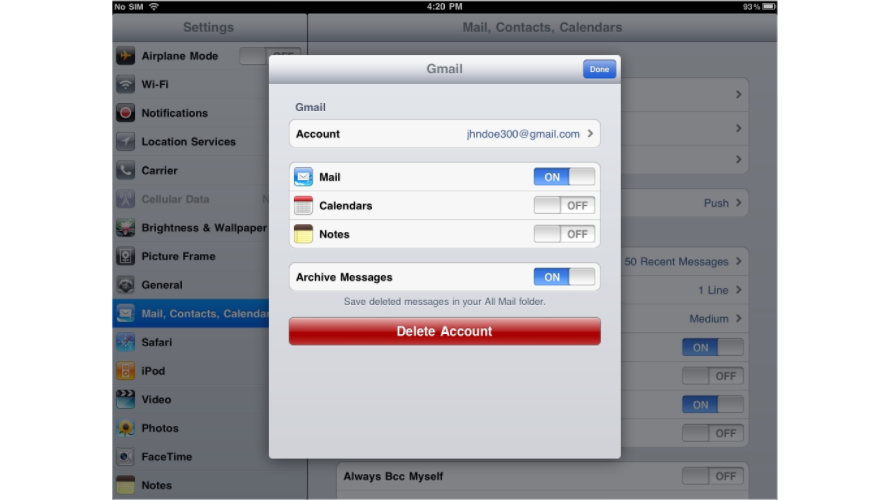
Tap the email account you want to update.
-
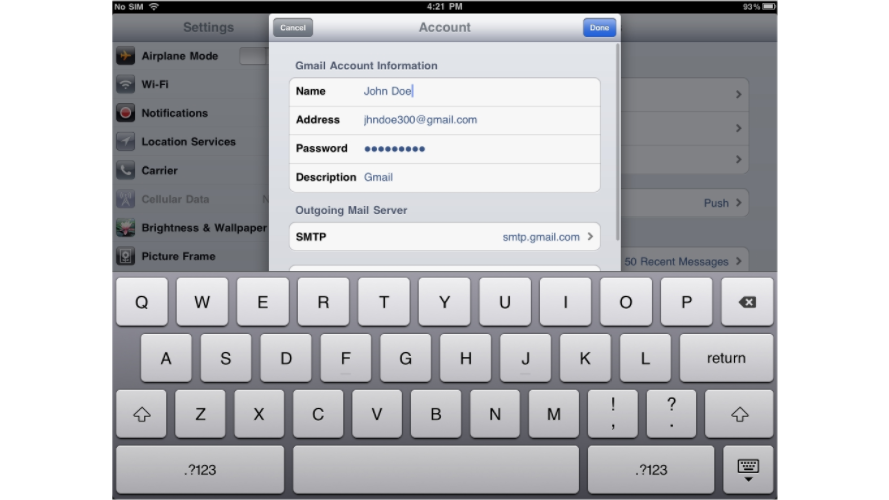
Tap the Password field and enter your new password.
-
Tap Done to save the changes.
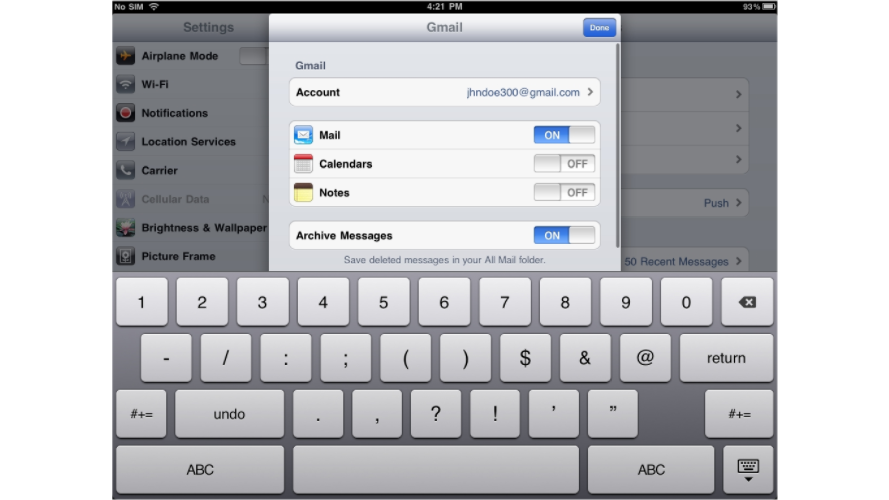
Your iPad will verify the new password with the mail server. Once confirmed, your account will continue to send and receive mail as normal.
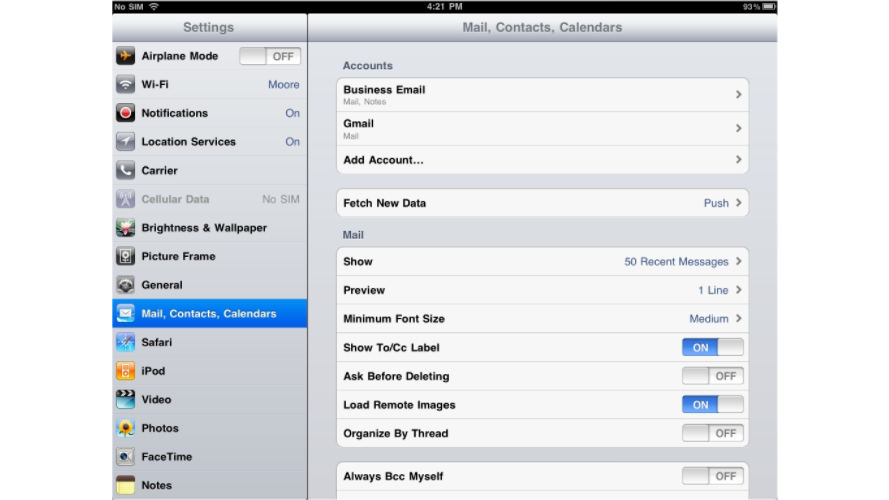
If the password is not accepted, double-check that you have changed it correctly in cPanel first, then repeat these steps.