
On this page
Setting up a Zimbra Exchange email address in Mac Mail
Connect your Zimbra Exchange-compatible email account to Mac Mail in a few straightforward steps.
This guide covers how to connect a Zimbra Exchange-compatible email account to Mac Mail. Exchange-compatible accounts are available on the Professional plan and higher.
Before you start, make sure you have:
- Your full email address
- Your email password
Adding the account
-
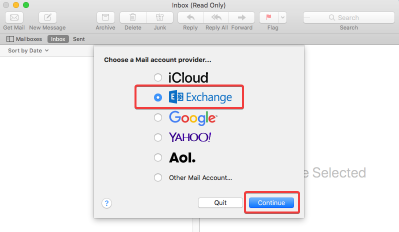
Open Mac Mail, select Exchange as the account type, then click Continue.
-
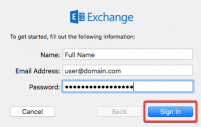
Enter your full name (as you want it to appear in the From field), your email address, and your password, then click Sign in.
-
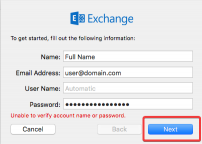
If you see a message saying "Unable to verify account name or password", click Next to continue and enter the server details manually.
-
On the next screen, enter
webmail.kualo.comin both the Internal URL and External URL fields, then click Sign in.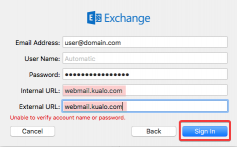
-
You will be prompted to choose which apps you want to use with this account. Select your preferences, then click Done.
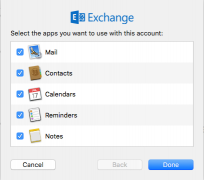
Your Zimbra account is now connected to Mac Mail.