
On this page
How to create an email account in cPanel
Create as many email accounts as your hosting plan allows directly from cPanel, set sensible storage quotas, and keep your mailbox usage under control from the start.
You can create as many email accounts as your hosting plan allows directly from cPanel. Once created, you can access your mail via webmail or configure any email client using your connection settings.
Create an email account
-
Log in to cPanel and click the Email Accounts icon (in the Email section).
-
Click Create to add a new email account.
-
Select your domain from the drop-down (if you have more than one), then enter the username and a strong password. Make a note of these details - you will need them to configure your email client.
-
Expand Optional Settings to set a mailbox quota, enable plus addressing, or send yourself a welcome email with the account credentials.
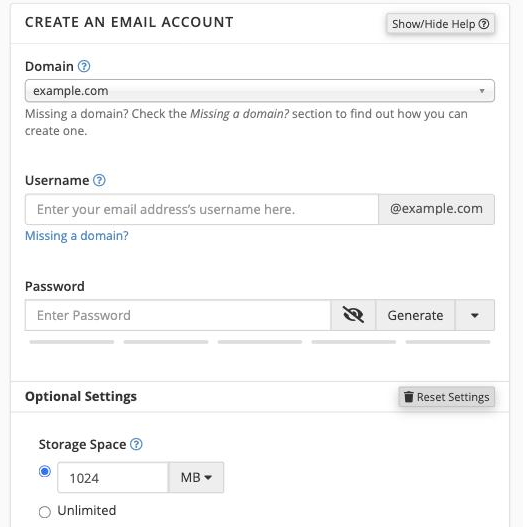
-
Click Create to save the account.
Your new email address is now active. You can access webmail straight away, or follow our guide to finding your email client connection settings to set it up on your device.
Setting a sensible mailbox quota
When you create an account, cPanel offers the option to set a quota. Every mailbox on your account draws from the same shared disk allocation, so a single inbox left uncapped can quietly consume storage that your website files, databases, and other mailboxes all depend on.
How to choose a quota
A practical approach is to divide your plan's total disk space between the things that need it:
- Work out roughly how many mailboxes you need now and how many you are likely to add later.
- Reserve a comfortable portion of your disk for website files and databases.
- Split what remains between your mailboxes, giving heavier users (for example, a shared team inbox) a larger share.
As a rough guide, 500 MB to 2 GB per mailbox is reasonable for most small-business accounts. A busy shared inbox used by several people may need more; a low-traffic contact address may need far less.
If you are unsure, start conservatively - you can always increase a quota later from the Email Accounts section of cPanel. It is much harder to recover disk space once it has been filled with accumulated mail.
What happens when a mailbox reaches its quota
Once a mailbox hits its limit, incoming messages are bounced back to the sender with a "mailbox full" error. The account holder can no longer send mail either until space is freed up. Setting a per-mailbox limit means this affects only that one account rather than your entire hosting plan.
For a full explanation of how quotas work and what the bounce messages look like, see our dedicated guide: Email storage quotas: what they are and how to manage them.
Managing email disk usage
Even with sensible quotas in place, mailboxes can grow quickly - particularly if users receive large attachments or never delete old messages. It is worth building a few habits from the start to avoid storage problems later.
Keep on top of what is using space
cPanel includes two tools that make it straightforward to see where your email storage is going:
- Email Disk Usage - shows a breakdown of storage by mailbox and by folder (Inbox, Sent, Trash, and so on), and lets you delete messages in bulk directly from the browser. See our guide: How to use the Email Disk Usage tool in cPanel.
- Disk Usage - shows overall account disk usage across files, databases, and email combined. See our guide: How to use the Disk Usage tool in cPanel.
Practical tips for keeping email lean
- Empty Trash and Spam regularly. Deleted messages and spam sit in their folders and count against your quota until you empty them.
- Avoid storing large attachments long-term. Save important attachments to your computer or cloud storage, then delete the original message.
- Use IMAP rather than POP. IMAP keeps messages on the server and in sync across devices, making it easier to manage and delete mail from any device. POP downloads messages locally, which can lead to duplicates and orphaned server copies.
- Review your Sent folder. Sent messages - especially those with attachments - accumulate quickly and are easy to overlook.
- Set a quota on every new mailbox. Make it a habit each time you create an account, not just when storage becomes a problem.