
On this page
How to set up an IMAP email account on your iPad
Follow these steps to add your Kualo IMAP email account to the Mail app on your iPad.
Follow these steps to add your Kualo IMAP email account to the Mail app on your iPad. You will need your email address, password, and mail server details to hand before you start.
Your incoming and outgoing mail server hostname is typically mail.yourdomain.com. You can confirm your exact settings in cPanel under Email Accounts.
Add the account
-
Open the Settings app on your iPad.
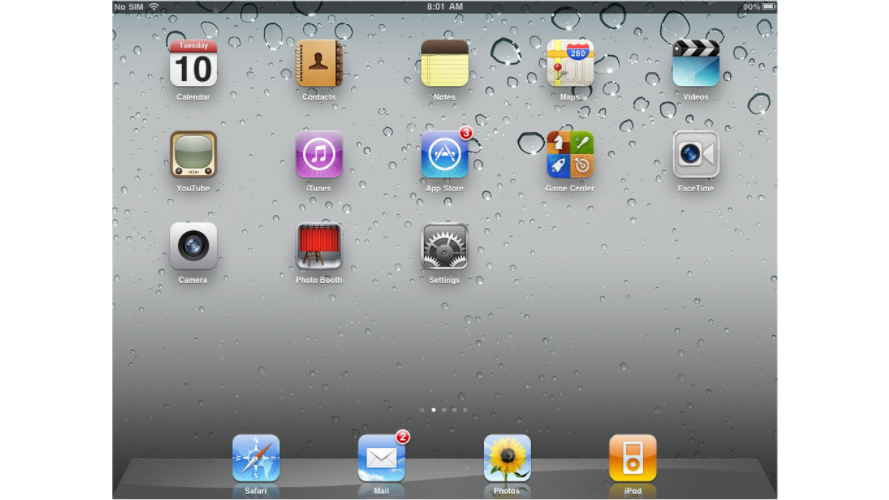
-
Go to Mail, then tap Accounts, then tap Add Account.
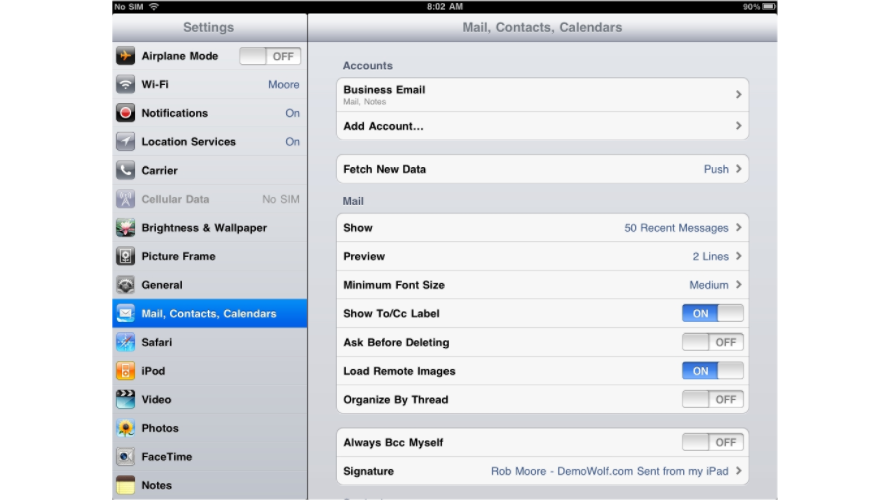
-
Tap Other.
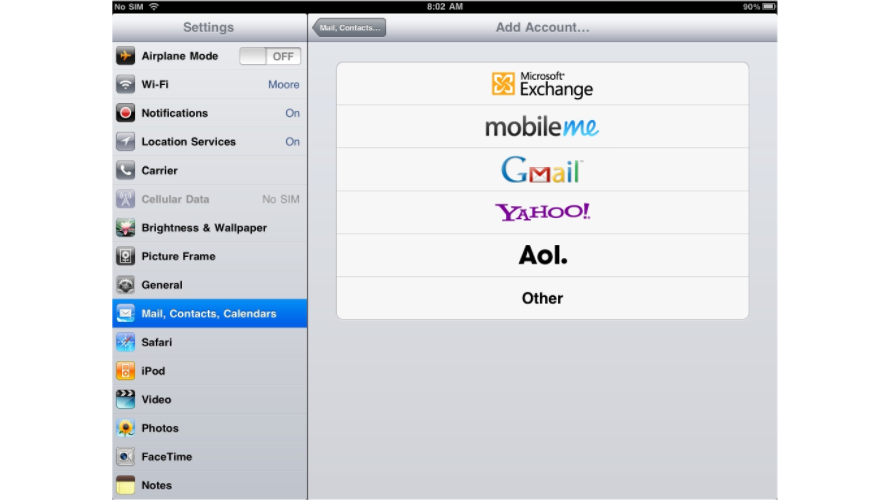
-
Tap Add Mail Account.
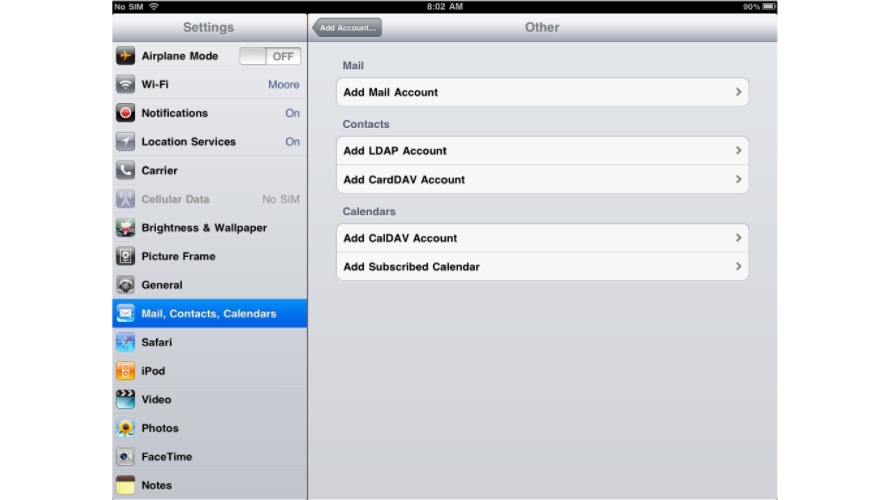
-
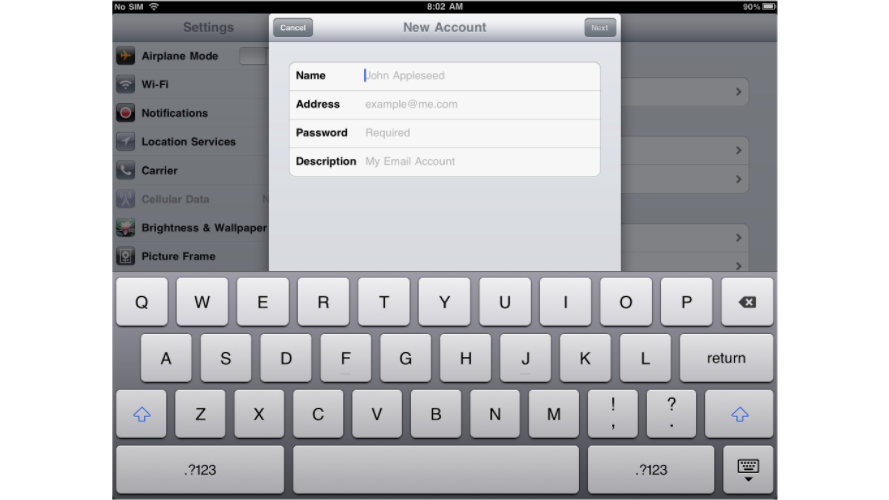
Enter your Name, Email address, Password, and a Description (the description fills in automatically but you can change it). Tap Next.

Enter server settings
-
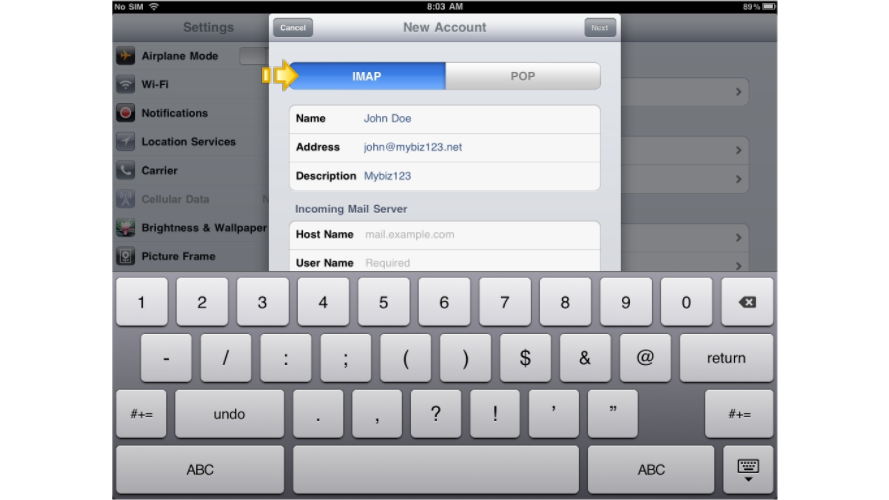
Make sure IMAP is selected at the top of the screen.
-
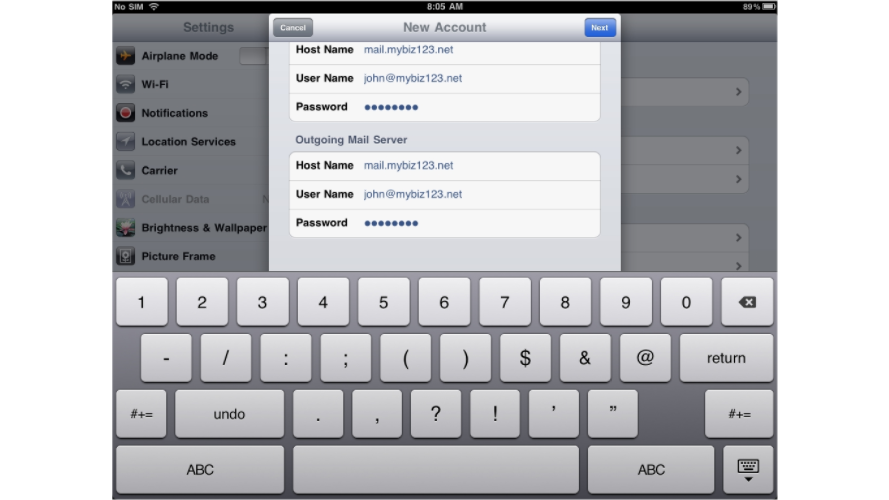
Under Incoming Mail Server, enter:
- Host Name - your mail server hostname (e.g.
mail.yourdomain.com) - User Name - your full email address
- Password - your email password
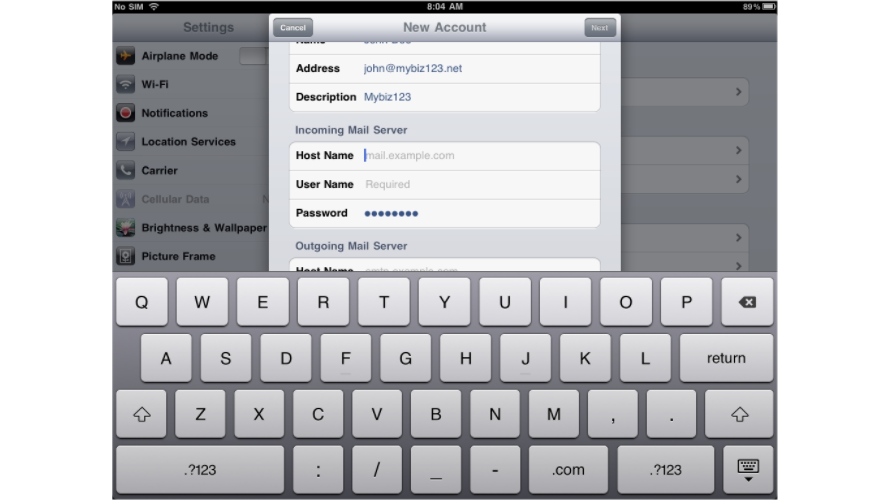
- Host Name - your mail server hostname (e.g.
-
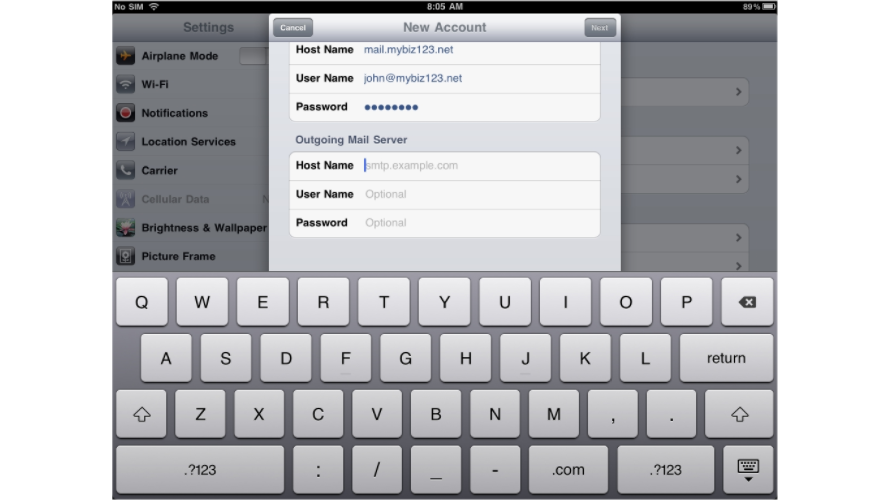
Under Outgoing Mail Server, enter the same hostname, username, and password.
-
Tap Next.
-
Tap Save.
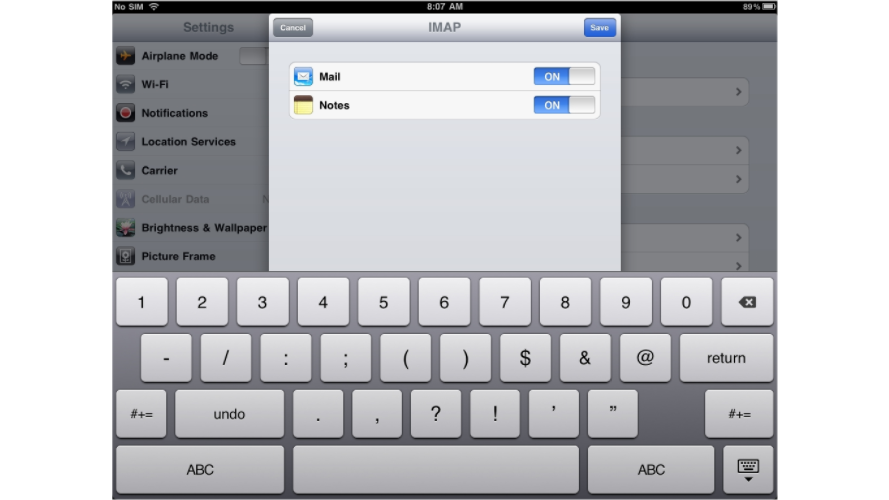
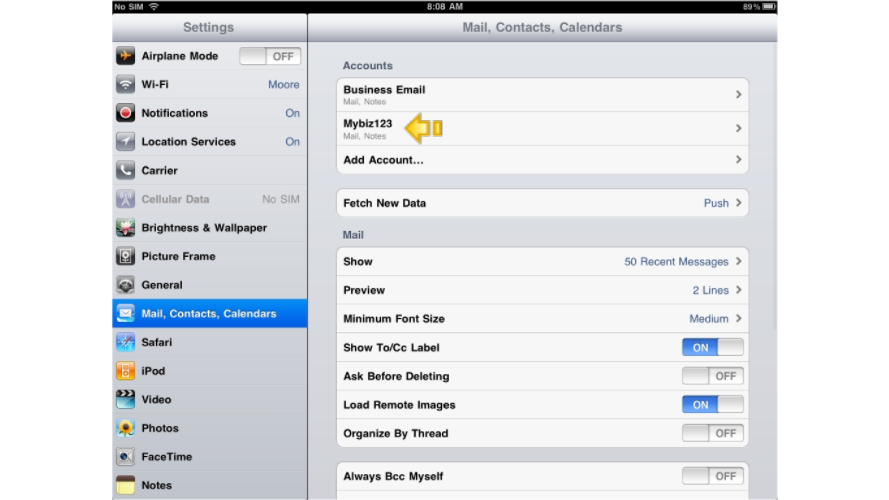
Your account will now appear in the Accounts list.
Check your email
-
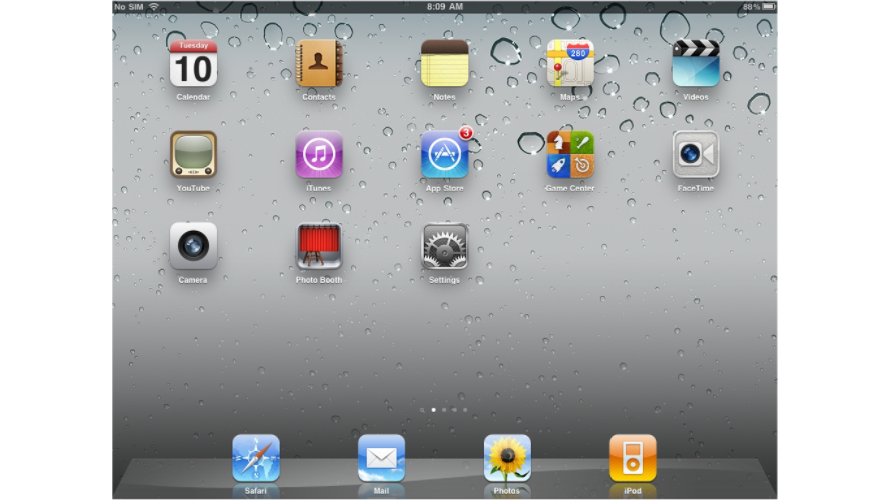
Return to the home screen and tap the Mail app.
-
If you have more than one account set up, all accounts are listed here. Tap the account you just added to view your inbox.
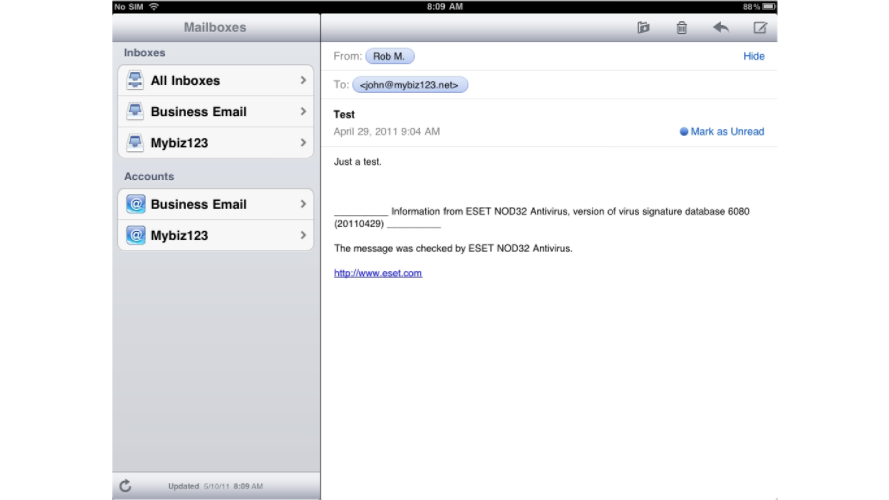
Your IMAP email account is now set up and ready to use on your iPad.